Appearance
Users and roles
You manage who can use FrameworkOps in Cloud, under Settings > Users: invite people, change their roles, suspend, reactivate and remove members. Orchestrators take their users and roles from Cloud; there is no separate user list to maintain at an orchestrator.
Who can do what
| Role | On Settings > Users |
|---|---|
| Organization Admin | Invite people, extend and revoke invitations, change roles, suspend, reactivate and remove members |
| All other roles | See the members and invitations. The page says "Only an Organization Admin of this organization can invite people or change members." |
Nobody can change their own membership: "You can't change your own access here. Ask another Organization Admin to change your access."
Before you change anything: recent sign-in
Cloud accepts changes to users only within 15 minutes of a sign-in. When your sign-in is older, the dialog first shows Sign in again to manage users: "Cloud accepts changes to users only within 15 minutes of a sign-in. Sign in again through your identity provider; you return to Settings > Users and what you entered is kept."
- Select Sign in again.
- Complete the sign-in at your identity provider.
- Back on Settings > Users, the dialog opens again with what you entered. Finish the change.
Cloud may also require multi-factor authentication for administrators. See Settings.
The Users tab
Open Settings in the Cloud sidebar and select the Users tab.
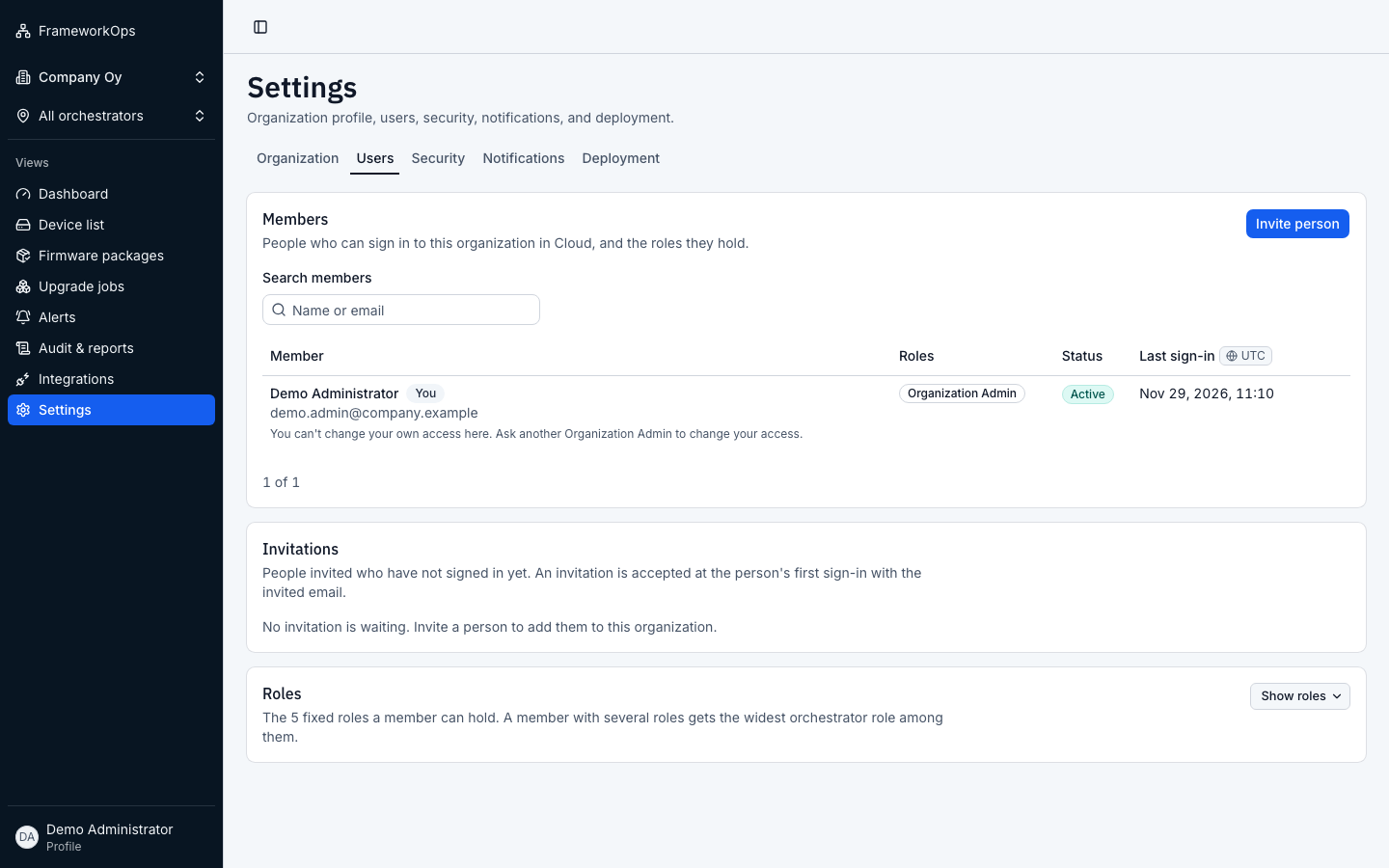
Members
"People who can sign in to this organization in Cloud, and the roles they hold."
| Column | Content |
|---|---|
| Member | Name and email. Your own row has the badge You |
| Roles | The roles the member holds, or No roles |
| Status | Active or Suspended |
| Last sign-in | When they last signed in, or Not signed in yet. The header names the time zone |
| Actions | Change roles, Suspend or Reactivate, Remove from organization |
Use Search members (name or email) to find someone. Clear search shows everyone again. With very many members, the list says "Showing the first ... of .... Narrow the list with the search."
Invitations
"People invited who have not signed in yet. An invitation is accepted at the person's first sign-in with the invited email."
| Column | Content |
|---|---|
| Person | Name and email |
| Roles | The roles they get when they join |
| Invited by | Who created the invitation |
| Expires | When the invitation stops working |
| State | Pending, Expired, Accepted or Revoked |
| Closed | When it was accepted or revoked (shown with closed invitations) |
| Actions | Extend, Revoke (for pending and expired invitations) |
| State | Meaning |
|---|---|
| Pending | Waiting for the person's first sign-in |
| Expired | Not accepted within 7 days. Can be extended |
| Accepted | The person signed in and joined |
| Revoked | Withdrawn. Can no longer be used |
By default only open invitations are listed. Select Show accepted and revoked to see the whole history. Use Search invitations and Sort by (Newest first, Expires soonest, Email).
Roles reference
Select Show roles to see the five fixed roles, what each is for and what it gives at orchestrators. "A member with several roles gets the widest orchestrator role among them." See Roles for the full tables.
Invite a person
Cloud sends no e-mail. You tell the person yourself, and they join the first time they sign in with the invited address.
- Select Invite person.
- Enter the Email (required): the address their identity provider reports as verified. Capital letters are stored in lower case; the field shows "Will be saved as ..." when that changes it.
- Enter the Display name (required). It is shown in member lists and in the audit log.
- Under Roles (required), select one or more roles. Each role shows its purpose and what it gives at orchestrators. A line sums up the selection, for example "15 Cloud permissions. At orchestrators: network operator." Permissions lists them in words.
- Read the notice Cloud sends no e-mail. Select Copy address to copy the Sign-in address.
- Select Create invitation.
The message "Invitation created for ..." says "No e-mail was sent. Ask them to sign in at ... within 7 days." Send the person the sign-in address. They sign in through your organization's identity provider, with the invited email verified there. Their invitation then shows as Accepted and they appear under Members.
TIP
If the person signs in with another address than the invited one, the invitation is not used. Check that the invited email is exactly the verified address at the identity provider.
Extend an invitation
- Under Invitations, select Extend on the invitation.
- Read the dialog. A pending invitation then lasts 7 days from now instead of its current end. An expired one "becomes valid again for 7 days from now."
- Select Extend invitation.
"It can be accepted until ..." confirms the new end. Cloud sends no e-mail, so tell the person.
Revoke an invitation
- Under Invitations, select Revoke on the invitation.
- Select Revoke invitation.
The person can no longer join with this invitation. You can invite them again afterwards. To change the roles of a waiting invitation, revoke it and invite again.
Change a member's roles
- In the members list, open the member's actions and select Change roles.
- Select the new set of roles. "The roles you select replace the current ones. Roles are fixed; their permissions cannot be edited."
- Read any warning:
- This lowers access at orchestrators: "... goes from ... to .... Each orchestrator ends their sessions there when it receives the change."
- This changes access at orchestrators: check that this is the access you intend.
- This removes Organization Admin: they can no longer manage users, roles or organization settings.
- Select Save roles. It is available only when the set differs from the current one.
"Roles of ... changed. Now: .... Orchestrators follow at their next sync." For a suspended member, the new roles apply when they are reactivated.
Suspend a member
Suspend someone who must not sign in for a while. Nothing is deleted.
- Open the member's actions and select Suspend.
- Read What happens:
- Their Cloud sessions for this organization end now.
- Their access and their sessions at each orchestrator end when that orchestrator next syncs with Cloud.
- You can reactivate the member later; they sign in again at orchestrators.
- Enter a Reason (required). It is recorded in the audit log, on one line.
- Select Suspend member.
The member's status becomes Suspended.
Reactivate a member
- Open the suspended member's actions and select Reactivate.
- Read What happens: they can sign in to Cloud again at once, with the roles they had. Each orchestrator gives their access back when it next syncs with Cloud. Sessions that ended stay ended.
- Enter a Reason (required).
- Select Reactivate member.
Remove a member
Use this when a person leaves.
- Open the member's actions and select Remove from organization.
- Read What happens:
- Their roles here are removed and their Cloud sessions for this organization end now.
- Their access and sessions at each orchestrator end at that orchestrator's next sync.
- Their memberships in other organizations do not change.
- Past audit events keep their name, and the audit log records the roles they held.
- To bring them back, invite the same email again. They return with only the invited roles.
- Enter a Reason (required).
- Select Remove member.
When changes reach orchestrators
| Change | In Cloud | At orchestrators |
|---|---|---|
| Roles changed | At once | At the orchestrator's next sync with Cloud. Lowered access ends their sessions there |
| Suspended | Cloud sessions end at once | Access and sessions end at the next sync |
| Reactivated | Can sign in at once | Access returns at the next sync; they sign in again |
| Removed | Cloud sessions end at once | Access and sessions end at the next sync |
Sync between Cloud and an orchestrator runs through a browser connected to that orchestrator. See Orchestrator connection.
The last Organization Admin
An organization always keeps at least one active Organization Admin who has signed in. A change that would remove the last one is refused: "This change would leave the organization without an active Organization Admin who has signed in. First give that role to another member who has already signed in, then try again."
Messages
| Message | Meaning |
|---|---|
| "A member of this organization already has this email. ..." | Find them under Members; change their roles or reactivate them |
| "An invitation for this email is already waiting. Revoke it under Invitations first if you want to change it." | Revoke the old invitation first |
| "This person was already removed. The list now shows the current members." | Someone else removed them |
| "This invitation is no longer open. The list now shows the current invitations." | It was accepted, revoked or changed meanwhile |
| "Cloud requires multi-factor authentication for administrators, and this session has none. ..." | Sign out and sign in again with your second factor |
| "Cloud did not accept these values. Check each field and try again." | A field is not valid |
| "Cloud could not be reached, so nothing changed. ..." | Check the connection and retry |
| "Cloud could not complete the change, and nothing was saved. Try again in a moment." | Retry later |
| The lists could not be refreshed | What you see may be out of date. Select Refresh |
All user changes are recorded in the Cloud audit log, family Organization and groups. See Audit and reports.