Appearance
Integrations
An integration connects an orchestrator to an inventory source, NetBox or Infrahub, so the orchestrator can read its devices. You set up, test, edit and delete integrations at the orchestrator. Cloud shows each orchestrator's sources read-only.
Who can do what
| Where | Role | What you can do |
|---|---|---|
| Orchestrator | Orchestrator administrator, Integration administrator | See Integrations in the sidebar, add, edit, test, sync and delete integrations, read sync history |
| Orchestrator | Network operator, Auditor | No Integrations view. Source freshness shows on the Dashboard |
| Cloud | Any role that can open orchestrators | See Integrations in Cloud, with Open orchestrator on each row |
| Cloud | Roles without access at orchestrators (for example Change Approver alone) | No Integrations view |
Integrations are never changed in Cloud. No Cloud role can change them; an Organization Admin or an Integration Admin changes them at the orchestrator.
The Integrations view at an orchestrator
Open Integrations in the orchestrator's sidebar. The page lists the NetBox and Infrahub sources that keep this orchestrator's device inventory current.
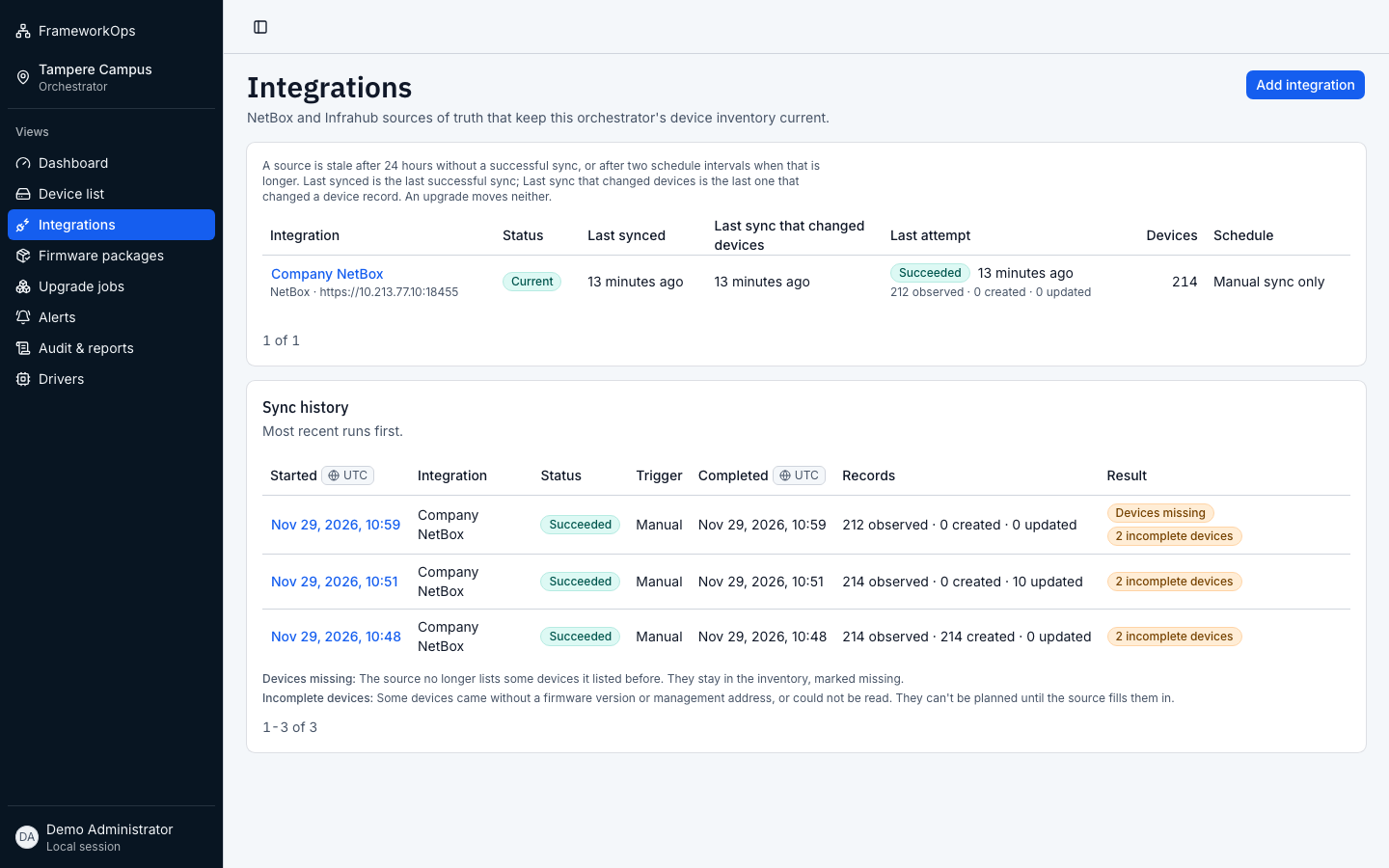
Above the table a note gives the freshness rule: a source is stale after 24 hours without a successful sync, or after two schedule intervals when that is longer. An upgrade does not change either time column.
| Column | What it shows |
|---|---|
| Integration | The name, which opens the integration, with the provider and endpoint URL under it |
| Status | The source's freshness, and the connection and credential state when they need attention (see below) |
| Last synced | The last successful sync, or Never |
| Last sync that changed devices | The last sync that changed a device record, or Nothing changed yet |
| Last attempt | The status of the latest run, its time, and observed · created · updated counts, or No sync has run yet |
| Devices | How many inventory devices come from this source |
| Schedule | The schedule (see Schedule values) and Next time, or Due since time when a scheduled run is late |
On a narrow screen the columns fold under the integration name.
When an enabled integration has a credential problem, is degraded, or its last sync failed, a notice above the table says 1 integration needs attention (or N integrations need attention) and names them: "Open the integration to fix its credential or review the failed sync. Devices from it stay as last observed."
Under the table, Sync history lists the latest runs of all integrations on this orchestrator, with an Integration column. See Inventory sync.
Status badges
The Status cell can hold up to three badges.
Freshness, shown while the integration is enabled:
| Badge | Meaning |
|---|---|
| Current | The last successful sync is within the freshness rule |
| Stale | No successful sync for longer than the rule allows |
| Last sync failed | The latest attempt failed |
| Never synchronized | No sync has succeeded yet |
Connection, shown when the integration is disabled or not Ready:
| Badge | Meaning |
|---|---|
| Ready | The connection works |
| Not tested | No connection test has succeeded yet |
| Disabled | The integration is turned off and does not sync |
| Degraded | The source worked before and now does not |
| Not connected | The source has never supplied a device and its last attempt failed |
| Suspended | The integration is suspended. An orchestrator owner must lift the suspension |
Credential, shown only when it is not configured:
| Badge | Meaning |
|---|---|
| Configured | An API token is stored (shown on the integration page) |
| Missing | No API token is stored |
| Suspended | The stored API token is suspended |
Schedule values
| Value | Meaning |
|---|---|
| Every N minutes | The source syncs on its own at this interval |
| Manual sync only | Scheduled sync is off. Use Sync now |
| Starts after a successful connection test | A schedule is saved, but it waits for the first successful Test connection |
| Paused while the integration is disabled | A schedule is saved, but the integration is turned off |
Add an integration
You need the source's https address and an API token that may read devices.
- At the orchestrator, open Integrations.
- If integrations already exist, select Add integration. With none, the Add integration form is already on the page under the empty notice No integrations yet.
- Under Connection, choose the Provider: NetBox or Infrahub.
- Enter Name (required), up to 120 characters.
- Enter Endpoint URL (required). Only https addresses are accepted.
- Paste the token into API token (required).
- Leave Integration enabled on, unless you want to save it turned off.
- Leave Verify TLS certificates on. Turn it off only while the source has no trusted certificate: the orchestrator then accepts any certificate the endpoint presents.
- Under Sync schedule, turn on Scheduled sync if the source should sync on its own, and set Sync every (minutes), from 5 to 1440. The default is 30. Off, the field says "Turn on Scheduled sync to set this."
- Select Create integration.
The integration page opens. Saving does not start a sync: the first scheduled sync runs after a connection test succeeds.
- Select Test connection, then Sync now. See Test the connection and Inventory sync.
While a field blocks the form, a reason stands beside the disabled Create integration button, for example "Enter the endpoint URL to continue." or "Fix Endpoint URL above." To leave the form, select Close form. If you typed anything, the product asks before discarding it.
Field rules and messages
| Field | Message | What to change |
|---|---|---|
| Endpoint URL | "Enter the endpoint URL." | The field is empty |
| "The endpoint must use https://." | Use an https address | |
| "Enter a complete URL without spaces, such as https://inventory.example.com." | The address is incomplete or has spaces | |
| "Remove the user name and password from the URL. The API token carries access." | Take credentials out of the address | |
| "Remove the # and what follows it from the URL." | Drop the fragment | |
| "Use a port from 1 to 65535, or leave the port out." | Fix the port | |
| "Shorten the host name: each part between dots may have at most 63 characters, and the whole name at most 253." | Shorten the host name | |
| "Check the host name: no part between dots may be empty or start or end with a hyphen." | Fix the host name | |
| "A loopback address points at the orchestrator itself. Use the source's own address." | Use the source's real address | |
| "This address is reserved or link-local, so it cannot be an inventory source." | Use a routable address | |
| API token | "Paste the API token." | The field is empty |
| "Enter an API token of 1–4096 characters without control characters." | The token is too long or has control characters | |
| Sync every (minutes) | "Enter a whole number of minutes from 5 to 1440." | Enter a whole number in range |
Token handling
The API token is stored on this orchestrator only. It is never shown again after you save it, in the form, on the integration page or in Cloud. If the orchestrator refuses a new integration for a reason other than the token, the token you typed stays in the form so you can correct the other field.
The integration page shows only whether a token is stored: API token with Configured, Missing or Suspended.
Replace the API token
Open the integration.
Under Credential, select Replace credential.
Paste the new token into API token (required).
Select Replace credential.
The notice says "API token replaced. The next sync uses it." The new token replaces the old one immediately.
Cancel closes the dialog. If you typed a token, the product asks before discarding it.
The integration page
Select an integration's name to open its page. The header shows the name, the provider, the status badges, Updated time and Configuration revision N. Sync now is in the header.
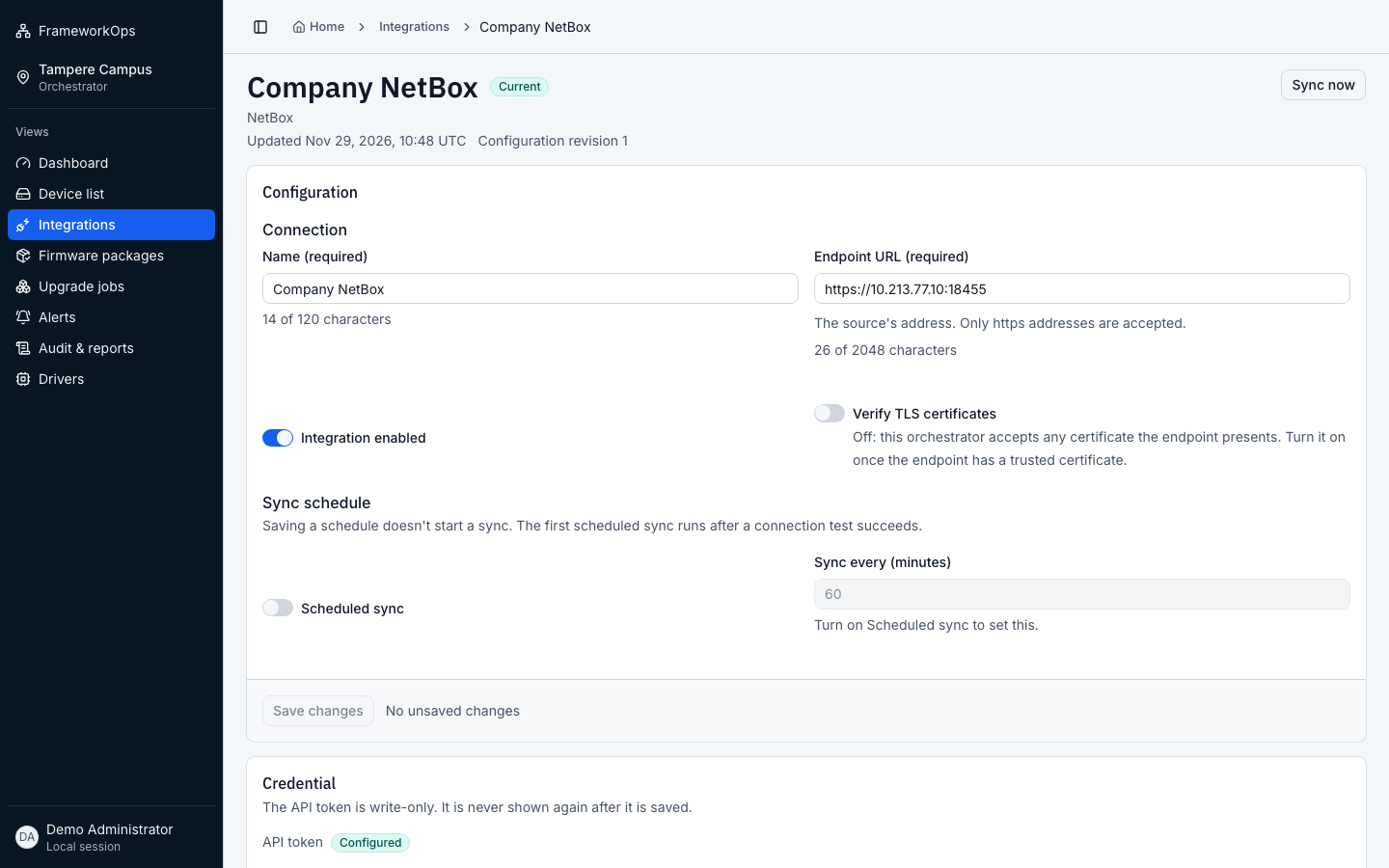
| Section | What it holds |
|---|---|
| Configuration | Name, endpoint, enabled, TLS and schedule, with Save changes |
| Credential | The token state, Replace credential and Test connection |
| Synchronization | Freshness, Last synced, Last sync that changed devices, Schedule, Last run, and how many hours make this source stale |
| Sync history | This integration's runs. See Inventory sync |
| Technical details | The Integration ID |
| Delete integration | Removes the integration, when allowed |
Test the connection
Test connection checks that this orchestrator can reach the saved endpoint and sign in with the saved token. It does not check inventory or field mapping.
Save any changes first. The test uses the saved configuration.
Under Credential, select Test connection.
The result shows under the button: Connection test succeeded. or Connection test failed: followed by the reason, and "Checked the saved configuration at" time. The reasons are listed in Inventory and integrations troubleshooting.
When test and sync are not possible, a notice Test and sync are unavailable gives the reason:
| Reason | What to do |
|---|---|
| "Enable the integration and save the configuration before testing the connection or starting a sync." | Turn on Integration enabled and select Save changes |
| "An orchestrator owner must lift the integration suspension before testing the connection or starting a sync." | Ask an orchestrator owner |
| "Replace the missing credential before testing the connection or starting a sync." | Use Replace credential |
| "Replace the suspended credential before testing the connection or starting a sync." | Use Replace credential |
Edit an integration
Open the integration.
Under Configuration, change Name, Endpoint URL, Integration enabled, Verify TLS certificates, Scheduled sync or Sync every (minutes).
Select Save changes.
The notice Changes saved appears.
The provider cannot be changed. To move to another provider, add a new integration. Discard changes puts the form back to what is saved. While nothing changed, the button is disabled and the form says No unsaved changes.
A suspended integration shows Integration suspended: name, endpoint, TLS and schedule can still be changed, but Integration enabled is locked until an orchestrator owner lifts the suspension.
If someone else changed the integration meanwhile, Integration changed says the latest version is loaded. Review it and save again.
Scope and mapping
The Integrations view has no setting for which devices a source supplies or how its fields map. A sync reads the devices the token may read. A run's Mapping digest is shown in its technical details for support use.
Disable an integration
Disable an integration to stop it syncing while keeping its devices.
- Open the integration.
- Turn off Integration enabled.
- Select Save changes.
The status shows Disabled, a saved schedule shows Paused while the integration is disabled, and Test connection and Sync now are unavailable. Its devices stay in the inventory as last observed. Turn the switch on again and save to resume.
Delete an integration
Deleting removes the connection, its stored API token and its sync history. It cannot be undone. The audit log keeps the record.
Open the integration.
Select Delete integration at the bottom of the page.
Enter Reason (required). It is recorded in the audit log.
Select Delete integration in the dialog.
The notice Integration deleted appears and the list opens.
The dialog offers no deletion when:
| Message | What to do |
|---|---|
| "1 device in the inventory comes from this integration, so it cannot be deleted. Disable it to stop syncing." (or N devices) | Disable it instead, or remove the devices from the source and sync first |
| "A sync is running. Wait for it to finish." | Wait, then try again |
If deletion fails, the dialog shows The integration was not deleted with the reason.
Device credentials
The Integrations view holds only the API token of the inventory source. The credentials a driver uses to log in to a device are managed on each device's page, under Readiness checks > Device credentials. See Device details.
Integrations in Cloud
Open Integrations in Cloud. The page says "Integrations are configured on each orchestrator": connections, their tokens and sync runs belong to the orchestrator that reads the source.
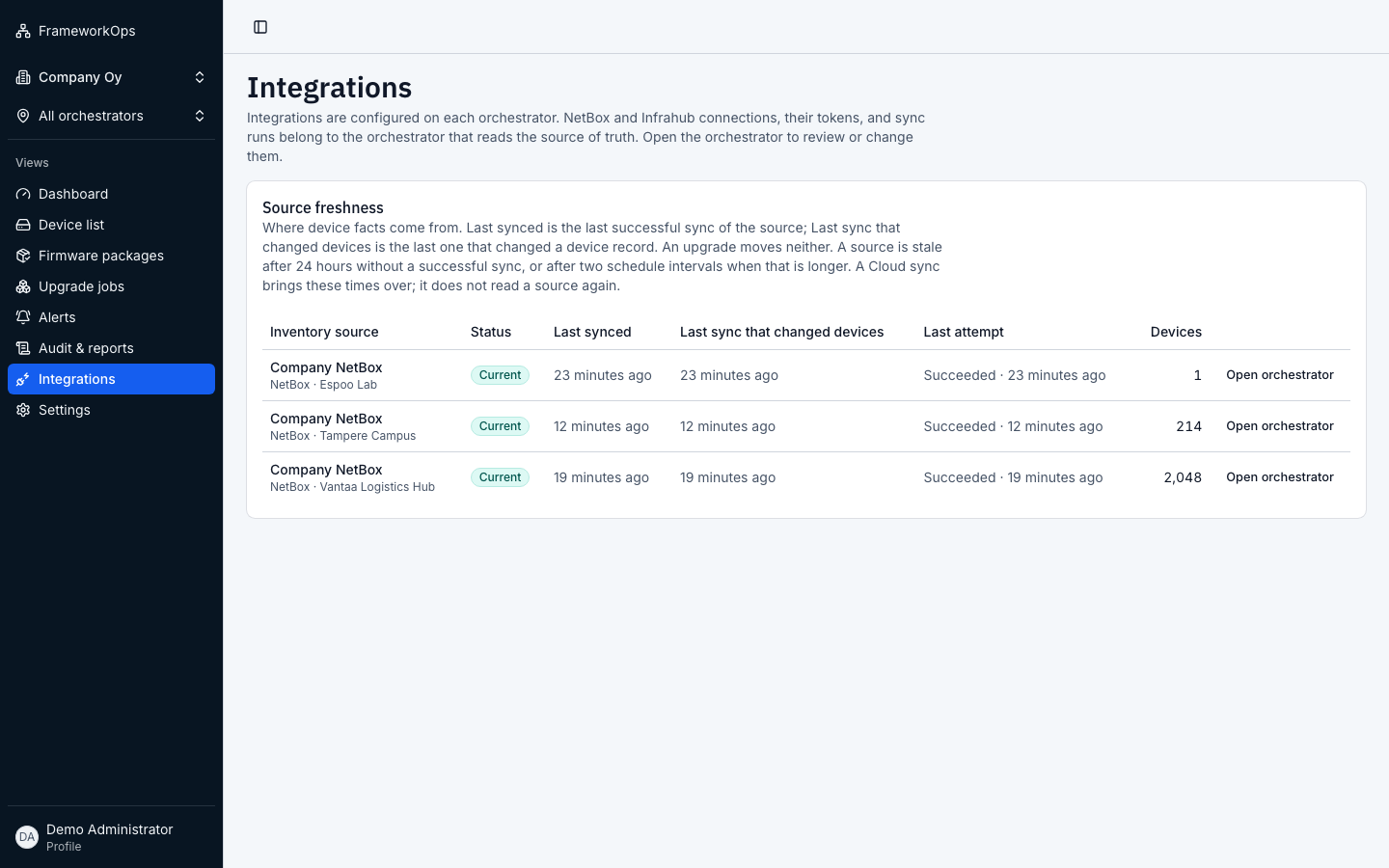
The Source freshness table lists each orchestrator's inventory sources as Cloud last received them.
| Column | What it shows |
|---|---|
| Inventory source | The source name, its provider and the orchestrator |
| Status | Current, Stale, Last sync failed or Never synchronized |
| Last synced | The last successful sync, or Never |
| Last sync that changed devices | Or Not reported |
| Last attempt | Succeeded, Failed or Cancelled, with its time, or Not reported |
| Devices | Devices from the source |
A Cloud sync brings these times over; it does not read a source again. To read the source again, open the orchestrator and use Sync now.
- Open orchestrator on a row opens that orchestrator's Integrations view in a new tab.
- Roles that cannot read sync data see the source names without status or times.
- With no sources yet, the table says No source freshness records.
To narrow the list to one orchestrator, choose it in Cloud's orchestrator scope.
If something goes wrong
See Inventory and integrations troubleshooting for connection test failures, sync failures, missing credentials and stale sources.