Appearance
Orchestrator connection
Orchestrator connection in Cloud connects your browser to one orchestrator. While the connection is open, your browser carries the sync between Cloud and that orchestrator. You also start passkey enrollment for an orchestrator here.
Before you start
| You want to | You need |
|---|---|
| Open the view and add a passkey | Cloud roles that give access at orchestrators (any role except Change Approver alone) |
| Connect this browser | Organization Admin, Network Admin or Integration Admin |
| Use Sync now | A role that can send sync changes (the same three roles) |
| Start full recovery | Organization Admin or Network Admin |
Your browser also needs:
- a current, managed Chrome;
- a trusted HTTPS certificate for the orchestrator's exact address;
- permission to open popups for the Cloud page;
- Local Network Access permission when Chrome asks for it;
- a passkey for the orchestrator (see Adding a passkey).
The page lists the same items under Connection prerequisites. Cloud does not contact the orchestrator's private address until you select Connect to orchestrator.
Opening the view
The view is not in the sidebar. Open it in one of these ways:
- On the Dashboard, in the Orchestrators card, select an orchestrator's name. This opens that orchestrator's connection details.
- Go to Settings > Deployment and select Open Orchestrator connection.
- In a view that needs an orchestrator connection, select Connect to orchestrator.
The list of orchestrators
Without an orchestrator chosen, the view lists every orchestrator of the organization by name.
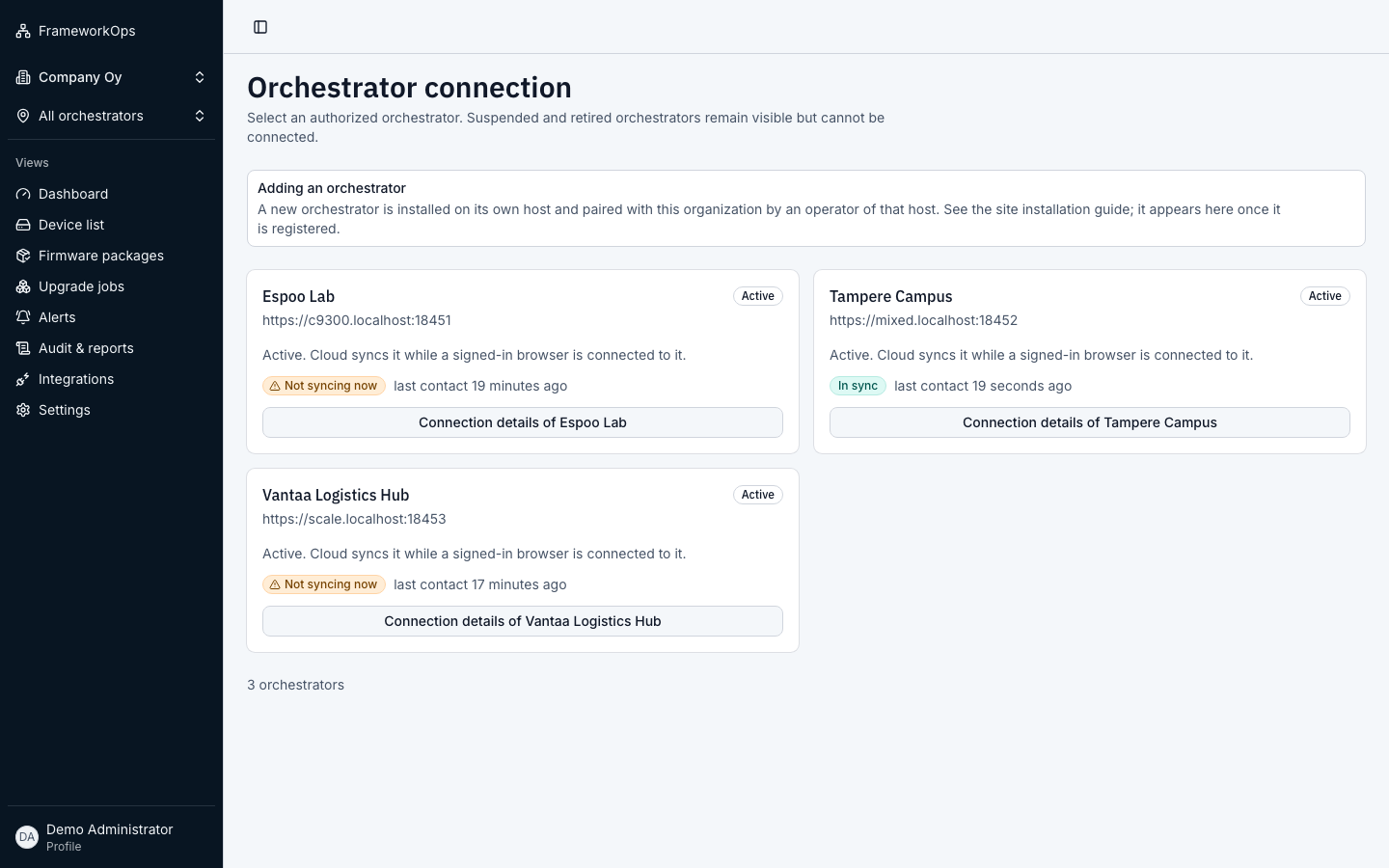
Each card shows the name, the exact address, a lifecycle badge, a line of guidance, the link to Cloud (In sync, Not syncing now or Needs attention, with "last contact time" or "no contact yet"), and the button Connection details of orchestrator.
| Lifecycle | Meaning | Can you connect? |
|---|---|---|
| Planned | Registered, not yet paired. Connecting this browser to it finishes its pairing. | Yes |
| Active | Paired. Cloud syncs it while a signed-in browser is connected to it. | Yes |
| Suspended | An organization administrator suspended it. | No, until it is restored |
| Retired | No longer in use. | No |
The notice Adding an orchestrator explains that a new orchestrator is installed on its own host and paired by an operator of that host; it appears here once it is registered. If the organization has none, the page says No authorized orchestrators.
With more than 100 orchestrators, use Previous page and Next page.
Connection details
The details page shows the Authorized orchestrator card:
| Field | Meaning |
|---|---|
| Orchestrator | Name |
| Exact origin | The address your browser connects to. Check it before you connect. |
| Orchestrator lifecycle | Planned, Active, Suspended or Retired |
| Browser connection | When connected: "Connected while this tab stays open, at most until time. Reloading or closing the tab ends the connection." |
| Authorized scopes | When connected, what this connection may do: Read orchestrator data, Send changes to the orchestrator, Recover synchronization, Review sync conflicts. They follow your roles. |
Connecting this browser
- Open the orchestrator's connection details.
- Select Connect to orchestrator. The status reads Connecting and a small window titled Connect this orchestrator opens at the orchestrator's address.
- If Chrome asks to allow access to devices on your local network, allow it.
- In the window, select Continue with passkey and confirm with your authenticator. The window shows Local authentication complete, then Creating short-lived connection, and closes by itself.
- Back on the Cloud page, the status shows the sync state and the Browser connection field shows until when the connection lasts.
While connecting, Cancel connection stops the attempt.
WARNING
The connection lives only in this tab. Reloading or closing the tab, signing out of Cloud, switching organization, choosing another orchestrator in the orchestrator menu, or opening another orchestrator's connection details ends it. The orchestrator keeps working; only the sync stops.
The connection renews itself while the page is open, up to the time shown. When it lapses, the status reads Connection paused: "The memory-only token expired. Durable backend progress is unchanged." Connect again to continue.
What the sync carries
| Direction | Carries |
|---|---|
| Orchestrator to Cloud | Inventory, device groups, job progress, upgrade outcomes and audit evidence |
| Cloud to orchestrator | Firmware catalog, approvals, policy and people |
A connected tab syncs every 30 seconds, also when it is in the background. A Cloud sync brings over what the orchestrator holds; it does not read NetBox or Infrahub again. To refresh the inventory itself, sync the source at the orchestrator (see Inventory sync).
Sync now
When connected, select Sync now to run one sync immediately. The button reads Syncing while it runs. The result appears below the buttons:
| Result | Meaning |
|---|---|
| "Changes delivered: n to Cloud, n to the orchestrator." | The sync moved changes. |
| "Already up to date: nothing had changed on either side." | Nothing to move. |
| "n changes are still waiting and go with the next sync." | Some changes wait for the next cycle. |
| "The sync stopped with the reason code. Nothing further was changed." | Titled "Sync with orchestrator failed". See Connection and Cloud sync. |
| "The sync ran, but its status could not be read." | The sync ran; check the status panel. |
On the Dashboard, Sync all does the same for the orchestrator this browser is connected to. See Dashboard.
Sync status
While connected, the status panel shows one of these states with the orchestrator's name.
| Status | Meaning |
|---|---|
| Sync status loaded | The orchestrator is connected to this browser. Sync runs only while this tab stays open and connected. |
| Syncing | One sync cycle is in progress. |
| Stale | The latest status is old. No data-loss claim has been made. |
| Conflict present | Sync can continue, but unresolved conflicts need review. |
| Sync error | Sync stopped safely, with the reason. |
| Gap detected | A sequence gap blocked sync before Cloud's copy was changed. Full recovery is offered. |
| Recovery required | Recovery confirmed by an operator is required. Full recovery is offered. |
| Synchronization status unavailable | The status has not loaded. The connection alone does not prove that Cloud's copy is current. |
When the browser is not connected, the panel shows the connection state instead:
| Status | Meaning |
|---|---|
| Not connected in this browser | This browser carries no sync. Cloud keeps its last copy and the orchestrator keeps running. |
| Connecting | The sign-in window is opening. The attempt has a time limit. |
| Local authentication required | Sign in with your passkey in the orchestrator window. |
| Local Network Access required | Chrome must allow Local Network Access for this orchestrator. Check the Chrome permission and the HTTPS certificate, then retry, or select Disconnect. |
| Connection paused | The connection lapsed. Connect again. |
| Connection failed | The attempt stopped safely; the sentence says why. See Connection and Cloud sync. |
Last synchronization error
When the sync reported an error, a card shows:
| Field | Meaning |
|---|---|
| Error code | The reason |
| Correlation ID | Give this to your administrator when you report the problem |
| Retryable | Yes or No |
| Cloud to orchestrator last success, Orchestrator to cloud last success | Times, or Not yet completed |
| Corrective action | Retryable: "Correct the reported condition, then retry synchronization." Not retryable: "Do not retry automatically. Review backend and audit records before an authorized recovery." |
Synchronization diagnostics
Shows each direction (Cloud to orchestrator, Orchestrator to cloud) as Up to date or Behind with how many changes wait, and Last success. It also shows Unresolved conflicts and Deletions kept for replay. Sync counters (under Show technical details) are for support.
Full recovery
When the status is Gap detected or Recovery required, the button Start full recovery appears.
- Select Start full recovery.
- Read Start full synchronization recovery?: a full resynchronization is requested, and the current copy in Cloud stays available until a complete, validated copy replaces it.
- Select Confirm full recovery, or Keep current replica to cancel.
The button is disabled with Recovery unavailable when:
- a sync is still running: "Wait for the current synchronization to finish before requesting full recovery.";
- your connection lacks recovery permission: "Connect to this orchestrator with recovery permission, or ask an orchestrator administrator to authorize recovery. The current replica remains readable."
Checking local access
When connected, Check local access confirms that your browser reaches the orchestrator's protected status. Protected local access reads Not checked, Checking local access, Reachable or Check failed.
- Local access confirmed: reachable. This does not start a sync.
- Local access check failed: not reachable. No sync was started.
Adding a passkey
On an Active orchestrator, Add a passkey at this orchestrator takes this tab to the orchestrator to register a passkey. It ends this tab's connection. See Adding a passkey.
Disconnecting
- Select Disconnect.
- Read Disconnect from orchestrator?: this browser stops carrying the sync. Cloud keeps its last copy and shows the orchestrator as Not syncing now until a browser connects again.
- Select Disconnect, or Stay connected to cancel.