Appearance
Signing in
You sign in to Cloud through your organization's identity provider, and to each orchestrator with a passkey registered for that orchestrator. This page covers both, how to add a passkey, and how to sign out and switch organization.
Signing in to Cloud
You need an invitation or an existing membership in the organization. Cloud has no password of its own: passwords, multi-factor authentication and passkeys for Cloud are managed by your organization's identity provider.
- Open your organization's Cloud address in the browser.
- If you are not signed in, the page shows Sign in with the text "Sign in through your organization's identity provider to continue where you were." Select Sign in.
- Complete the sign-in at your identity provider. Cloud opens the page you asked for. A plain address opens the Dashboard, or the first view your roles allow.
INFO
Administrators must complete multi-factor authentication at the identity provider when the organization's policy requires it. If you skip the second step, Cloud refuses the sign-in.
Accepting an invitation
Cloud sends no e-mail. An Organization Admin creates the invitation and tells you the Cloud address. The invitation lasts 7 days.
- Open the Cloud address you were given.
- Sign in at your identity provider with the email address you were invited with. That address must be verified at the identity provider.
- The invitation is accepted at this first sign-in. You join the organization with the roles the administrator chose.
If you are already signed in to Cloud and another organization invites you, a notice appears at the top of the page: "You have an invitation to join organization. Sign in again to join."
- Select Sign in again to sign in once more and join.
- Select Not now to hide the notice for now.
When Cloud refuses the sign-in
A refused sign-in shows a card titled Could not sign in with one sentence about why, and two buttons: Try again and Use another account. Use another account asks the identity provider for a new sign-in, so you can choose a different account. See Signing in problems for each sentence.
Signing in to an orchestrator
An orchestrator has its own sign-in. It does not use your Cloud session, and it works without a connection to Cloud. You need a passkey registered for that orchestrator. If you have none, add one first (next section).
- Open the orchestrator's address. From Cloud, use the open-in-new-tab icon next to the orchestrator on the Dashboard, or Open orchestrator on a Cloud page.
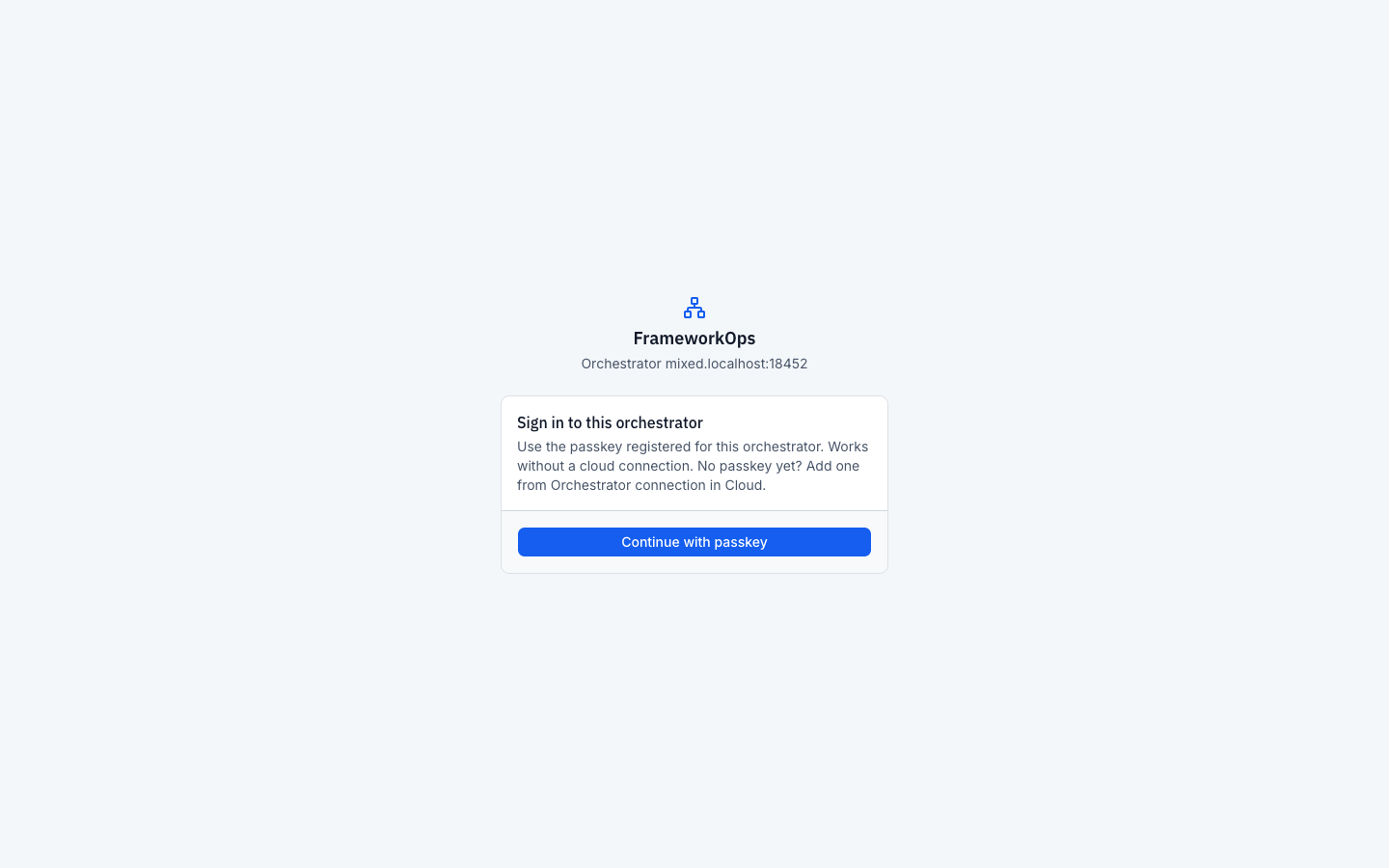
- The page Sign in to this orchestrator shows the orchestrator's address under the product name. Check that it is the orchestrator you meant.
- Select Continue with passkey. The button reads Signing in… while your browser asks for the passkey.
- Confirm with your authenticator (security key, phone, or the device's built-in passkey). The orchestrator opens on its Dashboard, or the first view your role allows.
After too many attempts, sign-in is locked for a short time ("Too many sign-in attempts"). Wait a few minutes and try again.
Adding a passkey for an orchestrator
You add a passkey from Cloud. The same steps add your first passkey or another authenticator.
Before you start: your Cloud roles must give you access at orchestrators. A Change Approver role alone does not. The orchestrator must be Active.
- In Cloud, open Orchestrator connection. Select Connection details of orchestrator for the orchestrator.
- Select Add a passkey at this orchestrator.
- The dialog Leave Cloud to add a passkey? says that this tab moves to the orchestrator and that the tab's connection to it ends. Select Continue to orchestrator. (Stay in Cloud closes the dialog.)
- The tab opens Add a passkey for this orchestrator at the orchestrator, with your name. Select Create passkey. The button reads Waiting for your authenticator….
- Create the passkey with your authenticator. Passkey added appears.
- Select Sign in to this orchestrator to sign in with the new passkey, or Back to Cloud to return to Orchestrator connection.
WARNING
An enrollment lasts five minutes and can be used once. If it expires, start again from Orchestrator connection in Cloud.
If you go back to Cloud, connect to the orchestrator again: leaving the tab ended the connection.
Signing out
Cloud
- Select your name at the bottom of the sidebar.
- Select Sign out.
- The dialog Sign out of Cloud? says that your Cloud session ends and that any orchestrator connection in this browser stops syncing. Select Sign out, or Stay signed in to cancel.
You can also sign out from Profile with the Sign out button at the top of the page.
After signing out, the page shows Your session is closed: "Sign in again to continue. Orchestrator connections of this browser have ended too." Select Sign in to sign in again.
To sign out other browsers, see Profile and security.
Orchestrator
- Select your name at the bottom of the sidebar.
- Select Sign out. The page shows Signing out of this orchestrator and then the sign-in page.
You can also sign out from Your account with the Sign out button.
If you have unsaved changes on the page, both surfaces first ask Discard unsaved changes?.
When your session ends
| Surface | What you see | What to do |
|---|---|---|
| Cloud | The page title with "Sign in through your organization's identity provider to continue where you were." and Sign in | Select Sign in. You return to the same page. |
| Cloud, with unsaved changes | "...to return to this page. Changes you had not saved there were not kept." | Sign in and enter the changes again. |
| Cloud, signed out from another browser | Your session has ended: "This session was signed out from another browser." | Select Sign in. |
| Orchestrator | Local session expired: "Use your passkey again to continue on this orchestrator." | Select Continue with passkey. |
Cloud also ends your session when an Organization Admin suspends or removes your membership. See Signing in problems.
While you work, the session renews itself. Cloud's Session timeout is shown under Settings. Profile > Security in Cloud and Your account at the orchestrator show when the current session expires.
Switching organization
If you belong to more than one organization, you switch in Cloud. Orchestrators belong to one organization, so there is nothing to switch there.
- Select the organization name at the top of the sidebar.
- Under Organizations, select the organization you want. A spinner shows while Cloud switches. A message confirms: "Now working in organization."
Switching ends your browser's orchestrator connection. If you switch in one tab, your other Cloud tabs follow and say "You switched to organization in another tab. This page now shows that organization."
Cloud opens your Default organization, the one you joined first, when you sign in. You see it in Profile; it cannot be changed.
If something goes wrong
See Signing in problems and Common messages.