Appearance
Upgrade jobs
The Upgrade jobs view lists every upgrade job: plans that are still being prepared, jobs that are scheduled or running, and jobs that have ended. Use it to find a job, see where it stands, and decide what to do next.
Jobs are created, checked, launched and controlled at an orchestrator. Cloud shows read-only copies of the jobs of every orchestrator in your organization.
The life of an upgrade job
An upgrade job goes through the same stages every time.
mermaid
flowchart LR
  A[Plan saved] --> B[Pre-checks run]
  B -->|blockers| C[Fix or remove devices]
  C --> B
  B -->|passed, or warnings acknowledged| D[Approve]
  D --> E[Launch]
  E --> F[Scheduled]
  F --> G[Running: Lab, Canary, Production]
G --> H[Ended]- You create a plan in the wizard: devices, firmware packages, strategy and schedule. See Planning an upgrade.
- You run pre-checks on the saved plan and deal with blockers and warnings. See Pre-checks.
- An operator with approval rights approves the plan, and an operator with launch rights launches it. Each step needs a passkey confirmation. See Scheduling and launching.
- The rollout waits for its planned start, then upgrades the devices wave by wave. See Monitoring a running job and Stops and rollback.
- The job ends, and its results stay in the list under History. See Results and reports.
Until it is launched, a job is a plan: you can edit it, run its pre-checks again or delete it. Once launched, its plan cannot change.
Upgrade jobs at an orchestrator
Open Upgrade jobs in the left navigation at the orchestrator. The page header says "Plan, check, and run firmware upgrades for devices at this orchestrator."
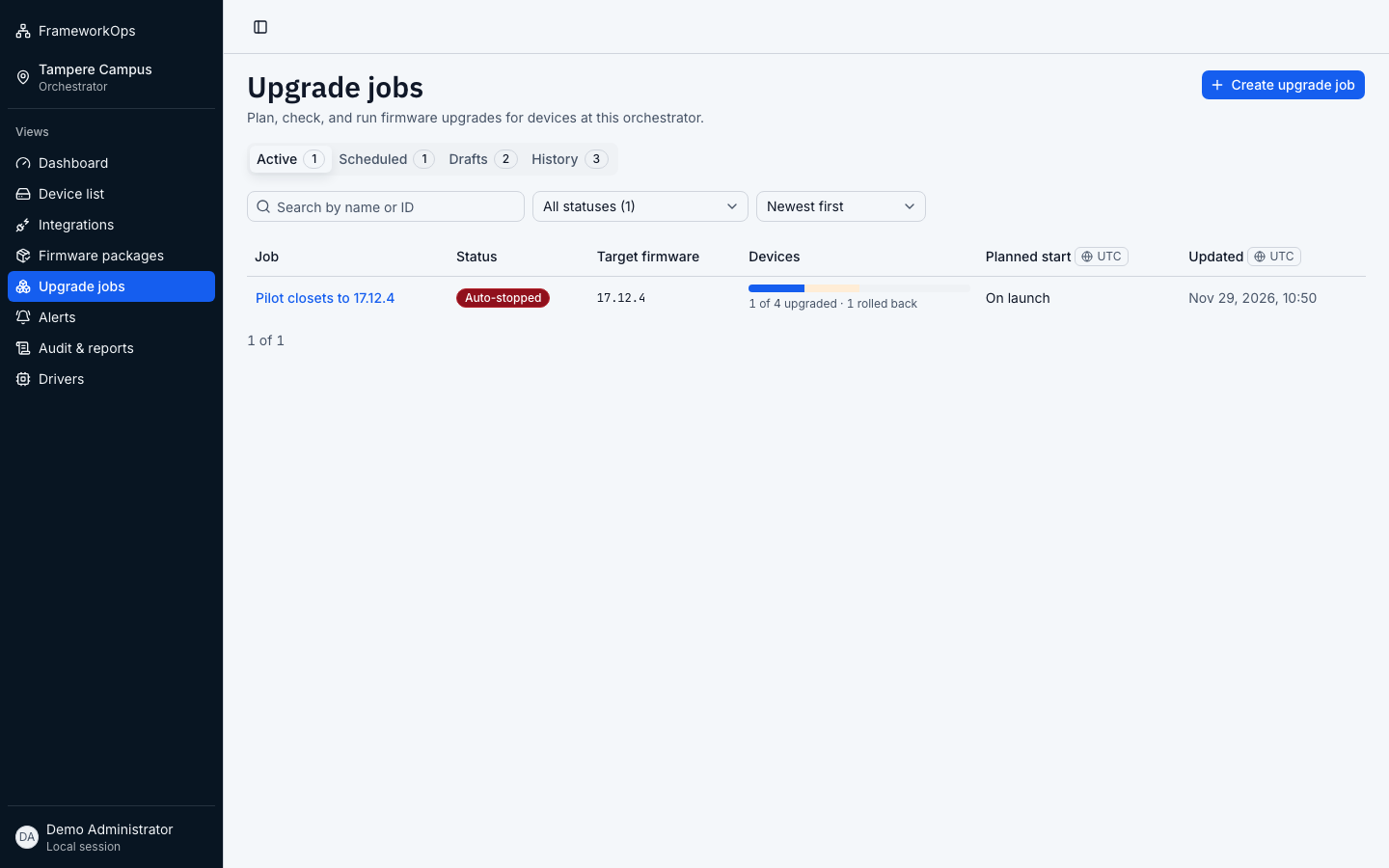
Tabs
The list is split into four tabs. Each tab shows how many jobs it holds. The page opens on the first tab that has jobs, in this order.
| Tab | What it holds |
|---|---|
| Active | Launched jobs that still have work or a decision open: running, pausing, paused, stopped, auto-stopped, waiting for a rollback decision, rolling back, cancelling, or needing reconciliation |
| Scheduled | Launched jobs that wait for their planned start, or are just starting |
| Drafts | Plans that have not been launched, whatever their pre-check state |
| History | Jobs that have ended, and jobs imported from an earlier system |
When you open the list from the Dashboard figure Awaiting launch, an extra Awaiting launch tab appears. It combines plans that are ready to launch and scheduled jobs, from the Drafts and Scheduled tabs: "Plans ready to launch and scheduled jobs, from the Drafts and Scheduled tabs."
Search, filter and sort
| Control | What it does |
|---|---|
| Search by name or ID | Keeps the jobs whose name or ID contains the text. The search covers every tab: each tab count shows how many of its jobs match. |
| Filter by status | Lists every status the current tab can hold, each with its count, also when the count is 0. All statuses (N) shows the whole tab. |
| Sort jobs | Newest first (default), Name A–Z, Planned start, Recently updated. Jobs that start right after launch have no planned start and sort after those that have one. |
| Clear all | Removes the search and the status filter. |
The tab, filter, search, sort and page are kept in the address, so Back from a job returns you to the same list, and you can share the link. The list shows 25 jobs per page.
Columns
| Column | What it shows |
|---|---|
| Job | The job name. Click it to open the job. A Simulation badge marks a job that contacts no device; an Imported badge marks a read-only record from an earlier system. When two jobs share a name, the row adds when the rollout started, for example "Rollout started …". |
| Status | The job's status. See Job statuses. |
| Target firmware | The firmware version or versions the job installs. A Downgrade badge marks a plan that moves devices to older firmware; Upgrade and downgrade marks a plan that does both. |
| Devices | Before launch, the number of devices in the plan. After launch, a bar and a count of upgraded devices, with failed and rolled-back devices named after it. |
| Planned start | The time the rollout is planned to start. On launch means the rollout starts right after launch. Start passed means a plan's planned time has gone by before it was launched. |
| Updated | When the job last changed. |
The time zone is named once in the column header, not on each row. On a narrow screen each job is one stacked row with the same facts.
Empty lists
| Message | Meaning |
|---|---|
| "No upgrade jobs yet" | This orchestrator has no jobs. Use Create upgrade job. |
| "No running, paused or stopped jobs." | The Active tab is empty. |
| "No scheduled jobs." | The Scheduled tab is empty. |
| "No drafts." | The Drafts tab is empty. |
| "No finished jobs yet." | The History tab is empty. |
| "No plan is ready to launch and no job is scheduled." | The Awaiting launch filter found nothing. |
| "No job in this tab matches. The tab counts show how many match in the others." | Your search or status filter left nothing in this tab. Check the counts on the other tabs. |
If the list cannot be read, "Upgrade jobs could not load" appears with Retry job list.
Creating a job
Select Create upgrade job in the page header to open the wizard. The button appears only when your role may create plans: Network operator or Orchestrator administrator. See Planning an upgrade.
The job page
Click a job name to open its page. The header shows the job name, its status, the number of devices and the target firmware. What is under the header depends on whether the job has been launched.
Before launch
A plan that has not been launched shows the five wizard steps: Scope, Firmware Package, Pre-checks, Strategy & Schedule and Review & Launch. The page opens on Pre-checks. A summary panel beside the steps lists the plan's name, scope, package, pre-checks, strategy, schedule, rollback mode and approval.
Above the steps, a notice names the one next thing to do. It matches the status:
| Notice title | What to do |
|---|---|
| Finish the plan | "Edit the plan and save it. Pre-checks can run once the plan is saved." |
| Run pre-checks to continue | "Run the required checks. They must pass before Review & Launch." Select Open pre-checks. |
| Pre-checks are running | Wait. The page updates by itself and counts the devices checked. |
| Resolve N blocking checks | "Fix the affected devices or edit the plan to exclude them, then run pre-checks again." |
| Devices are in another job | "The Pre-checks step names the job and the devices." |
| N devices are inside their commit windows | "Pre-checks block this plan until the window ends. The Pre-checks step names the device and the time." |
| Review and acknowledge warnings | "Warnings don't block the upgrade, but you must acknowledge them with a reason before Review & Launch." |
| Pre-check results are out of date / The plan is out of date | Open Edit plan, save it, then run pre-checks again. |
| The plan's package was revoked (or rejected, waits for approval again, can no longer be used) | Choose another package in Edit plan, get the package approved again, or delete the plan. |
| Ready to launch | "Pre-checks passed. Review the plan in Review & Launch, then approve and launch." |
| Approved | "This plan is approved. Launch it from Review & Launch when the change window allows." |
Header actions before launch:
| Action | Who | What it does |
|---|---|---|
| Edit plan | Network operator, Orchestrator administrator | Opens the wizard on the saved plan. Saving replaces the plan: an approval no longer applies and earlier pre-check results become out of date. See Editing a saved plan. |
| Delete draft | Network operator, Orchestrator administrator | Removes the plan. See Deleting a plan. |
The page also has a Technical details section with the job ID, job version, plan digest, pre-check run ID and maintenance window details, for support.
After launch
Once launched, the page shows four tabs instead of the steps: Execution, Plan, Pre-checks and Activity. The header shows the rollout controls (Pause rollout, Resume rollout, Cancel rollout and the rollback actions) for roles that may use them. See Monitoring a running job.
The Plan tab shows the frozen plan: the devices with their ring and driver, the packages with the devices each is assigned to, and the strategy and schedule. The Pre-checks tab shows the pre-check runs the job launched with. They no longer run: "The job launched with these results. Pre-checks no longer run for it."
Imported jobs
A job with the badge Imported · Read-only came from an earlier system. Its page says "These facts describe the original job. This record can't run upgrades and has no current plan, pre-checks, or rollout." It shows the facts preserved from the original job: state, phase, progress, devices, pre-check status and findings, rollout batches and waves, last updated and imported.
Job statuses
A job has one status, the same in the list, on the job page, on the Dashboard, on device and package pages, and in Cloud.
Before launch
| Status | Meaning | Next action |
|---|---|---|
| Draft | The plan was saved but not finalized, for example because a device has no running driver. | Open Edit plan, fix what the message names, and save. |
| Pre-checks required | The plan is saved; pre-checks have not run for it, or must run again. | Run pre-checks. |
| Pre-checks running | A pre-check run is under way. | Wait, or cancel the run. |
| Plan out of date | A device, package or driver of the plan changed after it was saved. | Open Edit plan, save it, then run pre-checks. |
| Blocked | Pre-checks found blockers, or the run could not finish. | Fix the devices, or remove them, and run pre-checks again. |
| Package revoked, Package rejected, Package not approved, Package not usable | A firmware package of the plan can no longer be used. The status names the cause. | Choose another package in Edit plan, get the package approved again, or delete the plan. |
| Blocked by a commit window | A device of the plan runs new firmware that has not been committed and its commit window is still open. | Wait for the window to end, or take the device out of the plan. |
| Blocked by another job | Another job that has not ended holds devices of this plan. | Wait for that job, act in it, or remove the devices from this plan. A plan both blocked by its checks and held by another job reads, for example, "Blocked: 1 failed check, 2 devices in another job". |
| Warnings to review | Pre-checks finished with warnings that have not been acknowledged. | Acknowledge the warnings with a reason. |
| Maintenance window needed | Pre-checks allow the plan, but its schedule names a maintenance window and none is recorded, or the recorded one has ended. | Record the maintenance window on the Pre-checks step. |
| Ready to launch | Pre-checks passed, or their warnings are acknowledged. | Approve and launch. |
Ready to launch and Maintenance window needed always say whether the plan is approved: Approved or Not approved yet. An approval counts for 24 hours. After that the plan reads Not approved yet again.
After launch
| Status | Meaning |
|---|---|
| Scheduled | Launched; the rollout waits for its planned start. |
| Starting | The planned start has passed; the first batch goes out shortly. |
| Running | Devices are being upgraded. |
| Pausing / Pausing (N devices finishing) | A pause was asked for; devices finish the step they are on. |
| Paused | The rollout is paused. |
| Stopped | A firmware package of the plan cannot be used, so the rollout cannot resume. |
| Auto-stopped | A batch reached an auto-stop threshold. |
| Rollback decision needed | A failed device waits for you to roll it back or close the job without rollback. |
| Rollback in progress | Devices are returning to their previous firmware. |
| Cancelling / Cancelling (N devices finishing) | A cancel was asked for; devices finish the step they are on. |
| Needs reconciliation | The orchestrator cannot confirm whether a start or commit happened. An operator must check the devices and the audit log. |
What to do in each of these states is in Monitoring a running job and Stops and rollback.
Ended
| Status | Meaning |
|---|---|
| Succeeded | Every device was upgraded. |
| Failed | The job ended with failed devices. |
| Partly rolled back | Some devices were rolled back. |
| Rolled back | The devices were rolled back. |
| Cancelled | An operator cancelled the job. |
| Not run | No firmware was staged in time, so nothing was upgraded. |
| Imported | A read-only record from an earlier system. |
See Results and reports for what an ended job shows.
Deleting a plan
You can delete a plan that has not been launched. You need the Network operator or Orchestrator administrator role.
- Open the job.
- Select Delete draft in the header.
- In the dialog "Delete {name}?", read what happens: "The plan for N devices and its pre-check results leave the orchestrator's lists. The audit log keeps what happened. This can't be undone."
- Type a reason under "Say why this draft is no longer needed."
- Select Delete draft. To stop, select Keep draft.
The list opens on the Drafts tab and a message confirms "Draft {name} deleted."
INFO
A launched job cannot be deleted. To stop a scheduled job, cancel it. See Changing or cancelling a scheduled job.
Jobs cannot be renamed on their own. The name is part of the plan: to change it, open Edit plan, change Job name on the Scope step and save the plan. Saving replaces the plan, so pre-checks must run again.
Upgrade jobs in Cloud
Open Upgrade jobs in Cloud to see the jobs of every orchestrator in one list. The page says "Upgrade jobs at every orchestrator, read-only in the cloud. Choose an orchestrator to see only its jobs." When you choose one orchestrator in the orchestrator selector, the list shows only its jobs: "Upgrade jobs at {orchestrator}, read-only in the cloud."
Cloud shows what each orchestrator has published in its last sync. The line "Read from Cloud {time}" says when the list was read; select Refresh jobs to read it again. Sync runs while a signed-in browser is connected to the orchestrator. See Orchestrator connection.
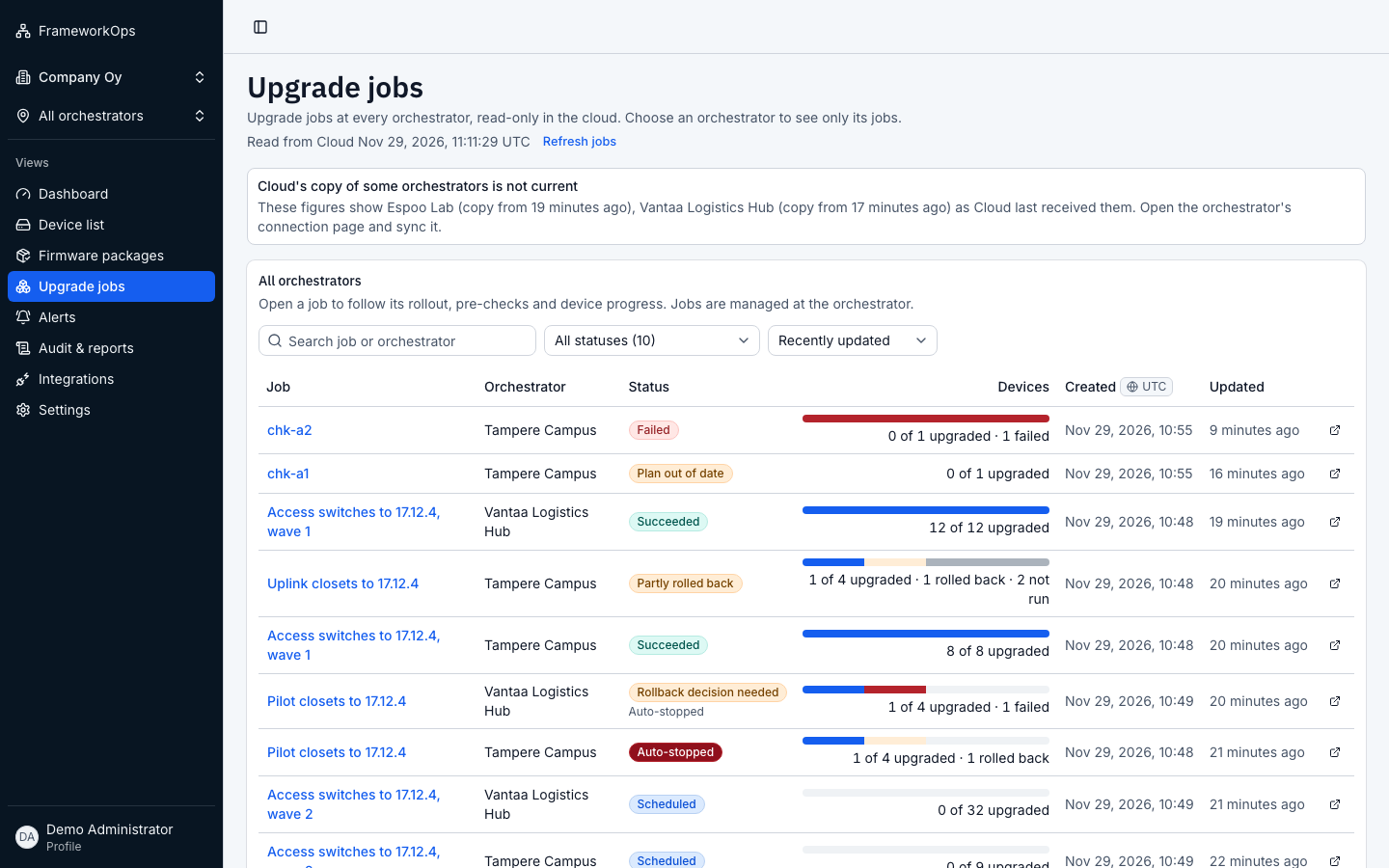
The Cloud list
| Control or column | What it shows |
|---|---|
| Search job or orchestrator | Keeps jobs whose name, ID or orchestrator name contains the text. |
| Filter by status | One status group at a time, with counts. See the table below. |
| Sort jobs | Recently updated (default), Name A–Z, Newest first. |
| Job | The job name; click it to open the job in Cloud. A SIMULATED badge marks a simulation. |
| Orchestrator | The orchestrator that owns the job, when the list covers several. |
| Status | The job's status, in the same words as at the orchestrator. |
| Devices | Device count, or the progress bar of a launched job. |
| Created / Updated | When the job was created and last changed. |
| Open icon | "Open {job} at {orchestrator} in a new tab": opens the job's own page at its orchestrator. It appears only when your roles give you access at orchestrators. |
Status groups in the Cloud filter:
| Group | Holds |
|---|---|
| Rollback decision needed | Jobs with a device that waits for a rollback decision |
| In progress | Running, pausing, paused, stopped, auto-stopped, rolling back, cancelling, needing reconciliation |
| Ready to launch | Plans that are ready, have warnings to review, or need a maintenance window |
| Scheduled | Launched jobs waiting for, or just reaching, their start |
| Blocked | Plans blocked by pre-checks, a package, a commit window or another job |
| Failed, Partly rolled back, Rolled back, Succeeded, Cancelled, Not run | Ended jobs, by outcome |
| Drafts | Plans not finalized, plans that need pre-checks, plans with pre-checks running, and plans out of date |
Two combined groups appear when you open the list from a Dashboard figure: Not finished ("running, paused, stopped or waiting for a rollback decision") and Awaiting launch ("ready to launch or scheduled").
If an orchestrator has more than 500 jobs, Cloud lists only the newest: "An orchestrator has more than 500 jobs: the oldest are not listed. Open the orchestrator to see them."
A job in Cloud
Click a job name to open its Cloud page. The page says "Read-only copy of this job from the orchestrator. Pre-checks, launch, pause, resume and rollback happen there."
The page shows:
- The status, "Published by the orchestrator {time}", and whether the pre-check plan is current ("Pre-check plan is current" or "Pre-check plan is out of date").
- Job summary: package, scope, rollout plan ("{batch} per batch, {parallel} at a time, {wait} min between waves"), auto-stop, rollback mode, scheduled or planned start, approval and pre-checks. When pre-checks blocked devices, the summary says "Pre-checks blocked N devices" and offers Show blockers.
- Devices in the plan for a job that has not launched: "N devices in the frozen plan. The job has not launched, so no device has started."
- Execution and Device progress for a launched job.
- Pre-check run history and the results of the chosen run, with filters for device, driver, outcome and suite. See Pre-checks in Cloud.
Select Refresh evidence to read the job again from Cloud.
Handing over to the orchestrator
Everything that changes a job happens at the orchestrator. From a Cloud job page, select Open on the orchestrator. The job opens at its orchestrator in a new tab, signing you in there with your passkey if needed. If your browser is not connected to that orchestrator, Cloud takes you to Orchestrator connection first. See Orchestrator connection.
If you reach a Cloud link that asks to create a job, Cloud shows "Upgrade jobs are created on the orchestrator" with Open orchestrator upgrade jobs, or Connect to orchestrator when your browser is not connected yet. If your role cannot connect to an orchestrator, the notice says "Your organization role cannot connect to an orchestrator. Ask an organization administrator for orchestrator connection access or ask an orchestrator operator to create the job."
To start an upgrade from Cloud's device list, use Upgrade on the orchestrator. It carries the chosen devices to the owning orchestrator's wizard. See Planning an upgrade.
Who can do what
| Action | Role at the orchestrator |
|---|---|
| See jobs | Network operator, Orchestrator administrator, Auditor |
| Create, edit and delete plans; run pre-checks; acknowledge warnings; record a maintenance window | Network operator, Orchestrator administrator |
| Approve and launch | Orchestrator administrator |
| Pause, resume, cancel, roll back | Orchestrator administrator |
In Cloud, your organization role must allow viewing upgrade jobs. Otherwise the page says "Your role cannot view upgrade jobs. Ask an organization administrator for access." See Roles.
If something goes wrong
- A job page says "Upgrade job not found": "This orchestrator has no upgrade job at this address. It may have been removed, or the link is wrong." Select Back to Upgrade jobs.
- A job page says "Upgrade job could not load": select Retry. Loading the page never starts or changes an upgrade. Copy the Support reference if you contact support.
- "The page could not refresh" means the page shows what it last read and tries again by itself.
- In Cloud, "Upgrade job unavailable" means the job is not in the chosen organization or orchestrator. Select Back to Upgrade Jobs.
For plans that are blocked or held, see Troubleshooting pre-checks. For running jobs, see Troubleshooting upgrades and rollback.