Appearance
Scheduling and launching
After pre-checks pass, a plan is approved and launched at the orchestrator. This page covers when the rollout starts, recording a maintenance window, the Review & Launch step, the passkey confirmations, and what to do with a job that is scheduled.
Before you start
- The plan's pre-checks have passed, or their warnings are acknowledged. See Pre-checks.
- You have the Orchestrator administrator role. Approving and launching need the approval and launch rights that this role holds. A Network operator can prepare the plan and record the maintenance window, but cannot approve or launch.
- You have your passkey at hand. Approval and launch each ask for a passkey confirmation.
When the rollout starts
The schedule is set in the wizard's Strategy & Schedule step. See Planning an upgrade. There are three cases:
| Schedule | Planned start | When the rollout starts |
|---|---|---|
| Ad hoc, no time | Starts right after launch | Right after launch. |
| Ad hoc, with a time | The time you set | "After launch the rollout waits for this time. Launched later than this, it starts right away." |
| In a maintenance window | Required time | At the planned start, inside the recorded window. "A launched rollout waits until this window opens." |
Launch fixes the start as the latest of the planned start, the opening of the recorded maintenance window, and the moment of launch. The Approve and Launch dialogs say which applies:
- "The rollout upgrades the selected devices at the planned time in Lab → Canary → Production order."
- "The rollout upgrades the selected devices right after launch in Lab → Canary → Production order."
- "The planned start has passed, so the rollout starts right after launch and upgrades the selected devices in Lab → Canary → Production order."
In the job list, a plan whose planned time has gone by before launch shows Start passed.
The Strategy & Schedule step
On the job page, Strategy & Schedule shows what was saved with the plan: rollout order, batch size, wait between waves, auto-stop, rollback, removal of inactive packages, notifications and schedule. It becomes available once pre-checks allow the plan to continue.
The step is read-only. To change any of it, select Edit plan. Saving the plan again means running pre-checks again and approving again.
When the plan runs in a maintenance window, the step adds "Runs inside the selected maintenance window." or, while none is recorded, "Runs inside a maintenance window. None is recorded yet: record it on the Pre-checks step before launch."
Recording the maintenance window
A plan scheduled In a maintenance window cannot launch until its window is recorded. You record it on the job's Pre-checks step, in the Maintenance window card. You need the Network operator or Orchestrator administrator role.
- Open the job and go to Pre-checks.
- In Maintenance window, read "The window must include the planned start at {start}. Record it before you launch the rollout."
- Enter Window starts ({zone}) (required) and Window ends ({zone}) (required).
- Optional: turn on Stage firmware to the devices before the window, and enter Staging starts and Staging ends.
- Type a reason under "Explain why this window was selected for the change record."
- Select Record maintenance window.
The card then shows Maintenance window recorded with the times, and one of:
| Line | Meaning |
|---|---|
| "The window is open. The rollout can launch now." | The window has started and not ended. |
| "A launched rollout waits until this window opens." | The window is ahead. |
| "This window has ended. Record a valid window or edit the plan to reschedule." | The window is over. The plan reads Maintenance window needed until you record a new one. |
Record maintenance window is unavailable while a pre-check run is queued or running, and while the times are not valid. The line beside it names the first problem:
| Message | Fix |
|---|---|
| "Enter when the window starts and when it ends." | Fill in both times. |
| "The window must end after it starts." | Correct the end. |
| "The window must start at or before the planned start ({planned})." | Start the window earlier. |
| "The window must end after the planned start ({planned})." | End the window later. |
| "The window must end in the future." | Choose times that end later. |
| "A maintenance window lasts at most seven days." | Shorten the window. |
Staging the firmware ahead
"Copying an image can take tens of minutes per device. In a separate staging window the firmware is copied to every device first; in the maintenance window the devices are only activated. A device whose firmware is not staged when the maintenance window opens is skipped; the others are upgraded."
Staging times must start before they end, end in the future, last at most seven days, and end no later than the maintenance window starts: "Staging must end no later than the maintenance window starts."
If the staging window ends before you launch, no firmware is staged ahead: "Ended before launch, so no firmware is staged ahead: each device copies it in the maintenance window."
Will the rollout fit?
The card estimates how long the rollout takes:
- "Estimated rollout: about {duration} for N batches, from earlier runs here."
- "Estimated rollout: up to {duration} for N batches, from the drivers' time limits."
If the window looks too short, it warns The window may be too short for this rollout: "A batch that has not started when the window ends does not start, and the job pauses. A batch already running finishes after the window has ended." Make the window longer, stage the firmware ahead, or use bigger batches.
When the recorded window stops counting
Saving the plan again drops the recorded window and its staging times; record it again on the Pre-checks step. Removing devices from the plan keeps the window when it still holds the planned start and has not ended.
The Review & Launch step
When pre-checks allow the plan, select Continue until Review & Launch, or select it in the step rail.
The step repeats the packages and the devices, then the Review & launch card:
- "The rollout runs Lab → Canary → Production. Auto-stop is checked after every batch."
- The warnings that were acknowledged, if any.
- "Approval and launch each need a passkey confirmation. One operator may do both; the audit log records who approved and who launched."
- Approval: "Not approved yet", or "Approved by {name} at {time}, valid until {until}".
- The notifications line: Notifications: followed by each channel and its state (ready, not configured, needs attention), with Set up channels to check the channels and send a test delivery.
- Record the maintenance window before launch, when the plan still needs its window.
The summary panel beside the steps lists the whole plan, including its approval.
The Approve execution and Launch rollout buttons are in the action bar at the bottom. The bar says what comes next: "Approve the execution first; launch unlocks after approval.", then "Execution approval recorded. An operator with launch permission, you included, can now launch this rollout."
If your role can neither approve nor launch, the card says "You can't approve or launch this job. Ask an orchestrator operator with approval or launch rights."
Approving
- On Review & Launch, select Approve execution.
- Read the dialog Approve execution?. It repeats the job: "{job}: N devices, batches of B, auto-stop: …", the planned start and the maintenance window, then "Approving lets an operator with launch permission, you included, launch exactly this plan. Nothing starts yet. Launch within 24 hours of approving. If the plan changes, approve it again."
- Type a reason in Reason (required).
- Select Approve execution. To stop, select Not now.
- Confirm with your passkey when your browser asks.
A message confirms Execution approved: "Launch before {time}. If the plan changes, approve it again."
An approval counts for 24 hours, and only for this exact plan and pre-check run. It stops counting when the plan is saved again or pre-checks run again. When the planned start is later than the approval lasts, the card says "The planned start is later than this approval lasts. Launch before {until}; the job then waits for its planned start. After that time the plan needs a new approval before it can launch."
Launching
- On Review & Launch, select Launch rollout. It is available only once the plan is approved and, for a plan in a maintenance window, the window is recorded.
- Read the dialog Launch rollout?: the job, devices, batch size, auto-stop, planned start and window, and when the rollout starts. "The orchestrator checks pre-check and approval status again before execution."
- Select Launch rollout. To stop, select Not now.
- Confirm with your passkey when your browser asks.
WARNING
Launching commits the plan to real devices. Read the device count, the planned start and the auto-stop thresholds in the dialog before you confirm.
After launch the job status becomes Scheduled (or Starting, when it starts right away), and the job page shows the Execution, Plan, Pre-checks and Activity tabs. The job moves to the Scheduled tab of the list, and to Active once it runs. See Monitoring a running job.
Passkey confirmation
Approve and launch each open your browser's passkey prompt. If the check does not complete, nothing is sent and the dialog stays open with your reason:
| Message | What to do |
|---|---|
| Nothing was changed: "The passkey check was cancelled. Confirm again to try once more." | Confirm again and complete the passkey prompt. |
| Nothing was changed: "The passkey check did not pass. Confirm again to try once more." | Confirm again with the right passkey. |
| "Your passkey confirmation expired before the action arrived, so nothing was done. Try again if it is still needed." | Try again. |
See Profile and security for your passkeys.
What keeps a plan from launching
Approve execution and Launch rollout appear only when the plan may continue. A plan is held back when:
| Condition | Status | What to do |
|---|---|---|
| Pre-checks have not run, are running, or must run again | Pre-checks required, Pre-checks running | Run pre-checks and wait for them. |
| A check blocks a device | Blocked | Fix or remove the devices, then run pre-checks again. |
| Warnings are not acknowledged | Warnings to review | Acknowledge them with a reason. |
| The plan or its inputs changed | Plan out of date | Open Edit plan, save, run pre-checks. |
| Another job holds devices of the plan | Blocked by another job | Wait for that job, act in it, or remove the devices. |
| A device is inside its commit window | Blocked by a commit window | Wait for the window to end, or remove the device. |
| A package of the plan can no longer be used | Package revoked, Package rejected, Package not approved, Package not usable | Choose another package, or get it approved again. |
| No maintenance window is recorded, or it has ended | Maintenance window needed | Record the window. |
| The plan is not approved, or the approval expired | Ready to launch · Not approved yet | Approve it. |
| Your role cannot approve or launch | — | Ask an orchestrator administrator. |
If the plan changes while a dialog is open, nothing is sent and the page explains, for example "Nothing was done. {cause}" or "This job was already launched. The page now shows the current state." See Troubleshooting pre-checks.
Changing or cancelling a scheduled job
A launched job's plan and start time cannot change. While it waits for a planned start, the page says "The start time of a launched job cannot be changed. To move it, cancel this job and use Plan a new job for these devices."
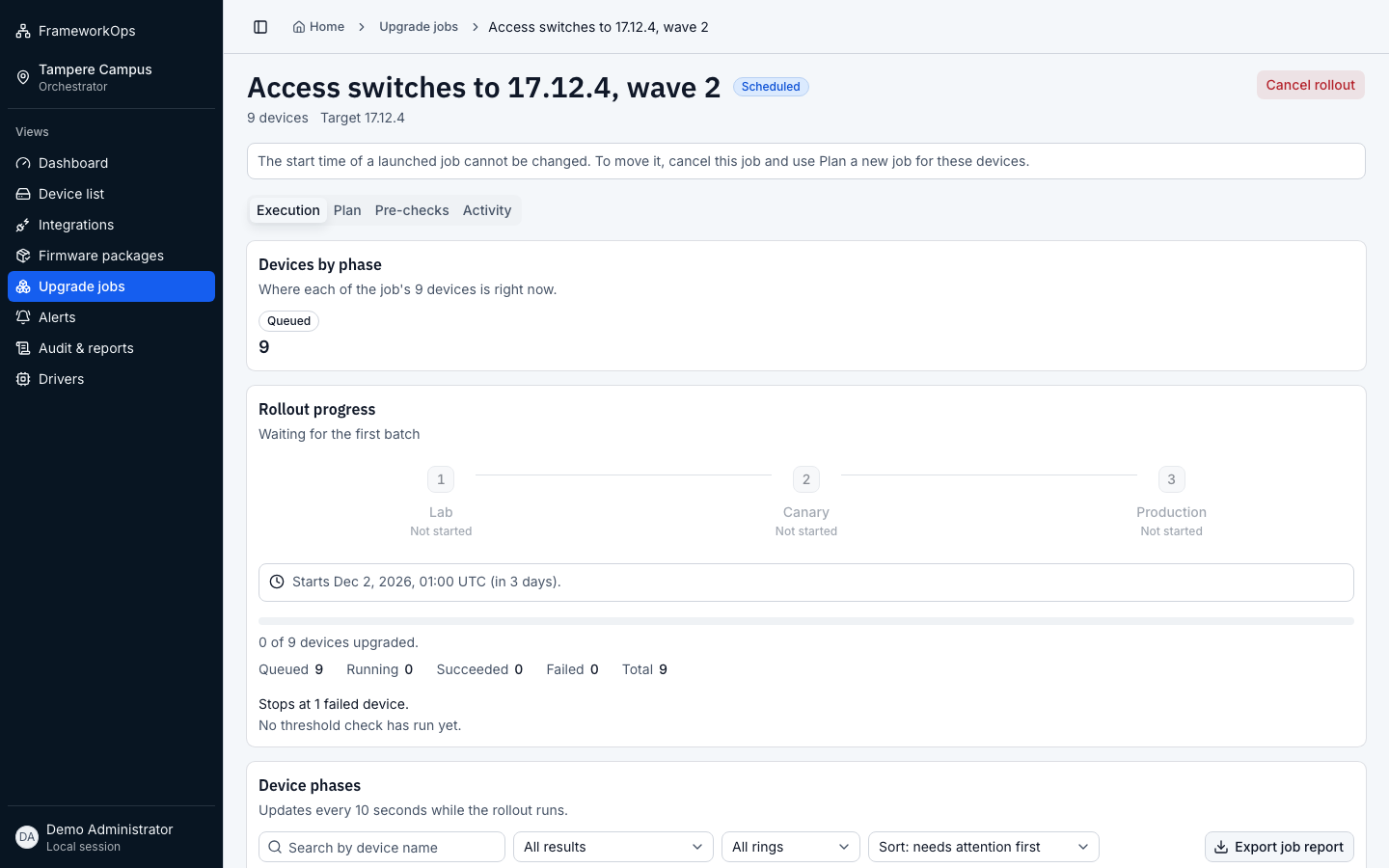
To cancel a scheduled job (Orchestrator administrator):
- Open the job.
- Select Cancel rollout in the header.
- In Cancel the rollout?, read the effect and type a reason.
- Select Cancel rollout. To stop, select Keep rollout scheduled.
A job cancelled before its first batch reads Cancelled with Cancelled before the first batch: "The rollout was cancelled before any device started. Nothing on the devices was changed."
To run the upgrade at another time, plan a new job for the same devices: on the closed job page, select Plan a new job for these devices, or create a new job. See Planning an upgrade.
When something changes before the start
| Notice on the scheduled job | Meaning |
|---|---|
| Firmware package revoked / Firmware package can no longer be used | "This rollout will not start: at its start time it stops before the first batch, and no device is changed. Cancel this job and plan a new one with another package." |
| Firmware package waits for approval again | "This rollout will not start while it waits: at its start time it stops before the first batch, and no device is changed. Once the package is approved again, Resume starts it. Or cancel this job." |
| Upgrades are turned off at this orchestrator | "An orchestrator administrator must turn upgrade execution back on before the rollout can be launched or resumed." |
More in Troubleshooting pre-checks and Monitoring a running job.
If something goes wrong
See Troubleshooting pre-checks for plans that are held or blocked, Launch rollout not being available, and scheduled jobs that did not start. For a job that started, see Troubleshooting upgrades and rollback.