Appearance
Profile and security
Profile in Cloud shows who you are, your organizations and roles, your display preferences and your Cloud sessions. Your account at an orchestrator shows who is signed in there, with which role, and until when.
Profile in Cloud
Open it by selecting your name at the bottom of the sidebar, then Profile. The page My profile has three tabs: Profile, Preferences and Security.
At the top of the page:
- Organization settings opens Settings.
- Sign out ends your Cloud session after the confirmation Sign out of Cloud? (see Signing out).
Profile tab
Identity
| Field | Meaning |
|---|---|
| Name in organization | Your name in the current organization. An Organization Admin sets it, per organization. |
| From your organization's identity provider | |
| User ID | Your identifier, for support |
| Account status | Active or Suspended |
Organizations lists each organization you belong to and your roles in it. Current marks the organization you work in now. Default marks the organization you joined first: Cloud opens it when you sign in, and it cannot be changed here. To work in another organization, use the organization menu (see Switching organization).
To change your name or roles, ask an Organization Admin.
Preferences tab
Appearance settings are saved in this browser only. Another browser keeps its own choice.
| Setting | Options |
|---|---|
| Theme | Light, Dark, System (follows your operating system). The same choice as Theme in the menu under your name. |
| Time zone | Organization default (zone), or any zone. Type in Search time zones… to find one. |
The time zone applies to every date and time in this browser. CSV exports stay in UTC. After you choose, a message confirms "Time zone: zone".
Security tab
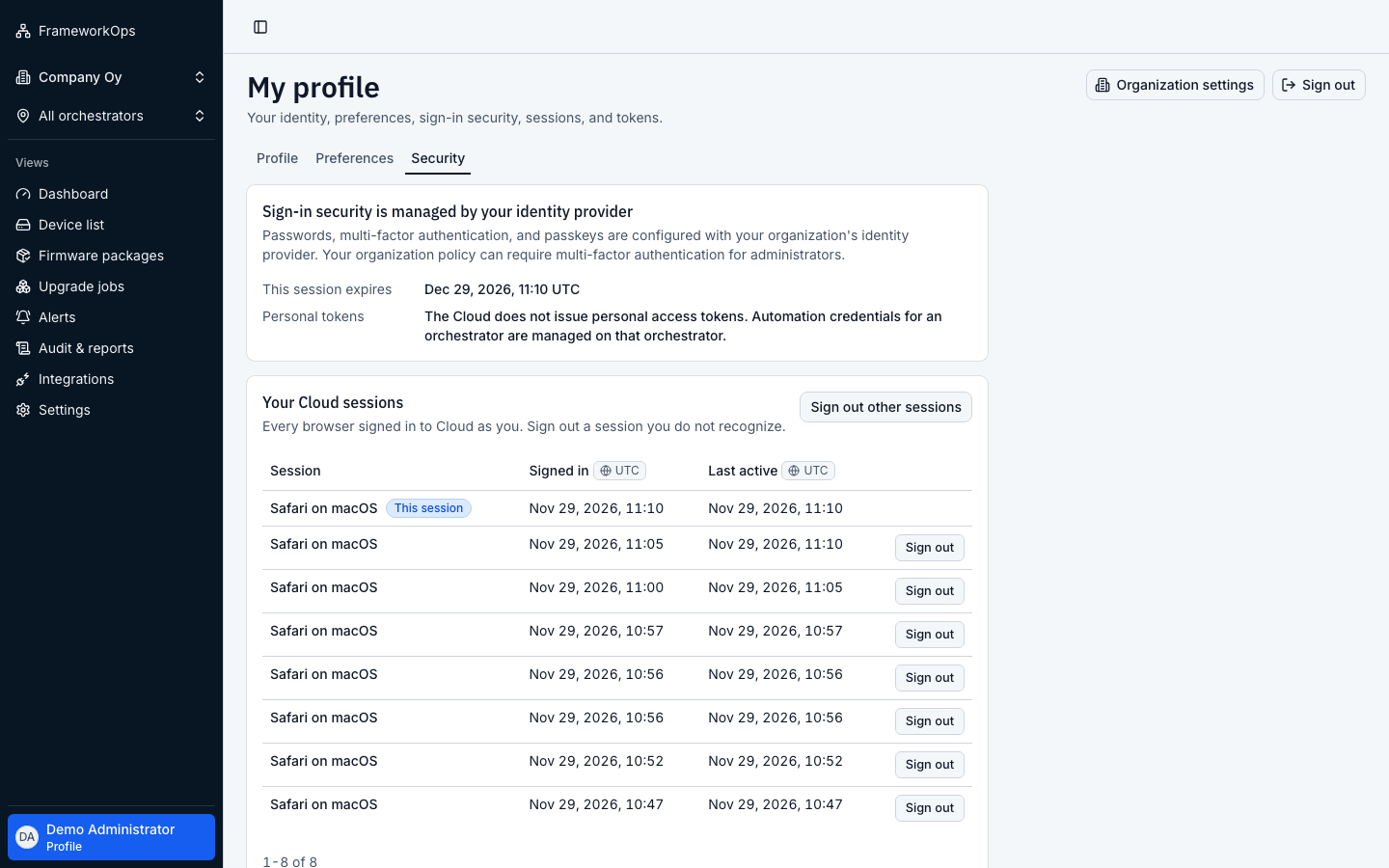
Sign-in security is managed by your identity provider. Passwords, multi-factor authentication and passkeys for Cloud are set up at your organization's identity provider, not here. Your organization can require multi-factor authentication for administrators.
| Field | Meaning |
|---|---|
| This session expires | When your current Cloud session ends |
| Personal tokens | Cloud does not issue personal access tokens. Automation credentials for an orchestrator are managed on that orchestrator. |
Your Cloud sessions lists every browser signed in to Cloud as you, newest sign-in first, 20 to a page.
| Column | Meaning |
|---|---|
| Session | The browser, or Unknown browser. This session marks the one you are using. |
| Signed in | When the session started |
| Last active | When it was last used |
Signing out one session
- On the Security tab, find the session you do not recognize.
- Select Sign out on its row.
- Read Sign out browser?: the session is signed out at its next request; this browser stays signed in.
- Confirm Sign out. A message confirms "Signed out browser, signed in time".
The row of This session has no button. Use Sign out at the top of the page for it.
Signing out all other sessions
- Select Sign out other sessions.
- Read Sign out your other sessions?: the other sessions are signed out at their next request; this browser stays signed in.
- Confirm. A message confirms "n other sessions signed out".
If you have only one session, the card says "This is your only session."
| Message | Meaning |
|---|---|
| "This session had already ended. The list now shows your current sessions." | Someone or something ended it first. Nothing more to do. |
| "The session could not be signed out. Try again in a moment." | The request failed. Try again. |
A browser that was signed out this way shows Your session has ended with "This session was signed out from another browser." on its next action.
Your account at an orchestrator
Open it by selecting your name at the bottom of the orchestrator's sidebar, then Your account.
Account and session
| Field | Meaning |
|---|---|
| Name | Your name |
| Role | Your role at this orchestrator: Orchestrator administrator, Network operator, Integration administrator or Auditor |
| Orchestrator | This orchestrator's name |
| Session expires | When this orchestrator session ends, with the time left |
| Time zone | Orchestrator default (zone) (UTC), or any zone. Saved in this browser. |
The card notes who manages your access: "Your passkey and access on this orchestrator are managed by its administrator." An orchestrator administrator reads instead: "You administer this orchestrator. Your own role comes from Cloud, where an Organization Admin changes it."
Your role at the orchestrator follows your Cloud roles. To change it, ask an Organization Admin. See Roles.
Select Sign out to end the orchestrator session. The button reads Signing out while it works. Signing out of an orchestrator does not sign you out of Cloud.
Passkeys
The orchestrator has no page that lists or removes your passkeys. To add another passkey (for example a second security key), use Add a passkey at this orchestrator in Cloud. See Adding a passkey.
If something goes wrong
See Signing in problems.