Appearance
Inventory sync
An inventory sync reads an inventory source, NetBox or Infrahub, and updates the orchestrator's device inventory from it. Sync a source after you change devices in it, and before you plan an upgrade when its data is stale.
Inventory sync runs at the orchestrator. It is not the Cloud sync that copies an orchestrator's data to Cloud: see Orchestrator connection.
Who can sync
You start a sync and read sync history in the orchestrator's Integrations view. Its sidebar entry is shown to the Orchestrator administrator and the Integration administrator. Other roles see source freshness on the Dashboard.
Ways a sync starts
| Trigger | When |
|---|---|
| Manual | Someone selects Sync now on the integration page |
| Scheduled | Scheduled sync is on and the interval has passed. The first scheduled run waits for a successful Test connection |
To set a schedule, see Integrations.
Run a sync now
At the orchestrator, open Integrations.
Select the integration's name.
Select Sync now in the page header.
A notice says Sync started: "name is being read. You will see the result here when it ends." The button reads Syncing… until the run ends.
Wait for the result notice.
| Notice | Text |
|---|---|
| Sync finished | "name: N devices read, N new, N changed, N missing, N with conflicts." |
| Sync failed | "name could not be read." followed by the reason, or "Open the run in Sync history for the reason." |
| Sync cancelled | "The sync of name was stopped before it finished." |
Sync now is disabled while a run is queued or running, and while Test and sync are unavailable shows. That notice says what to fix first; see Integrations.
Sync history
Sync history lists runs, most recent first. It appears in two places:
- under the integration list, with the runs of every integration and an Integration column;
- on an integration's page, with that integration's runs.
| Column | What it shows |
|---|---|
| Started | When the run started, or Not started for a queued run. Opens the run |
| Integration | Which source (list page only) |
| Status | Queued, Running, Succeeded, Failed or Cancelled |
| Trigger | Manual or Scheduled |
| Completed | When it ended, or — |
| Records | N observed · N created · N updated, and N conflicts when there are any |
| Result | The failure reason and warning badges, or — |
The time zone is named once in the Started and Completed headers. Under the table, each warning badge shown is explained in a line of its own.
With no runs yet, the table says No sync runs yet: "Runs appear here after the first scheduled sync or after you select Sync now."
The sync run page
Select a run's start time in Sync history to open its page. The title is Manual sync or Scheduled sync, with the integration name, the provider and a status badge.
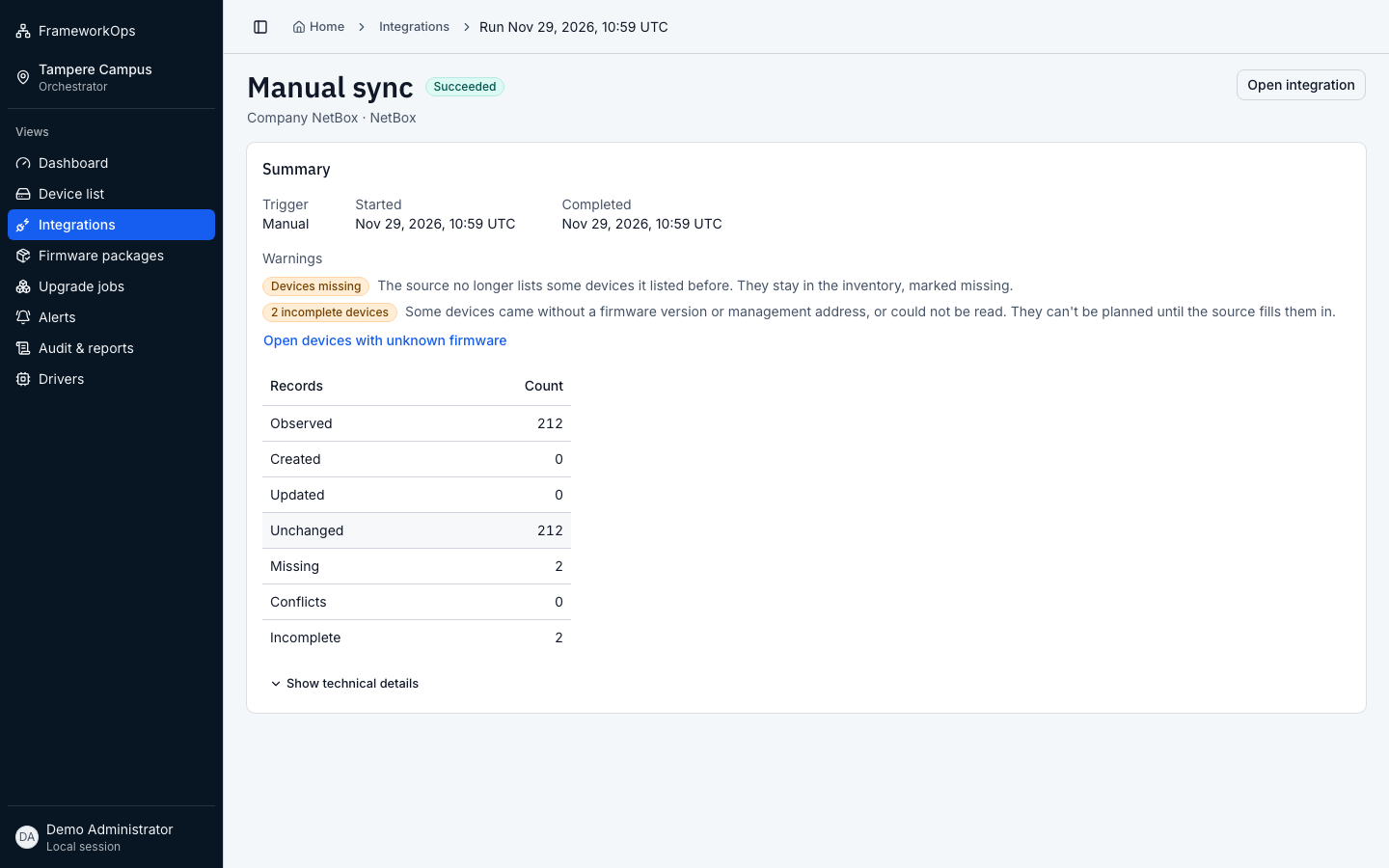
- Open integration in the header opens the integration (Orchestrator administrator and Integration administrator).
- A failed run shows Sync failed with the reason and "Correct the reported condition in the integration, then select Sync now again."
- Summary shows Trigger, Started and Completed, then Warnings, then the record counts.
- Technical details hold the Sync run ID, Integration ID, Mapping digest and Record version, for support use.
Record counts
| Count | Meaning |
|---|---|
| Observed | Device records the source returned |
| Created | Devices added to the inventory |
| Updated | Devices whose record changed |
| Unchanged | Devices read with no change |
| Missing | Devices the source listed before and no longer lists |
| Conflicts | Devices on which two sources disagree |
| Incomplete | Source records without a usable name, firmware version or management address |
Warnings
A run can succeed with warnings. Each shows as a badge in Sync history and with its meaning on the run page.
| Warning | Meaning | What to do |
|---|---|---|
| Conflicts detected | Two sources disagree about a device. Its fields show both values until the sources agree. | Correct the source record, then sync both sources |
| Devices missing | The source no longer lists some devices it listed before. They stay in the inventory, marked missing. | Check the source. If the device is gone on purpose, it stays marked missing |
| 1 incomplete device / N incomplete devices | Some devices came without a firmware version or management address, or could not be read. They can't be planned until the source fills them in. | Fill in the fields in the source and sync. On the run page, Open devices with unknown firmware opens the Device list on those devices |
| Source stale | The source has not been read successfully for longer than its schedule allows. | Sync the source, or fix what makes it fail |
Freshness
Each source has one freshness state. The same words appear in Integrations, on the Dashboard, on device pages and in Cloud.
| State | Meaning |
|---|---|
| Current | Synced successfully within the freshness rule |
| Stale | No successful sync for 24 hours, or for two schedule intervals when that is longer |
| Last sync failed | The latest attempt failed |
| Never synchronized | No sync has succeeded yet |
The integration page's Synchronization card says how many hours make that source stale: "This source counts as stale after N hours without a successful sync."
Two times describe a source:
- Last synced is the last successful sync. A sync that finds nothing new still moves it.
- Last sync that changed devices is the last sync that changed a device record.
An upgrade moves neither time. On the Cloud dashboard, an orchestrator's Device data last changed also moves with upgrades and rollbacks; that is a different value.
What stale data does to planning
A device whose source data is stale or that its source no longer lists reads Can't be planned, with "Source data is stale. Sync before planning." or "The source no longer lists this device." Its firmware status reads Source data is stale or Not listed by the source. Sync the source to plan the device again. See Device list.
What a sync changes
| A sync changes | A sync does not change |
|---|---|
| Adds devices the source lists for the first time | Delete devices. A device the source drops stays, marked missing |
| Updates device facts from the source: name, firmware version, management address, vendor, model, platform, site, role, tags | Device credentials, driver bindings or approvals |
| Marks devices missing when the source no longer lists them | Firmware packages or upgrade jobs |
| Records conflicts when two sources disagree | Explicit device groups (a group that follows a filter changes with the inventory) |
| Moves Last synced and, when a device changed, Last sync that changed devices | Cloud. A Cloud sync copies the result later |
When a sync fails, devices from that source stay as last observed.
If something goes wrong
See Inventory and integrations troubleshooting for failed syncs, warnings and stale sources.