Appearance
Device list
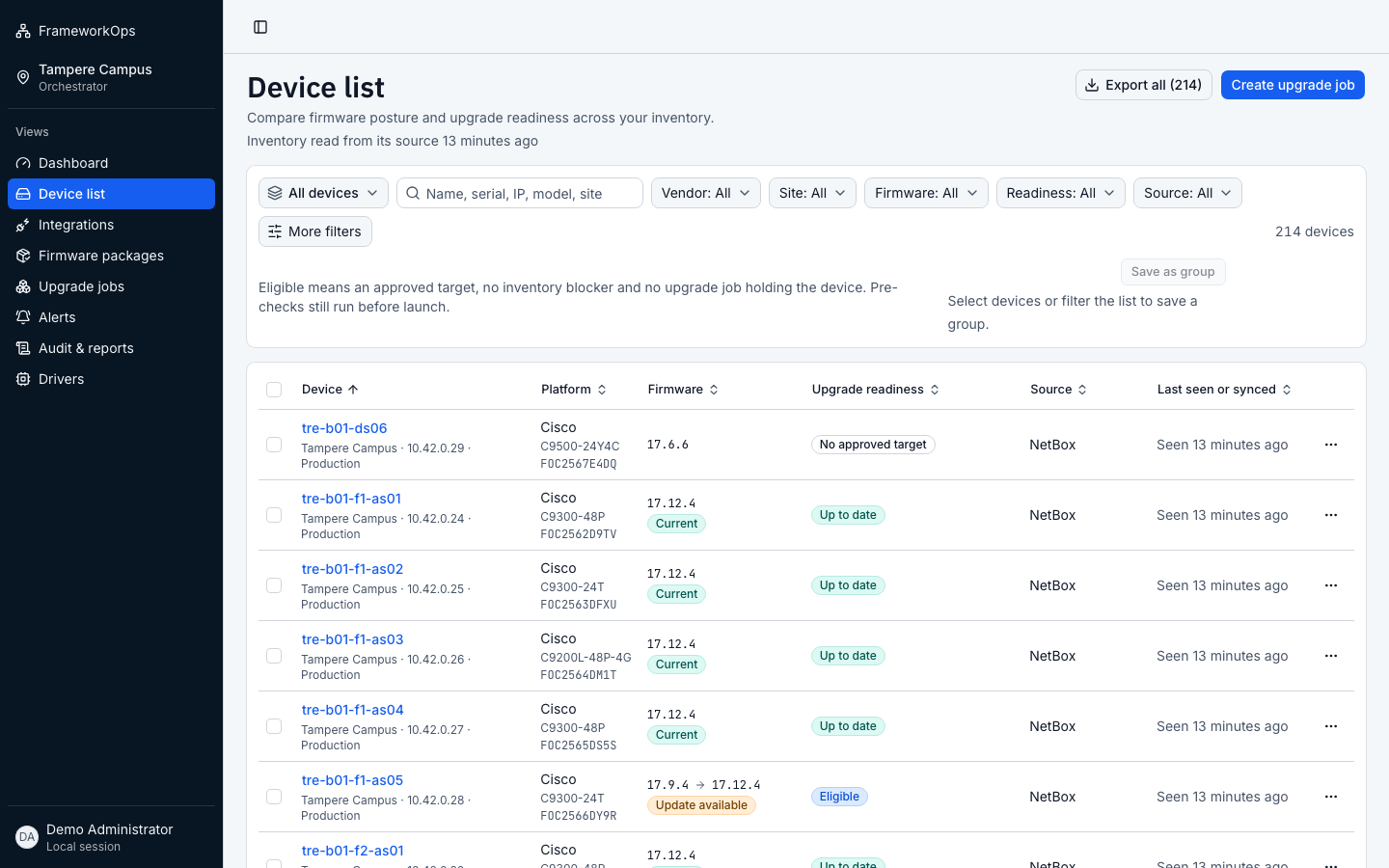
The Device list compares firmware posture and upgrade readiness across the inventory. Use it to find devices behind target, see why a device cannot be planned, save groups, export, and start an upgrade job.
The same list exists at an orchestrator, over that orchestrator's devices, and in Cloud, over every orchestrator's devices as Cloud last received them. What you can do from it differs; see Orchestrator and Cloud.
Open the list
Select Device list in the sidebar. Every orchestrator role has it; in Cloud, every role that can read devices (not the Integration Admin). The page header shows when the inventory was last read from its source: "Inventory read from its source" time, or "Inventory not read from its source yet".
A Dashboard figure can open the list already filtered, for example on devices behind target or devices that can't be planned.
Columns
| Column | What it shows |
|---|---|
| Checkbox | Selects the device |
| Device | The name, which opens the device page. Under it: the site (in Cloud, the orchestrator), the management address and the environment ring |
| Platform | Vendor, model and serial |
| Firmware | The running version, an arrow to the target version when they differ, and the firmware status |
| Upgrade readiness | The readiness status, with the reason or the job that holds the device |
| Source | The inventory sources (NetBox, Infrahub), the conflict count, and a line when the source is missing, never synced or stale |
| Last seen or synced | "Seen" time when a source observed the device, otherwise "Source synced" time |
| ⋯ | The row's actions |
Select a column heading to sort by it; select it again to reverse. On narrow screens the hidden columns fold under the device name.
Firmware status
| Status | Meaning |
|---|---|
| Current | The device runs the approved target |
| Update available | An approved target is newer than what the device runs |
| Ahead of target | The device runs a newer version than the approved target |
| Unsupported | The firmware is marked unsupported |
| Not reported | The source reports no firmware version |
| No approved target | No approved, compatible package targets the device |
| Source data is stale | The device's source data is stale, so the version is not judged |
| Not listed by the source | The source no longer lists the device |
| in inventory | Shown beside the version while an activation is not committed: the version is what the inventory says, not what runs |
Upgrade readiness
"Eligible means an approved target, no inventory blocker and no upgrade job holding the device. Pre-checks still run before launch." The list shows this note while no filter is set.
| Status | Meaning |
|---|---|
| Eligible | Can be planned: an approved target exists and nothing blocks it |
| Up to date | Runs its target. It can still be planned, for example as a downgrade |
| No approved target | No approved, compatible package. Can't be planned |
| Can't be planned | An inventory blocker, unknown firmware, or missing or stale source data. The reason shows under the badge |
| In upgrade job | An upgrade job that has not ended holds the device: "In" job name |
| Needs review | The last upgrade failed: "Failed in" job name. Review it before planning again. It can be planned |
Reasons under the badge:
| Reason | Meaning |
|---|---|
| "Sources disagree on this device." | Two sources report different values |
| "The device is decommissioned." | Its source marks it inactive |
| "The running firmware is not reported." | No firmware version in the source |
| "No management address." | The source has no management address for it |
| "No approved compatible package." | No package to plan |
| "An approved package for this model exists, but its compatibility does not cover the firmware it runs." | The package's compatibility leaves out the running version |
| "The source no longer lists this device." | The device is missing from its source |
| "Source data is stale. Sync before planning." | Sync the source |
A device whose activation is not committed also shows the commit window, for example "Runs version, not committed. Its commit window ends at time." See Device details.
With a job link shown, the job name opens the job.
Search and filter
The controls above the table narrow the list.
- Search devices: by name, serial, IP, model or site. Every word must match. Search uses the first 256 characters.
- Quick filters: Vendor, Site (in Cloud, Orchestrator), Firmware, Readiness and Source. Each is a multi-choice menu.
- More filters: Model, Platform, Environment ring (Lab, Canary, Production), Inventory status (Active, Stale, Missing, Decommissioned), Tags, and at an orchestrator Driver release for roles that can read drivers. Also Conflicting sources only.
Each active filter shows as a chip, Filter: value, with its own remove button. A Dashboard link can add Latest upgrade failed (30 days) or Latest upgrade rolled back (30 days) as a chip. Clear all filters removes them all. The count beside the controls shows how many devices match.
Filters, search, sort, page and group are kept in the page address, so a copied link opens the same list. A link that names something this list does not have opens without it and says which part it left out.
With no match the list says No devices match these filters: "Remove a filter or clear them all to see more devices." With no inventory yet it says No devices have been imported: "Devices appear here after an inventory source has synced."
Groups
The group menu at the left of the controls switches between All devices and Saved groups. At an orchestrator you can also save, rename and remove groups there. See Device groups.
Select devices
Tick devices in the checkbox column, or tick the header checkbox to select the devices on this page.
A selection bar appears: "N devices selected".
To take every matching device, select Select all N matching devices in the bar.
The bar counts the selection by readiness, and the badges add up to the selection: eligible, can't be planned, in a job, need review, up to date, no approved target.
The selection stays when you filter or change page. The bar then says "N selected, N hidden by the filter" or "N on other pages", and "Every action on the selection takes all N selected devices, including the hidden ones." Clear empties the selection.
From the bar you can Export selected (N) and, at an orchestrator, Add to group or Remove from group.
Export
Export all (N), Export filtered (N) or Export group (N) in the page header downloads the list as a CSV file. While devices are selected, use Export selected (N) in the selection bar instead.
The notice Devices export downloaded names the file, for example devices-2026-11-22-filtered-6.csv.
The file has these columns: Device, Device ID, Orchestrator (Cloud only), Site, Management address, Vendor, Model, Platform, Serial, Environment ring, Inventory status, Current firmware, Current firmware build, Target firmware, Target firmware build, Firmware status, Upgrade readiness, Upgrade job, Readiness reasons, Sources, Last seen or synced (UTC), Last successful sync (UTC), Tags.
Start an upgrade from the list (orchestrator)
Create upgrade job in the page header is shown to the Orchestrator administrator and the Network operator. It opens the upgrade wizard with a proposed scope:
| You have | The wizard opens with |
|---|---|
| A selection | The selected devices |
| No selection, a list of at most 1,000 devices | Every device of the list, filtered or not |
| No selection, a longer list | No devices; you choose them in the wizard, which opens on the same filters |
Narrow the list or select devices.
Select Create upgrade job.
The wizard opens on its first step. See Planning an upgrade.
One upgrade job covers at most 1,000 devices. When the selection, or a filtered list without a selection, is larger, a notice says so and offers Select first 1,000. When a single environment ring fits, the button is Narrow to fit, with Select first 1,000 and ring only (N) in its menu.
The button is disabled, with the reason beside it, when nothing in scope can be planned:
| Reason | Meaning |
|---|---|
| "None of these devices can be planned now. Each row says why." | The filtered list has no plannable device |
| "The selected device can't be planned now." / "Of the N selected devices, none can be planned now." | Followed by "Each row says why." or how many the filter hides |
| "One upgrade job covers at most 1,000 devices. Narrow the selection first." | Too many selected |
| "Selecting devices…" | Select all is still loading |
For one device, open the row's ⋯ menu and select Create upgrade job for device. When the device cannot be planned the item is disabled and says why, for example "Already in an upgrade job that has not ended." or "No approved target for this device."
Row actions
| Action | Where | What it does |
|---|---|---|
| Open details | Both | Opens the device page |
| Create upgrade job for device | Orchestrator | Opens the wizard with this device |
| Add to group / Remove from group | Orchestrator | Changes an explicit group. See Device groups |
| Open on the orchestrator | Cloud | Opens the device page at its orchestrator in a new tab |
Orchestrator and Cloud
| Orchestrator | Cloud | |
|---|---|---|
| Devices | This orchestrator's inventory | All orchestrators, as Cloud last received them. Refreshes once a minute |
| Site filter | Site (the inventory source's location) | Orchestrator |
| Groups | Save, rename, remove, add and remove devices | Read-only list of every orchestrator's groups |
| Upgrade | Create upgrade job | Upgrade on the orchestrator hands the devices over |
| Driver release filter | Yes, for roles that read drivers | No |
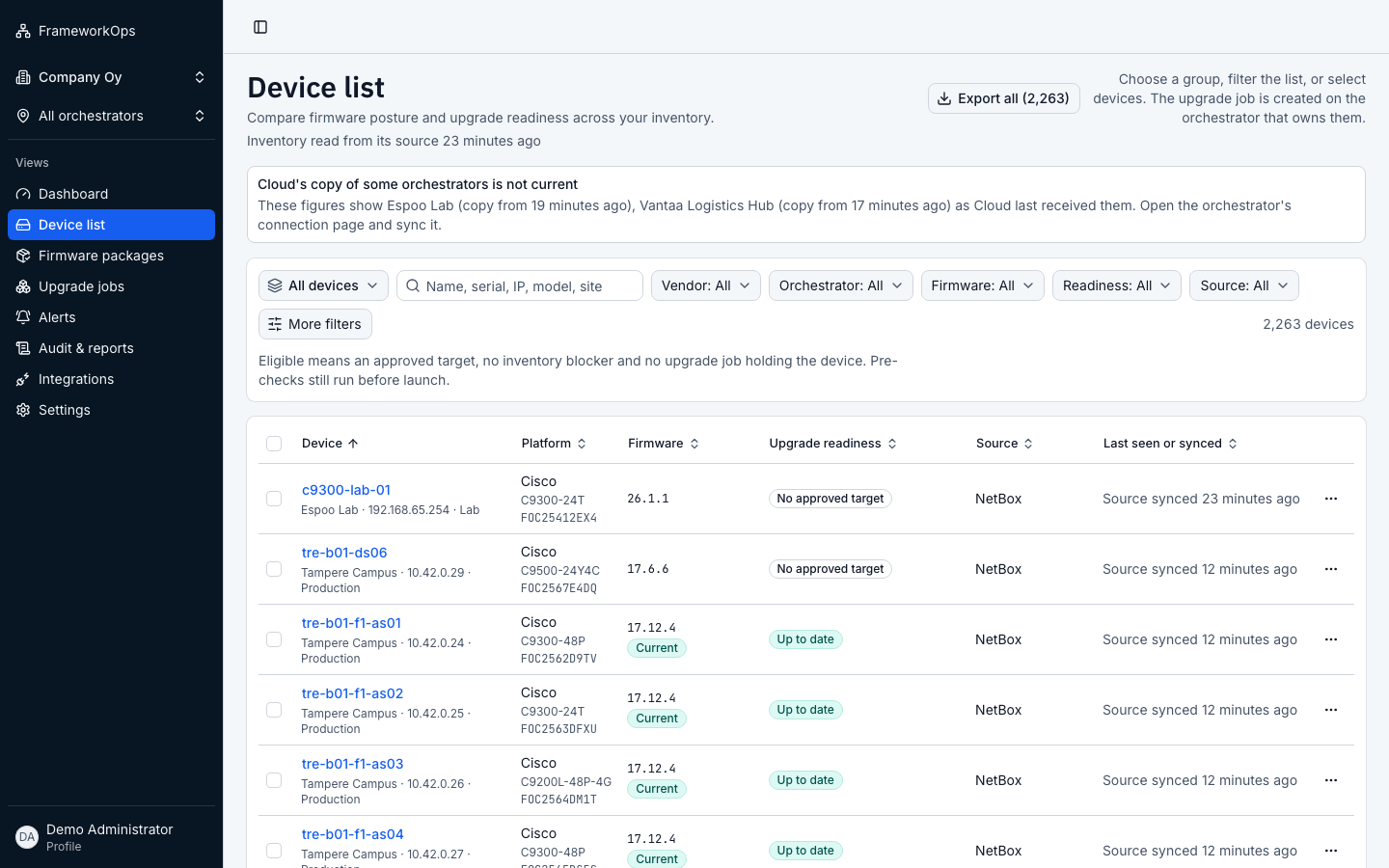
Cloud notices about its copy
| Notice | Meaning |
|---|---|
| No orchestrator inventory yet | "Cloud shows an orchestrator's devices once it has delivered a complete inventory. Open the orchestrator's connection page and sync it." |
| Some orchestrators are missing from these figures | The named orchestrator has not delivered a complete inventory, so its devices are not counted |
| Cloud's copy of some orchestrators is not current | The figures show the named orchestrators as Cloud last received them |
To bring Cloud up to date, see Orchestrator connection.
Hand an upgrade over from Cloud
Upgrade jobs run at an orchestrator. Cloud's Upgrade on the orchestrator opens the orchestrator's upgrade wizard in a new tab with the devices you chose. It is shown to the Organization Admin and the Network Admin.
- In Cloud, choose a group, filter the list or select devices. Until you do, the header says "Choose a group, filter the list, or select devices. The upgrade job is created on the orchestrator that owns them."
- Select Upgrade on the orchestrator.
- If the devices belong to one orchestrator whose Cloud data is current, its wizard opens at once. Otherwise a menu opens:
- These devices belong to several orchestrators: choose one. Each line shows its device count and how many can be planned now, for example "12 devices, 9 can be planned now".
- Open the upgrade on this orchestrator: one orchestrator, with a note about Cloud's copy.
- Sign in at the orchestrator if asked, and continue in the wizard.
Notes in the menu:
| Note | Meaning |
|---|---|
| "Cloud sync is not running now: Cloud last received this orchestrator's data time. The orchestrator checks readiness again, so its counts can differ." | Cloud's copy is old |
| "Last Cloud sync failed: …" | The latest Cloud sync failed |
| "Cloud could not read when this orchestrator last synced. …" | The sync status is unknown |
| "N devices. One job covers at most 1,000: narrow the list first." | That orchestrator's share is too large; the line is disabled |
| "N devices, none can be planned now" | The line is disabled |
If no device belongs to an active orchestrator, the notice No orchestrator can run this upgrade appears. If the devices could not be read, The devices could not be collected.
The Auditor sees Open on the orchestrator only. A Change Approver alone, with no access at orchestrators, sees neither. The Integration Admin has no Device list in Cloud.
If something goes wrong
See Inventory and integrations troubleshooting for missing devices, stale sources and devices that can't be planned.