Appearance
Alerts
Alerts tell you that something at an orchestrator needs attention: a failed upgrade job, an auto-stopped rollout, a failed rollback, a blocked pre-check, a failed inventory sync and more. You triage alerts at the orchestrator that raised them. Cloud shows the alerts of every orchestrator, read-only.
Where alerts live
| Where | What you can do | Path |
|---|---|---|
| At an orchestrator | See, filter, acknowledge, assign, snooze, resolve and reopen alerts. Manage alert rules | Alerts in the sidebar, tab Alerts |
| In Cloud | See the alerts of all orchestrators as of each orchestrator's last sync. Open an alert at its orchestrator | Alerts in the sidebar |
An alert is created by an alert rule. Which events become alerts, how serious they are and who owns them is set in the rules: see Alert rules.
INFO
Alerts never change an upgrade. The alert details say so: "Rollback and upgrade control stay in the upgrade job. Alerts never change execution." To pause, resume or roll back, open the upgrade job. See Stops and rollback.
Who can see and triage alerts
| Role | At an orchestrator | In Cloud |
|---|---|---|
| Organization Admin | See and triage alerts, manage rules | See alerts |
| Network Admin | See and triage alerts, manage rules | See alerts |
| Auditor | See alerts and rules only | See alerts |
| Change Approver | No access to orchestrators | See alerts |
| Integration Admin | Alerts is not in the sidebar | Alerts is not in the sidebar |
If your role can view but not triage, the list says: "Your role can view alerts but not triage them. Ask an orchestrator administrator for operator access." The triage buttons are then unavailable. See Roles.
What raises alerts
Each rule watches one trigger. An orchestrator offers these triggers:
| Trigger | Source | When it fires |
|---|---|---|
| Upgrade job failed | Upgrade execution | A whole upgrade job ends in the Failed state |
| Device upgrade failed | Upgrade execution | A device's upgrade or rollback fails. Stays open until the device is rolled back or a later upgrade of it succeeds |
| Upgrade auto-stopped | Upgrade execution | An auto-stop evaluation pauses a rollout or starts automatic rollback |
| Rollout stopped: package not usable | Upgrade execution | A rollout stops because a firmware package of its plan was revoked or rejected, waits for approval again, or can no longer be installed |
| Rollback failed | Upgrade execution | A device rollback fails or its commit state is unknown |
| Pre-check failed or blocked | Pre-checks | A pre-check run fails or completes with a blocked result |
| Inactive package removal failed | Driver operations | Removing inactive packages from a device fails |
| Inventory sync failed | Inventory integration | An inventory sync run completes as failed |
| Firmware package rejected or quarantined | Firmware packages | A firmware package is rejected or an upload is quarantined |
| Cloud sync bundle rejected | Cloud sync | A cloud sync bundle is rejected |
A new orchestrator starts with active rules for Upgrade job failed, Device upgrade failed, Upgrade auto-stopped, Rollout stopped: package not usable, Rollback failed, Pre-check failed or blocked and Inventory sync failed. You can edit or disable them like any other rule.
Some alerts close by themselves when the problem goes away, for example an Inventory sync failed alert when a later sync of the same integration does not fail. The trigger description in the alert details says when that happens.
An alert collects repeated events. When the same issue happens again, the rule updates the existing unresolved alert and raises its Occurrences count instead of opening a new one.
The alert list at an orchestrator
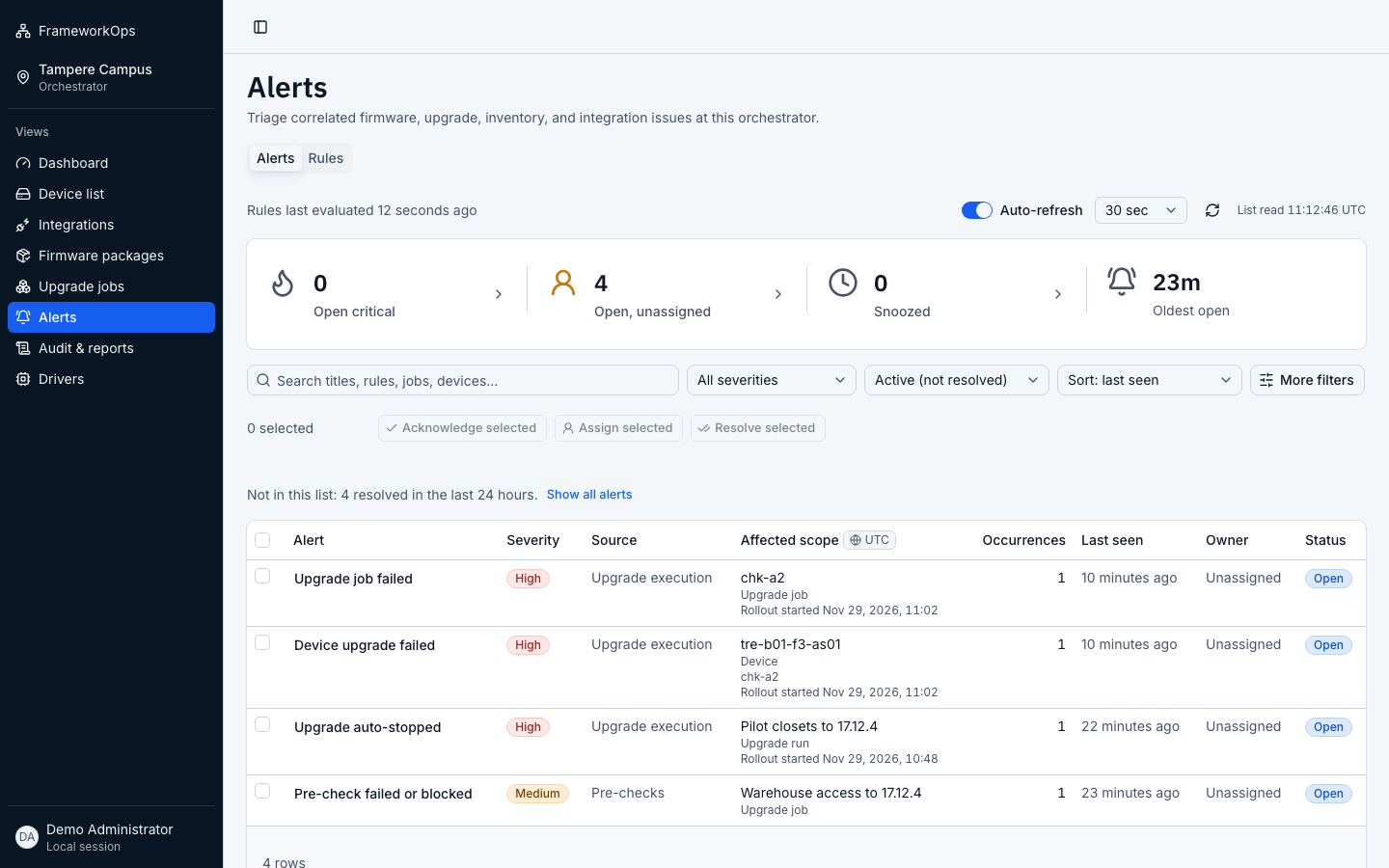
Open Alerts in the sidebar. The page has two tabs: Alerts and Rules.
Refresh
The list refreshes itself every 30 seconds while Auto-refresh is on. Use Refresh interval to choose 15, 30 or 60 sec, or press the refresh button to read the list now. Next to the controls you see when the list was read (List read and a time) and when the rules last ran (Rules last evaluated and a time, or Not checked yet).
Triage summary
Four figures sit above the list. Selecting one of the first three filters the list.
| Figure | Shows | Selecting it shows |
|---|---|---|
| Open critical | Open alerts with severity Critical | Open alerts with severity Critical |
| Open, unassigned | Open alerts that nobody owns | Open, unassigned alerts |
| Snoozed | Snoozed alerts | Snoozed alerts |
| Oldest open | Age of the oldest open alert, for example "3d 14h", or "—" | — |
Columns
Each row is one alert. On narrow screens the columns are shown inside each row.
| Column | Content |
|---|---|
| Alert | The alert title. Select it to open the alert details |
| Severity | Critical, High, Medium, Low or Info |
| Source | Where the trigger comes from, for example Upgrade execution |
| Affected scope | The device, job, package, integration or orchestrator the alert is about. For job alerts also the job name and "Rollout started" with a time |
| Occurrences | How many matching events this alert has collected |
| Last seen | When the latest matching event happened |
| Owner | A team name, a person, or Unassigned |
| Status | Open, Acknowledged, Snoozed or Resolved |
Severities and impact
| Severity | Meaning |
|---|---|
| Critical | Highest operational risk |
| High | High risk |
| Medium | Moderate risk |
| Low | Low risk |
| Info | Information only |
Each alert also has an Impact, shown in its details:
| Impact | Meaning |
|---|---|
| Blocking | Blocks upgrade execution or service |
| Degraded | Degrades upgrade execution or service |
| Advisory | For information |
Statuses
| Status | Meaning | What happens next |
|---|---|---|
| Open | New or reopened. Needs attention | Acknowledge, assign, snooze or resolve |
| Acknowledged | Someone has seen it. It stays in the list until it is resolved | Assign, snooze or resolve |
| Snoozed | Put aside for a while | Returns to Open when the snooze ends. You can end the snooze earlier |
| Resolved | Closed | Can be reopened. If the rule reopens resolved alerts, the same issue returning reopens it |
Filters, search and sort
| Control | Options |
|---|---|
| Search alerts | Searches titles, rules, jobs and devices |
| Severity | All severities, Critical, High, Medium, Low, Info |
| Status | Active (not resolved) (the default), Open, Acknowledged, Snoozed, Resolved, All states |
| Sort | Sort: last seen (default), Sort: severity, Sort: title, Sort: status, Sort: occurrences, Sort: owner |
| More filters > Rule type | All rule types or one trigger |
| More filters > Owner | Anyone, Assigned to me, Unassigned |
Active filters appear as chips under the toolbar. Remove one with its close button, or press Clear all. When more filters are set, the button reads More filters (2) and so on.
The default list leaves out resolved alerts. When some were resolved in the last 24 hours, a line says "Not in this list: 3 resolved in the last 24 hours." Select Show all alerts to include them.
Filters are kept in the page address, so you can bookmark or share a filtered list. If a link holds a value the list does not know, a notice names it and the list ignores that value.
Alert details
Select an alert title to open its details in a side panel. Close the panel to return to the list.
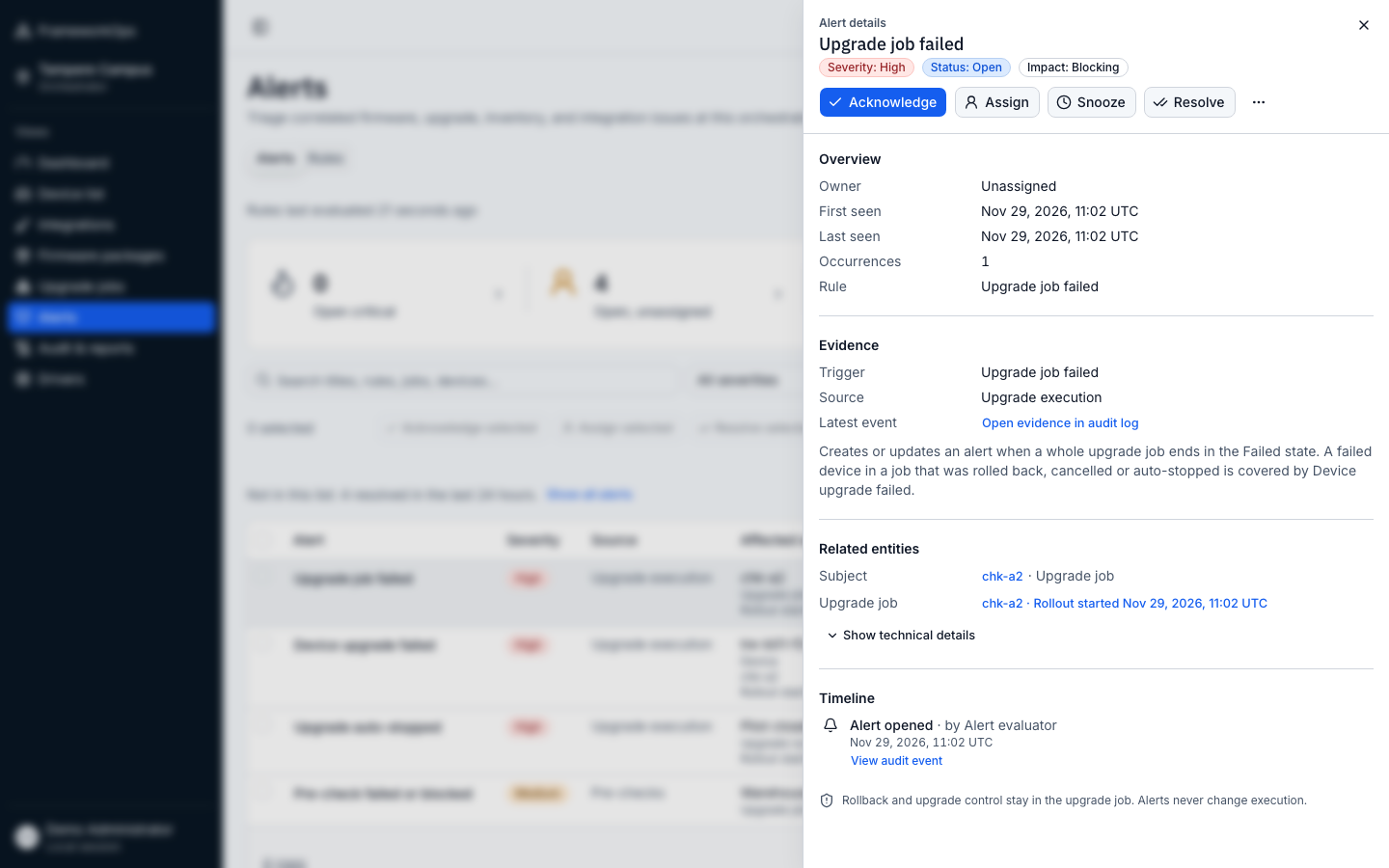
The header shows the title and three badges: Severity, Status and Impact. Under them are the triage buttons for the alert's status.
| Section | Content |
|---|---|
| Overview | Owner, Snoozed until (when snoozed), First seen, Last seen, Occurrences (for example "5 across 2 upgrade jobs", with a list of the jobs and their occurrence counts), Rule, Resolution note (when resolved) |
| Evidence | Trigger, Source, Latest event with a link Open evidence in audit log, and the trigger's description |
| Related entities | Subject (device, upgrade job, firmware package, integration, this orchestrator and so on) and Upgrade job with a link to the job. A deleted draft job reads "(deleted draft)". Show technical details lists the subject ID, job, rule ID, correlation key, latest event and matched event types |
| Timeline | Every change: Alert opened, New occurrence correlated, Acknowledged, Ownership changed, Snoozed, Snooze ended, Resolved, Alert reopened, each with time, "by" and the person, and View audit event |
The More actions menu holds:
| Item | Does |
|---|---|
| Open related job | Opens the upgrade job. Unavailable when the alert has no job, the job was a deleted draft, or your role cannot see upgrade jobs |
| Open evidence in audit log | Opens the latest matching event in Audit and reports |
| Create rule from alert | Starts a new rule with this alert's trigger, severity and impact. Needs a role that can manage rules |
The subject name links to its page (device, integration, firmware package or job) when your role can open that page.
Triage actions
You need Organization Admin or Network Admin (orchestrator administrator or network operator at the orchestrator) to triage. Every action is recorded in the audit log.
Which buttons appear depends on the status:
| Status | Buttons |
|---|---|
| Open | Acknowledge, Assign, Snooze, Resolve |
| Acknowledged | Assign, Snooze, Resolve |
| Snoozed | End snooze, Assign, Resolve |
| Resolved | Reopen |
Acknowledge an alert
- Open the alert.
- Select Acknowledge.
The status becomes Acknowledged and a message confirms it, for example "Upgrade job failed: now Acknowledged." The alert stays in the list until it is resolved.
Assign an alert
Ownership says who is responsible. It does not change who is notified.
- Open the alert and select Assign.
- Under Owner, choose Me (with your name), A team (enter its name) or Unassigned.
- For a team, type the Team name (required).
- Select Assign.
The message reads "Assigned to" and the owner, or "The alert is now unassigned."
Snooze an alert
- Open the alert and select Snooze.
- Choose a Duration: 15 minutes, 1 hour, 4 hours or 24 hours.
- Type a Reason (required). It is recorded with this action in the audit log.
- Select Snooze.
A snoozed alert returns to Open when the snooze ends. To end it earlier, open the alert and select End snooze.
Resolve an alert
- Open the alert and select Resolve.
- Type a Resolution note (required). It is recorded in the audit trail.
- Select Resolve alert.
If the rule reopens resolved alerts, the same issue returning reopens this alert.
Reopen a resolved alert
- Open the resolved alert. To find it, set Status to Resolved or All states.
- Select Reopen.
- Type Why it is reopened (required).
- Select Reopen alert.
The message reads "Reopened. The alert is open again." The alert stays open until someone resolves it, even if its condition has cleared.
Triage several alerts at once
- In the list, select the checkboxes of the alerts. Select all alerts on this page selects every alert on the page that is not resolved.
- Use the bar above the list, which shows how many are selected:
- Acknowledge selected acknowledges the selected open alerts.
- Assign selected opens the assign dialog for all of them.
- Resolve selected asks for one resolution note for all of them.
Resolved alerts cannot be selected: "Resolved alerts can't be selected because bulk actions don't apply to them. Open one to reopen it."
A message reports the result, for example "3 alerts acknowledged. They stay listed until resolved." When some alerts could not be changed, it names them and why:
| Action | Why an alert is skipped |
|---|---|
| Acknowledge | "Only open alerts can be acknowledged." |
| Assign | "Resolved alerts cannot be assigned." |
| Resolve | "They are already resolved." |
If none of the selected alerts is open, Acknowledge selected is unavailable and the bar says "None of the selected alerts is open, so none can be acknowledged."
Alerts in Cloud
Open Alerts in the Cloud sidebar. The page shows "Alerts raised at your orchestrators." and a notice Read-only in Cloud: "Alerts are acknowledged, assigned, snoozed and resolved at the orchestrator that raised them. Cloud shows each alert as of the orchestrator's last sync."
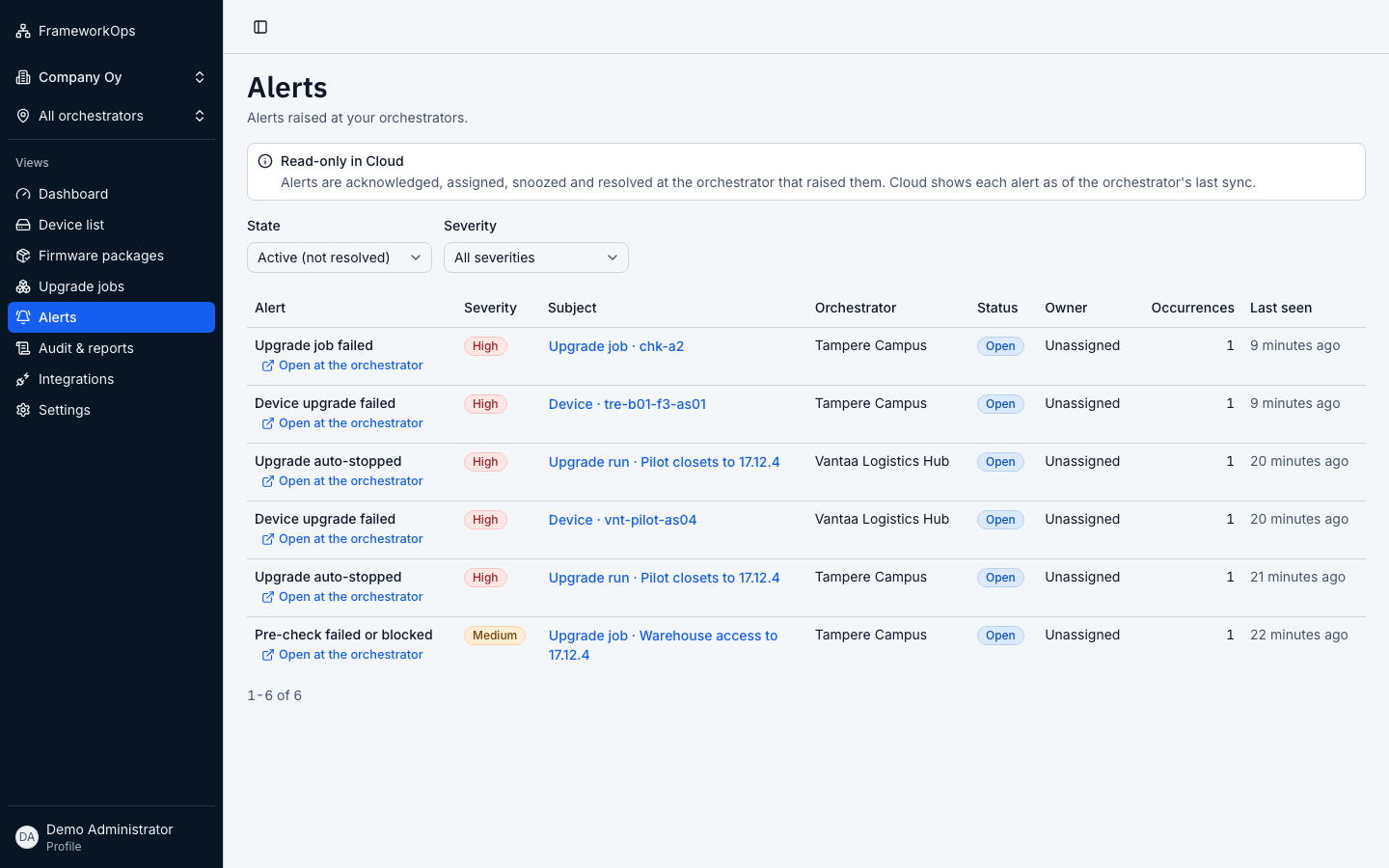
| Column | Content |
|---|---|
| Alert | Title, the rule name when it differs, and Open at the orchestrator |
| Severity | Critical, High, Medium, Low or Info |
| Subject | Type and name, for example "Device · core-sw-01". Links to the device or upgrade job page in Cloud when your role can see it |
| Orchestrator | The orchestrator that raised the alert |
| Status | Open, Acknowledged, Snoozed or Resolved |
| Owner | Team, person or Unassigned |
| Occurrences | Matching events collected |
| Last seen | Relative time of the latest event |
Filters: State (Active (not resolved) by default, Open, Acknowledged, Snoozed, Resolved, All states) and Severity (All severities or one severity). The list is newest first and paged.
To triage an alert from Cloud:
- Select Open at the orchestrator on the alert's row. The alert opens at its orchestrator in a new tab.
- Sign in there with your passkey if asked.
- Triage as described above.
When the shell is scoped to one orchestrator, the notice also offers Open orchestrator alerts, which opens that orchestrator's Alerts view. Open at the orchestrator and Open orchestrator alerts appear only when your roles give you access at orchestrators. See Orchestrator connection.
A change made at the orchestrator reaches Cloud with the next sync. Until then Cloud shows the earlier state.
If something goes wrong
See Troubleshooting: Alerts and audit for alerts that do not appear, stale lists and failed actions, and Troubleshooting: Access and permissions when the view or its buttons are missing.