Appearance
Planning an upgrade
An upgrade plan says which devices to upgrade, which firmware each one gets, and how and when the rollout runs. You create it in the upgrade wizard at an orchestrator, save it, and then run pre-checks on it.
You need the Network operator or Orchestrator administrator role at the orchestrator.
Where to start
| Start from | How | What the wizard opens with |
|---|---|---|
| Upgrade jobs | Select Create upgrade job in the page header. | An empty plan. |
| Device list at the orchestrator | Select devices, then Create upgrade job. | The selected devices. |
| A device's page | Select Create upgrade job. | That device. |
| Device list in Cloud | Select devices, a group or a filter, then Upgrade on the orchestrator. | The devices, at the orchestrator that owns them. See Starting from Cloud. |
| A closed job | Select Plan a new job for these devices on the job page. | The devices the job did not upgrade, and the earlier job's strategy. See Results and reports. |
One job covers at most 1,000 devices. When a device list is longer, the list says "This list has N devices. One job covers at most 1,000. Create upgrade job opens the wizard to choose them, or narrow the list here."
The wizard
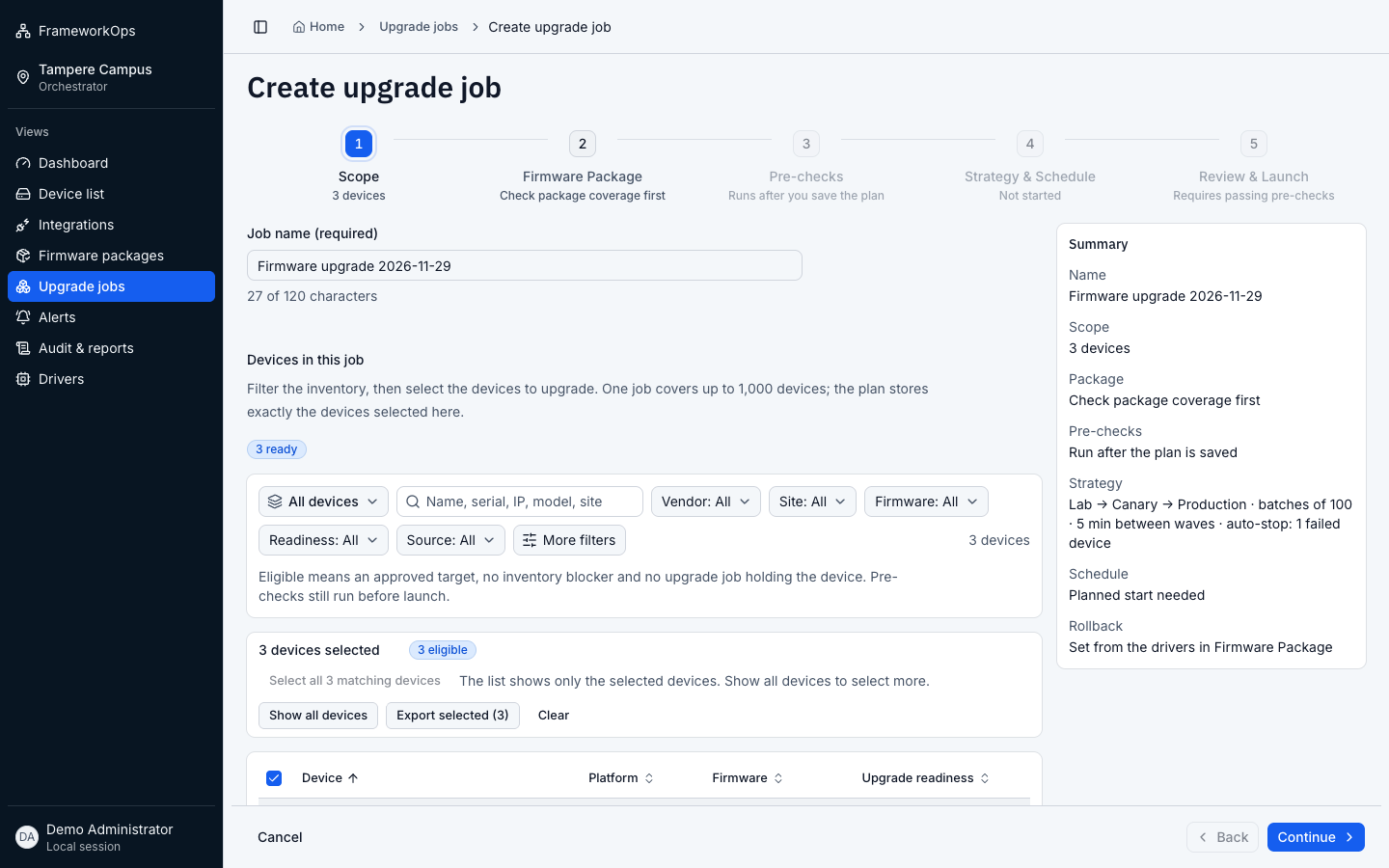
The wizard has five steps, shown in a step rail at the top:
| Step | What you do here |
|---|---|
| 1. Scope | Name the job and select the devices. |
| 2. Firmware Package | Choose the firmware packages until every device has one. |
| 3. Pre-checks | Read which checks will run. They run after the plan is saved. |
| 4. Strategy & Schedule | Set batches, auto-stop, rollback, schedule, notifications and a change reason. Then save. |
| 5. Review & Launch | Not available in the wizard: "Requires passing pre-checks". It opens on the job page after pre-checks. |
Under each step the rail shows what it holds so far, for example "12 devices", "12 devices covered" or "Ready to save". You can go back to any finished step. A step that needs an earlier one stays unavailable until that step is complete.
The sticky bar at the bottom has the way out on the left (Cancel, or Back to job when editing) and Back and Continue on the right. When Continue is unavailable, the bar says why, for example "Select at least one device for the job."
The Summary panel beside the steps lists what the plan will contain: Name, Scope, Package, Pre-checks, Strategy, Schedule and Rollback. It updates as you work.
Your work is kept in the browser tab
Until you save, the wizard keeps your plan in the current browser tab. If you reload the page, it comes back with the notice Continuing your unsaved plan: "Your devices, packages and strategy are as you left them in this tab. A package that no longer fits was dropped." To throw it away, select Start over and confirm. "The unsaved plan is discarded and an empty wizard opens. This cannot be undone."
If you leave the wizard with unsaved changes, it asks Discard unsaved changes? Choose Keep editing or Discard changes.
If you open the wizard with new devices from another page while an unsaved plan is kept, the new devices win: The devices you chose replaced an unsaved plan.
Step 1: Scope
Name the job
Type a name in Job name (required). It holds at most 120 characters of plain text. The wizard suggests a name and keeps it up to date with the device count and target version until you type your own.
Select devices
Under Devices in this job the wizard shows the orchestrator's device list: "Filter the inventory, then select the devices to upgrade. One job covers up to 1,000 devices; the plan stores exactly the devices selected here."
You can narrow the list in three ways, and combine them:
- Groups: open the group menu (it starts on All devices) and choose a saved group. See Device groups.
- Filters: search by "Name, serial, IP, model, site", and use the quick filters Vendor, Site, Firmware, Readiness and Source. More filters adds Model, Platform, Environment ring, Inventory status, Tags, Driver release and Conflicting sources only.
- Manual selection: tick devices one by one, or use Select the devices on this page.
To select every device the filters keep, use the select-all action. It selects only devices a plan can take, for example Select the N plannable devices, and says what it left out: "N matching devices were left out: …".
The bar under the list counts the selection, for example "12 devices selected", with badges for eligible, can't be planned, in a job, need review, up to date and no approved target. Use Show selected only to check what you picked, and Clear to start over. See Device list for the list itself.
Which devices can be selected
Each device has a readiness. Some devices cannot be selected, and their checkbox says why.
| Readiness | Can be selected | Why |
|---|---|---|
| Eligible | Yes | "Eligible means an approved target, no inventory blocker and no upgrade job holding the device. Pre-checks still run before launch." |
| Needs review | Yes | The device can be planned, but something about it needs a look. It counts as needing attention before launch. |
| Up to date | Yes | It already runs its approved target. Select it only to downgrade it. Select all leaves it out. |
| In upgrade job | No | "In another job. {job} has not ended." |
| No approved target | No | No approved package's compatibility covers its firmware. |
| Can't be planned | No | The row names the reason, for example conflicting sources. |
| Inside a commit window | No | "Uncommitted until {time}." The device runs new firmware that has not been committed. Wait until the window ends, or roll it back in its job. |
When none of the matching devices can be planned, the bar says "None of the matching devices can be planned now: …" followed by what to do for each cause.
If a device that arrived with the plan cannot be planned now, the wizard takes it out of the selection and says so, for example "{device} was taken out: it is in the job "{job}", which has not ended." Select Dismiss to hide the notice.
Selection notices
| Notice | What to do |
|---|---|
| N selected devices are in another job | "A plan with them can't launch until that job has ended." Select Remove N devices from the plan, or keep them and wait. |
| N selected devices are already up to date | Remove them unless the plan downgrades them. |
| N proposed devices are not in this orchestrator's inventory | They were left out. Synchronize the inventory source if a device should be here. |
| This scope was prepared for another orchestrator | The devices handed over from Cloud belong to another orchestrator. Open the upgrade from Cloud again and choose this orchestrator, or select devices here. |
Above the list, badges count the selection by readiness: ready, need review, in another job, already up to date, with no approved target, can't be planned.
Select Continue when the job has a name and at least one device.
Step 2: Firmware Package
Each device gets the selected package that fits its model and the firmware it runs. Choose packages until every device has one.
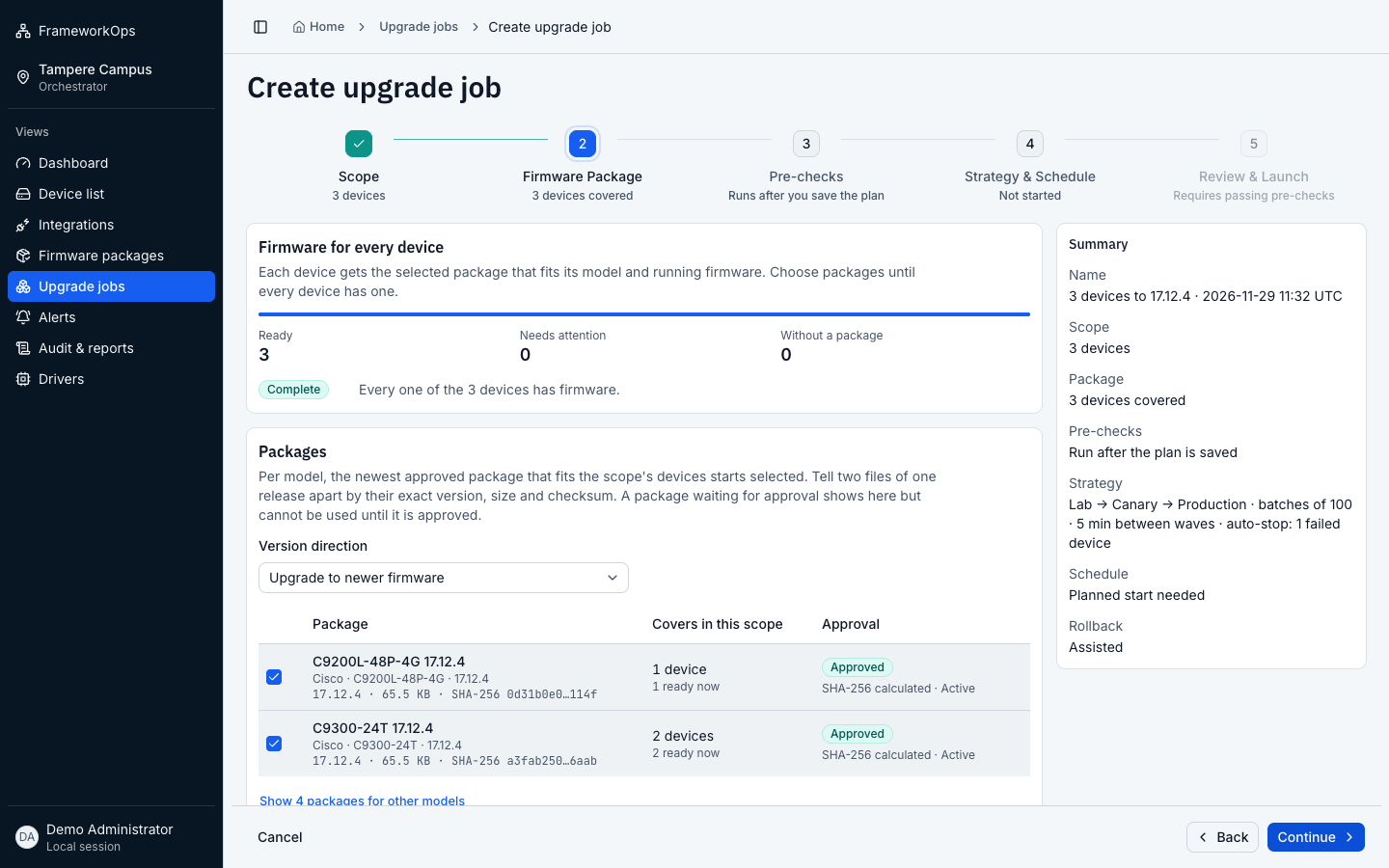
Firmware for every device
The top card shows coverage: a bar, "N of M devices have firmware", and three figures: Ready, Needs attention, and Without a package (or Already up to date when the only devices left already run the firmware). A badge sums it up:
| Badge | Meaning |
|---|---|
| Checking | The wizard is checking which package each device gets. |
| Not checked | No package is selected, or coverage has not been checked. |
| Incomplete | Some devices still need a package. |
| Attention | Every device has firmware, but some need attention before launch (another job holds them or they need review), or the only devices left already run the firmware. |
| Complete | "Every one of the N devices has firmware." |
Coverage is checked again by itself after every change. If it was not checked, select Check coverage again.
Version direction
Version direction decides which way the plan goes:
- Upgrade to newer firmware (default)
- Downgrade to older firmware
A plan goes one way. Changing the direction proposes packages for the new direction. A device that only has packages the other way must go in a job of its own: "Only older packages than {version} fit this model, and this plan upgrades. A plan goes one way: remove the device from the scope and plan its downgrade in a job of its own."
A plan that downgrades shows a Downgrade badge next to its target firmware in the job list and on the job page. Its pre-checks raise the warning The package is a downgrade, which you must acknowledge.
Choosing packages
The Packages table lists the packages for the models in the scope: "Per model, the newest approved package that fits the scope's devices starts selected. Tell two files of one release apart by their exact version, size and checksum. A package waiting for approval shows here but cannot be used until it is approved."
| Column | What it shows |
|---|---|
| (checkbox) | Tick to use the package. |
| Package | Name, vendor, model, version, and the exact version, size and SHA-256 checksum. |
| Covers in this scope | How many devices the package covers, and how many of them are ready now. Not selected or Not usable otherwise. |
| Approval | The approval state, validation and lifecycle, or why the package cannot be used. |
A package that cannot be used has its checkbox turned off, with the reason:
| Reason | Meaning |
|---|---|
| "Waiting for approval: a plan can use it once it is approved." | Approve it first. If you may approve packages, Approve package appears in the row. Otherwise the row says who approves, with Check approval again. |
| "Not approved: a plan can't use it." | The package was not approved. |
| "{state}: not usable." | Its lifecycle state does not allow use. |
| "Validation {state}: not usable." | Its file did not pass validation. |
Packages for other models wait behind Show N packages for other models. If no package fits, the table says No packages available: "Upload and approve the required firmware in Firmware packages, then return to this plan." See Uploading a package and Approving and revoking.
Where the devices go
Where the devices go groups the devices by model and running firmware, and shows the firmware each group gets: "Devices grouped by model and running firmware, with the firmware each group gets."
Devices without a package
When some devices have no package, the Devices without a package (N) table lists each one with its model and firmware, why, and what to do.
| Why | What to do |
|---|---|
| "No package is selected for this model. Select {name} in the package list above, or remove the device from the scope." | Tick that package. |
| "{name} has no compatibility rule for {version}, the firmware this device runs. …" | Select Add {version} to the package to add the version to the package's compatibility. The package then waits for approval again. Or Open package. |
| "{name} fits this model but waits for approval. …" | Approve the package, or ask an approver. |
| "{name} fits this model but was revoked. …" / "… was rejected. …" / "… cannot be used. …" | Approve or upload another package. |
| "No package for this model is newer than {version}, …" (or older) | Remove the device from the scope. |
| "Already runs {version}, the version the selected package carries. Nothing to upgrade." | Remove the device, or change the direction. |
| "Already runs {version}, the newest approved firmware for this model. Nothing to upgrade." | Remove the device. |
Select Remove from scope on a row, or Remove the N devices that have no package to take them all out. The Scope step drops them too.
Continue stays unavailable until every device has a package. The bar says why, for example "3 selected devices have no package. Add a package that fits them, or go back and remove them from the scope."
Step 3: Pre-checks
This step explains what will run; nothing runs yet. "Every required check runs on all N selected devices. You can't choose or skip checks."
| Check group | Uses |
|---|---|
| Reachability and credentials | The devices you selected in Scope. |
| Package compatibility and storage | The package coverage from Firmware Package. |
| Device driver checks | Each device's model and firmware. |
| Schedule and maintenance window | The start time you set in Strategy & Schedule. |
"Pre-checks run against the saved plan. Set the strategy and schedule next, then save the plan; the job page opens on Pre-checks so you can run them."
Select Continue to Strategy & Schedule. See Pre-checks for the checks themselves.
Step 4: Strategy & Schedule
Waves and batches
Every rollout runs Lab → Canary → Production. "The orchestrator runs one batch at a time in rollout ring order." Each device's ring comes from its Environment ring in the inventory source. A device without a ring goes with Production, last.
| Field | Default | Rules |
|---|---|---|
| Devices per batch (required) | 100 | 1 to 1,000. Each ring is split into batches of this size. A batch larger than the plan takes each ring in one batch. |
| Wait between waves, minutes (required) | 5 | 0 to 1,440. The pause between Lab and Canary, and between Canary and Production. |
Batches always run one at a time. If an older plan asked for more, select Run one batch at a time.
Auto-stop thresholds
"The rollout pauses when a batch reaches a threshold. Zero turns one threshold off; keep at least one above zero." The thresholds are checked after every batch.
| Field | Default | Meaning |
|---|---|---|
| Maximum failed devices (required) | 1 | The rollout stops when this many devices have failed. |
| Maximum impacted percent (required) | 0 (off) | The rollout stops when this share of attempted devices is impacted. 0 to 100. |
If the failed-device limit is larger than the plan, the field warns: "This plan has N devices, so a limit of M failed devices can never be reached." What happens at a stop is in Stops and rollback.
Rollback mode
Choose Rollback mode. The field explains the chosen mode.
| Mode | What happens when a device fails after activation |
|---|---|
| Manual | "the job starts no rollback. A device that fails stays as it is, and you return it with your own tools." |
| Assisted | "a device that fails after its activation waits for you, and you start its rollback from the job page." |
| Automatic | "a device that fails after its activation is rolled back at once." Available for batches up to 100 devices. |
The default follows the devices' drivers: Assisted when the drivers declare a rollback, otherwise Manual. Until the package coverage is known, the summary says "Set from the drivers in Firmware Package". If a driver cannot roll back and you choose Assisted or Automatic, pre-checks block the device.
Remove inactive packages
Remove inactive packages after a verified upgrade is off by default. "Removes the previous firmware from the device, so a later rollback to it is not possible. Frees flash for the next job; a failed removal is a warning and never fails the upgrade."
When the upgrade runs
Under When the upgrade runs, choose one:
| Option | Planned start | What happens |
|---|---|---|
| In a maintenance window (default for a new plan) | Planned start ({zone}) (required) | You record the window on the job's Pre-checks step after saving. You can also stage the firmware in a separate window before it, so the maintenance window only activates. |
| Ad hoc | Not before ({zone}, optional) | "The rollout starts right after launch. Set a time below only to hold it until then. Each device stages, activates and verifies in one go." Leave the field empty to start right after launch, or select Start right after launch instead to clear it. |
The planned start must be in the future and no more than a year ahead. See Scheduling and launching for maintenance windows and how the start time works at launch.
Notifications
"Alerts always appear in the product. Choose the events, and a configured channel to also deliver them outside it."
- Events (at least one): Progress: the rollout starts, a batch passes, the job completes; Warnings: an approval is requested; Failures: a batch stops or the job fails. Warnings and Failures are on by default.
- Channels: Email, Webhook. A channel that is not set up at this orchestrator shows "(not configured)" and cannot be ticked.
A plan copied from an older job that used Slack shows Slack delivery is no longer supported. Select Remove Slack before saving.
Change reason and save
- Type a Change reason (required). Every save needs its own reason; it is recorded in the audit log.
- Select Save plan and open pre-checks.
The bar names the first field that keeps Save unavailable, for example "Fix Devices per batch above." or "Enter a change reason to continue."
After saving, the job page opens on the Pre-checks step. See Pre-checks.
When the plan cannot be finalized
Saving stores a draft and then finalizes the plan. If finalizing fails, the draft stays:
- Draft saved: {name}: "The plan isn't finalized yet. Fix what the message at the bottom names, then save again."
- The plan can't be finalized: no running driver: "Your draft is kept. Start the driver on this orchestrator, bind these devices to a running driver in their Readiness tab, or remove them from this job. Then save the plan." See Drivers.
A plan in this state has the status Draft in the list. The exit button reads Return to jobs.
Editing a saved plan
You can change a plan until it is launched.
- Open the job and select Edit plan. The wizard opens on the step you were reading, with the title Edit upgrade plan.
- Read You're replacing the saved plan: "The saved devices, packages and strategy are filled in. Change what you need; after saving, an approval no longer applies and earlier pre-check results are out of date." If a maintenance window was recorded, the notice says it no longer applies either.
- Make your changes.
- On Strategy & Schedule, type a new Change reason (required) and select Save plan and open pre-checks.
If nothing changed, saving is unavailable: "Nothing in the plan has changed, so there is nothing to save. Back to job keeps its approval and pre-check results."
After saving, the job page says Plan saved. and what the change discarded, for example "Its approval no longer applies, and its earlier pre-check results are kept as out of date; run pre-checks again." Run pre-checks again, and record the maintenance window again if the plan has one.
Unsaved edits are kept in the tab like a new plan: Continuing your unsaved changes, with Discard the changes.
Starting from Cloud
Groups and filters in Cloud's Device list can span several orchestrators, but a job belongs to one.
- In Cloud, open Device list. Choose a group, filter the list or select devices.
- Select Upgrade on the orchestrator.
- If the devices belong to several orchestrators, choose one under "These devices belong to several orchestrators", then Open the upgrade on this orchestrator. Each choice says how many devices can be planned now.
- The wizard opens at the orchestrator in a new window. It says "Only the devices were carried over from Cloud." Filters, search and sorting were not.
- Continue as in Step 1. The orchestrator checks readiness again, so its counts can differ from Cloud's.
The exit button in this window reads Close and return to Cloud.
If something goes wrong
- "Firmware packages could not be loaded. Retry before planning.": select Reload choices.
- "Unable to save the plan. Retry after checking the connection to the orchestrator.": check the connection and save again.
- "This plan changed in another session, so nothing was saved. Go back to the job and open Edit plan again."
- "This plan was deleted in another session."
See Troubleshooting pre-checks for plans that are blocked or held, and Troubleshooting firmware packages for packages that cannot be used.