Appearance
Uploading a firmware package
Upload a vendor firmware image to an orchestrator so it can be approved and used in upgrade jobs. The upload is a four-step wizard at the orchestrator; Cloud cannot upload.
Before you start
- You need the Orchestrator administrator or Network operator role at the orchestrator. Other roles do not see Upload package.
- Get the image through your authorized vendor channel. No vendor firmware portal link is configured in FrameworkOps.
- The device model must already be in the orchestrator's inventory. The wizard builds the package's compatibility rule from the firmware versions the inventory reports for that model. See Inventory sync.
- Optional: have the vendor's published SHA-256 for the image ready.
Entitlement
FrameworkOps keeps the package on this orchestrator. It does not grant vendor entitlement or redistribute vendor firmware. You confirm that your organization is authorized to use the image.
File limits
| Limit | Value |
|---|---|
| Accepted file types | .bin, .gz, .img, .out, .pkg, .tgz, .zip |
| Largest file | 8 GB |
| File name | At most 255 characters |
| Empty file | Not accepted |
| Where the file is kept | On this orchestrator only |
| How long an unfinished upload is kept | 24 hours from its start. The exact time is shown as Session expires |
The wizard
- At the orchestrator, open Firmware packages.
- Select Upload package. The page Upload firmware package opens on step 1.
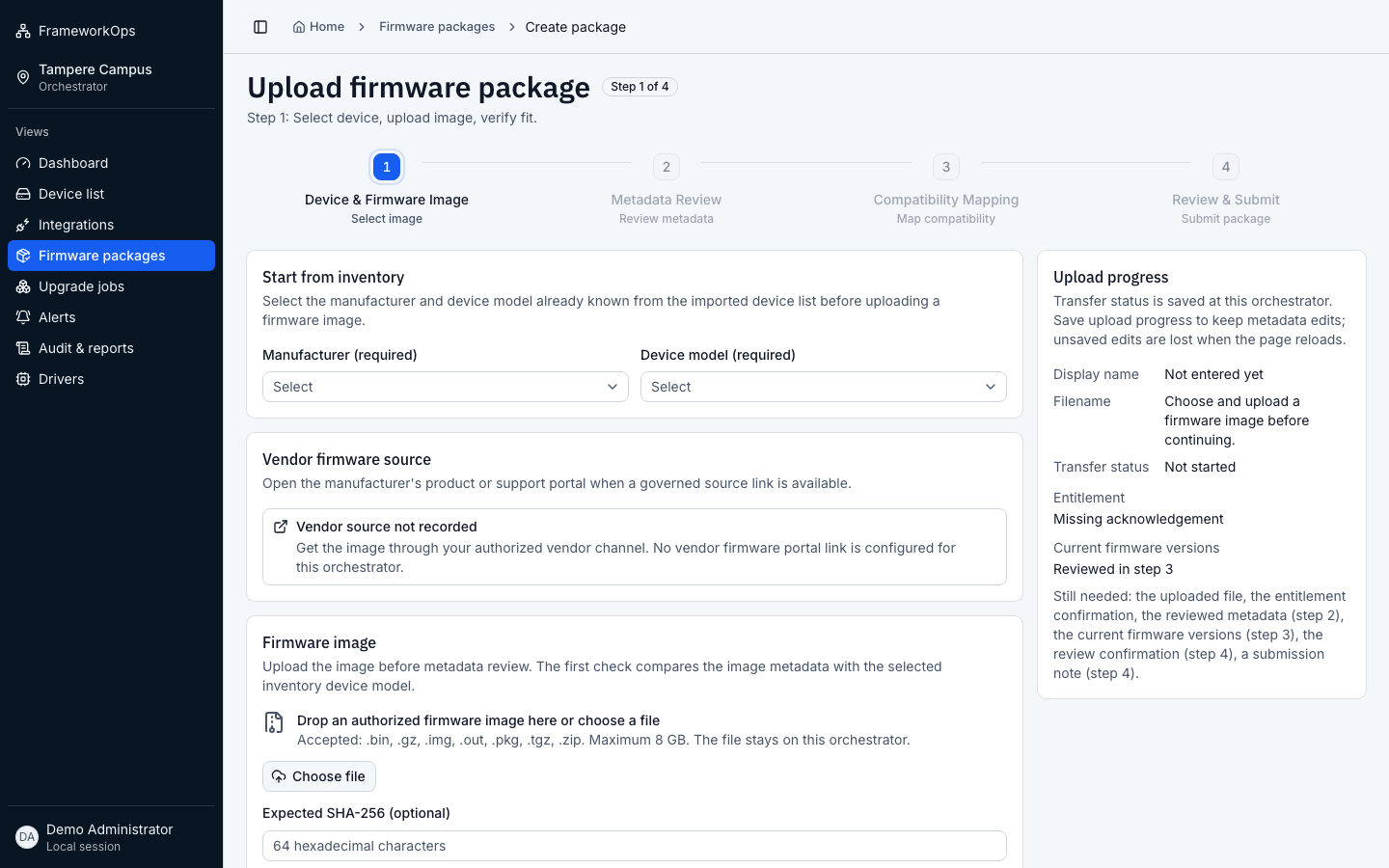
The stepper shows the four steps:
| Step | Name | What you do |
|---|---|---|
| 1 | Device & Firmware Image | Choose the device model, upload the image, confirm entitlement |
| 2 | Metadata Review | Check and correct the package's name, vendor, platform and versions |
| 3 | Compatibility Mapping | Review which current firmware versions the package will install over |
| 4 | Review & Submit | Review everything, confirm and write a note for the approver |
A step opens only when every step before it is saved. On the right, Upload progress shows the package name, file, Transfer status, Checksum, Session expires, the entitlement and the current firmware versions, and what the submission still needs ("Still needed: …").
At the bottom:
| Button | What it does |
|---|---|
| Cancel / Return to packages / Back | Leaves the wizard (on step 1) or goes to the previous step. If you have unsaved changes on the step, you are asked first |
| Save upload progress | Saves the current step without moving on. "Upload progress saved". The upload stays under Unfinished uploads until it expires |
| Cancel upload | Shown once the upload exists. Removes the file and everything entered. See Cancel an upload |
| Continue / Submit package | Saves the step and goes on. When it is disabled, the sentence beside it says why |
TIP
Transfer status is saved at the orchestrator. Metadata edits are saved only with Continue or Save upload progress; unsaved edits are lost when the page reloads.
Step 1: Device & Firmware Image
Choose the device model
- In Start from inventory, choose Manufacturer (required). The list holds the manufacturers in this orchestrator's inventory.
- Choose Device model (required).
Expected result: Inventory model selection shows "Selected model: model. Which devices the package reaches is worked out from its compatibility rule after it is submitted."
Vendor firmware source shows Vendor source not recorded: "Get the image through your authorized vendor channel. No vendor firmware portal link is configured for this orchestrator."
Upload the image
- Optional: in Expected SHA-256 (optional), paste the vendor's SHA-256 (64 hexadecimal characters). When provided, the orchestrator compares it with the SHA-256 calculated from the received bytes.
- In Firmware image, drop the file on the card or select Choose file.
Before sending anything, the wizard checks the file:
- The file name, type and size against the limits above. A refused file shows Firmware upload failed with the reason.
- Whether the same file is already here, by its SHA-256: "Checking whether this file is already here…". If it is, a notice says what to do instead. See The file is already here.
Then the transfer starts. Transfer progress shows the percentage. The file is sent in parts, so an interrupted transfer can resume.
When every byte has arrived, the orchestrator calculates the SHA-256. Required file checks then shows the SHA-256 calculation row with the result and the calculated value:
| Result | Meaning |
|---|---|
| Calculated once the whole file is received | The transfer is not finished |
| Calculating SHA-256 | All parts received, the checksum is being calculated |
| Checksum matches | The file matched the SHA-256 you entered |
| SHA-256 calculated | You entered no SHA-256; the value was calculated and kept |
| Does not match | The file did not match the SHA-256 you entered. The file was not accepted |
If you corrected the expected SHA-256 or a transfer failed, select Upload this file to send the chosen file again.
When the file is not accepted
If the orchestrator refuses the received file, the card shows This file was not accepted with the reason:
| Reason shown | What to do |
|---|---|
| "The file's SHA-256 does not match the value you entered. Check the value, or choose the right file." It lists You entered and Calculated from the file | Check the vendor's value, or choose the right file |
| "The file's content does not match its file type, so it may be damaged or misnamed." | Get a clean copy of the image |
| "The received file does not match the size declared for it. Upload it again." | Upload it again |
Select Discard and choose another file. The refused file is removed, and the manufacturer, model and confirmation stay filled in.
Confirm entitlement
- Select I confirm that this organization is authorized to upload and use this firmware package. (required).
The confirmation is saved with Continue. If the page reloads before that, the box is cleared and says "The page was reloaded before this confirmation was saved. Confirm again."
- Select Continue.
Why Continue may be disabled on step 1:
| Sentence beside the button | What to do |
|---|---|
| "Choose the manufacturer and device model to continue." | Choose both |
| "Checking whether this file is already here…" | Wait |
| "This file is already here. Use the notice above." | Follow the notice |
| "The file was not accepted. Discard it and choose another." | Discard and choose another file |
| "Choose a firmware image to continue." | Choose the file |
| "Fix Expected SHA-256 above." | Correct the value or clear the field |
| "Resolve the upload problem shown above first." | Read the upload error |
| "Confirm that this organization may use the image." | Tick the entitlement box |
Step 2: Metadata Review
File facts shows read-only values bound to the uploaded file: Filename, Calculated SHA-256, Package format, and the vendor, platform family, version, release version and build when a driver or catalog provides them. Editing the metadata does not change the file or its checksum.
In Organization metadata, check and correct:
| Field | Required | Notes |
|---|---|---|
| Display name | Yes | Up to 255 characters. Filled from the vendor, platform and release version when known ("Composed from the vendor, platform and release version") |
| Vendor | Yes | Up to 128 characters |
| Platform family | Yes | A list of the platforms the inventory reports for this model ("From the inventory for this device model."), or a text field |
| Version | Yes | The device's exact version, as the driver installs it, such as 26.01.01.0.340.1775586976. Must contain a number |
| Release version | No | The short form operators and inventories write, such as 26.1.1. Up to 64 characters |
| Build identifier | No | Up to 128 characters |
| Internal notes | No | One line, up to 500 characters |
A field filled in for you says where its value came from: Read from the file by driver, From your organization's earlier entry or Suggested from the shared catalog. You can always edit it; an edited value loses the label.
Field errors: "Required.", "Use at most n characters.", "Not a firmware version. Write it as the device reports it, with a number."
Select Continue. If it is disabled, the sentence names the field: "Enter field to continue.", "Choose field to continue." or "Fix field above."
Step 3: Compatibility Mapping
The wizard reads the firmware versions the inventory reports for the chosen platform and model ("Reading the firmware versions the inventory reports…") and shows:
| Row | What it shows |
|---|---|
| Platform family | From step 2 |
| Model Family | From step 1 |
| Reviewed current firmware versions | Every version the inventory reports for this platform and model, except the package's own version. The package will install over these |
| Package version | The package's own version |
These rules describe static compatibility. Live checks of each device happen later in the upgrade job's pre-checks. Device coverage is calculated after submission; the package page shows it.
After the upload you can change the versions the package installs over with Edit compatibility on the package page. See Change which devices a package fits.
If the inventory leaves nothing to install over, a notice and the disabled Continue say why:
| Notice | What to do |
|---|---|
| No device of this platform and model is known | Select Back to metadata and pick the platform the inventory uses |
| "Every device of this model already runs this version, so the package has nothing to install over." | No upload is needed for this model, or check the version in step 2 |
Select Continue.
Step 4: Review & Submit
- Check Package file: Filename, Size, Checksum, File checks, File contents, Security scan, Vendor portal and Entitlement.
- Check Review summary: Display name, Version, Version source, Release version, Release date, Compatibility, Matches ("Not calculated for this draft") and Known release.
- If A package for this model and version already exists appears, decide whether you need a second package. You can still submit, but two packages would offer the same target.
- In Submission confirmation, read "Submitting creates the package name and sends it for approval."
- Select I confirm that the review summary is accurate.
- Enter a Submission note (required), one line up to 500 characters. It tells the approver what the package is for. It is not an approval, and it stays on the package page and in the audit log.
- Select Submit package.
Expected result: Package submitted for approval, with the badge Pending approval. "Approval state: Pending approval. Upgrade Job selection remains unavailable until approval is granted." Select Open package detail to see the package, or Return to packages.
Why Submit package may be disabled:
| Sentence | What to do |
|---|---|
| "Confirm the review before submitting." | Tick the review box |
| "Write a submission note before submitting." | Enter the note |
| "Upload the firmware image on step 1 first." | Go back to step 1 |
| "Choose the manufacturer and device model on step 1." | Go back to step 1 |
| "Confirm the entitlement on step 1." | Go back to step 1 |
| "Save the metadata on step 2 first." | Go back to step 2 and select Continue |
| "Confirm the compatibility on step 3 first." | Go back to step 3 and select Continue |
WARNING
Submitting does not approve any upgrade job and does not confirm that a device installed the package. An approver must approve the package before a plan can use it. See Approving and revoking.
Resume an unfinished upload
An upload that was not submitted is listed under Firmware packages > Unfinished uploads until it expires.
| Progress shown | Meaning |
|---|---|
| No part received yet | The upload was created but nothing arrived |
| n of m parts received | The transfer stopped partway |
| SHA-256 calculated, review not submitted | The file arrived; the wizard was not finished |
| Checksum matches, review not submitted | The file arrived and matched the SHA-256 you entered |
| Not accepted: the checksum does not match the one you entered. | The file was refused. Discard it |
| Not accepted: the file failed its checks. | The file was refused. Discard it |
To resume:
- Select Resume on the row. The wizard opens at the first step that is not finished.
- If the transfer was not finished, the page shows Choose the file to continue: "The browser cannot reopen a file by itself." Choose the same file again.
Expected result: the transfer continues from the parts already received. If you choose a different file: "This is not the file this upload started with. Choose name, or discard the upload."
To remove an unfinished upload, select Discard, then Discard in Discard this upload?. The file and everything received for it are removed. Packages already submitted are not affected. This cannot be undone. Expected result: "Upload discarded".
Cancel an upload
- In the wizard, select Cancel upload.
- In Cancel this upload?, select Cancel upload. Select Keep upload to go back.
Expected result: Upload canceled. The file is removed from this orchestrator; existing packages, approved packages and other unfinished uploads are not changed. Select Start a new upload or Return to packages.
The file is already here
The wizard does not accept the same file twice. It compares the file's SHA-256 with the uploads and packages at this orchestrator.
| Notice | Options |
|---|---|
| This file is already uploaded: "This file is already uploaded as name, unfinished. Continue that upload or discard it." | Continue that upload, or Discard that upload and then upload this file |
| This file is already uploaded (the earlier upload was not accepted) | Discard that upload to try again, or choose another file |
| This file is already a package: "This file is already the package name. Open it to change its compatibility instead of uploading it again." | Open name |
| This file is already a firmware package (found after the transfer). It names the package, its version and state, and what it installs over | Open name, Edit compatibility to add the current firmware of more devices, or Cancel this upload |
What happens after upload
- The package appears in Firmware packages with Pending approval and Not active until approved.
- Its page shows the submission and your note.
- An approver reviews and approves or rejects it. See Approving and revoking.
- Once approved, the package can be selected in the Firmware Package step of the upgrade wizard for the devices its rule covers. See Planning an upgrade.
- Cloud shows the package's metadata after the next sync.
If something goes wrong
See Firmware packages troubleshooting for refused files, checksum mismatches, expired uploads and refused steps.