Appearance
Firmware packages
A firmware package is a firmware file uploaded to an orchestrator, with its metadata, its approval state and the rule that says which devices it may be installed on. Use the Firmware packages view to find a package, check whether it can be used in an upgrade job, and see which jobs use it.
Packages are kept at each orchestrator. The file, the approval and the compatibility rule live there. Cloud shows a read-only copy of each orchestrator's package metadata.
Who can see and do what
At an orchestrator:
| Role | What you can do in Firmware packages |
|---|---|
| Orchestrator administrator | Everything: view, upload, edit compatibility, revalidate, approve, reject, revoke, delete |
| Network operator | Everything: view, upload, edit compatibility, revalidate, approve, reject, revoke, delete |
| Auditor | View packages and export the metadata |
| Integration administrator | No access: the view is not in the menu |
If your role can only view, the page shows Read-only firmware access with the text "You can inspect package metadata, but your orchestrator role cannot upload or change firmware governance."
In Cloud, every role that can read firmware packages sees the view: Organization Admin, Network Admin, Change Approver and Auditor. Cloud never uploads or changes a package. See Users and roles and Roles.
Open the package list
- At the orchestrator, select Firmware packages in the left navigation.
- The list opens with the newest package first.
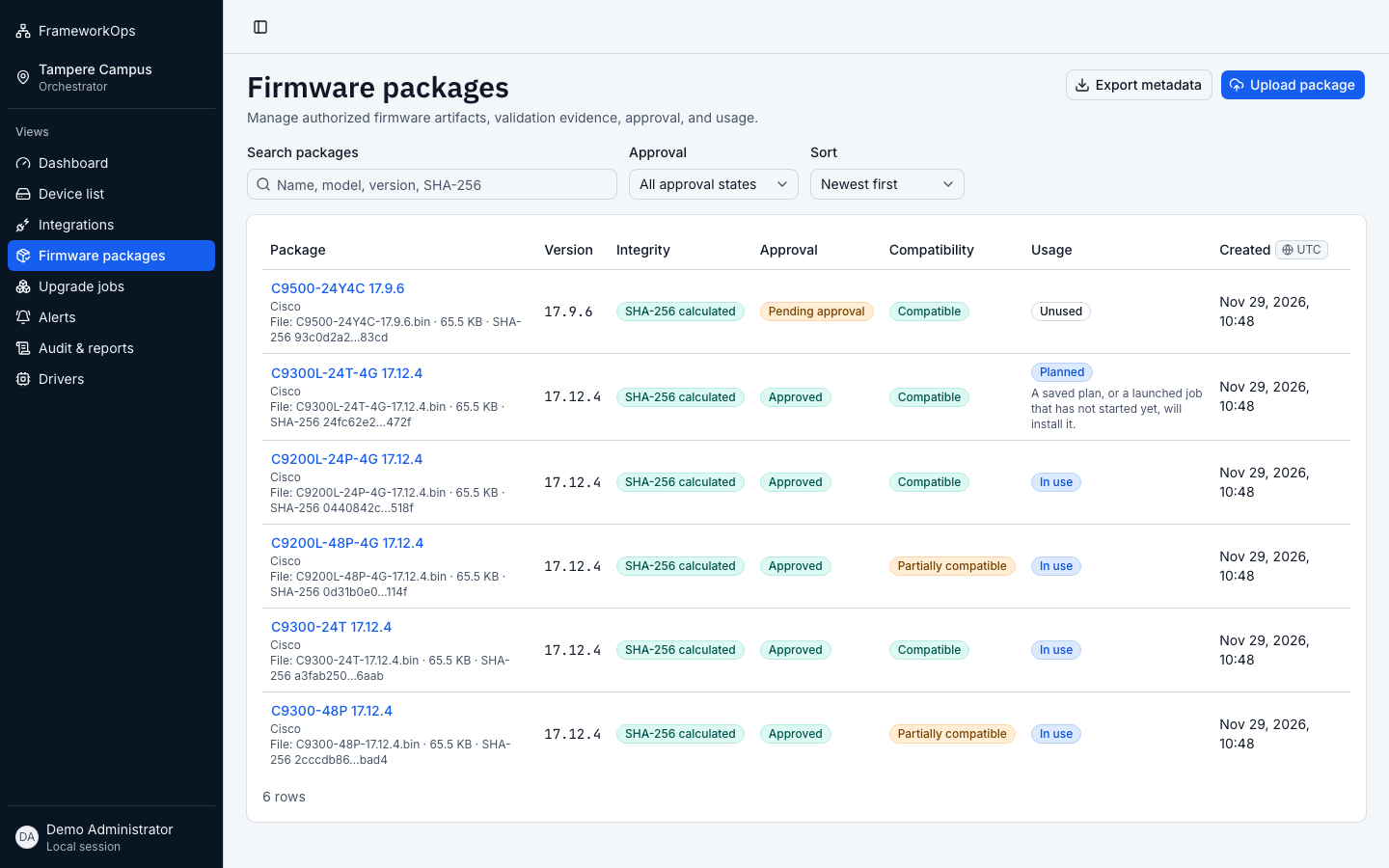
The page header has these actions:
| Action | Shown when | What it does |
|---|---|---|
| Upload package | Your role can upload | Starts the upload wizard. See Uploading a package |
| Export metadata | At least one package exists | Downloads a CSV file with the metadata of every package at this orchestrator. While it runs the button reads Exporting… |
After an export, the page shows Metadata export ready with the file name and the number of packages, and a Download again button. If the export fails, it shows Metadata export failed with "The orchestrator did not queue the metadata export. Try again, or share the correlation ID with support." and a correlation ID.
Search, filter and sort
These controls appear at the orchestrator once there is at least one package.
| Control | Options |
|---|---|
| Search packages | Type a name, model, version or SHA-256. The list updates after a short pause |
| Approval | All approval states, Pending approval, Approved, Rejected, Revoked |
| Sort | Newest first (by creation time), Name A to Z |
| Clear filters | Shown while a search or approval filter is set. Clears both |
The search, filter and sort are kept in the page address, so a shared link opens the same list. If no package matches, the list shows No packages match with "Change the search or the approval filter." and a Clear filters button.
The list shows 50 packages per page. Use the page controls under the table to move between pages.
Columns
| Column | What it shows |
|---|---|
| Package | The display name (a link to the package page). Under it: File: <file name> · <size> · SHA-256 <checksum> |
| Vendor | The vendor. On narrower screens it appears under the package name |
| Version | The release version, and the exact version under it when the two differ |
| Integrity | The result of the file check. See Integrity |
| Approval | The approval state. See Approval states |
| Compatibility | How the package's compatibility rule fits the devices of its model at this orchestrator. See Compatibility |
| Usage | Whether upgrade jobs use the package. See Usage |
| Created | When the package was created. In Cloud this column is Replicated: when the Cloud copy arrived. The time zone is named in the column header |
On a phone each package is a card with the same facts, plus a Lifecycle row.
Unfinished uploads
Above the list, people who can upload see Unfinished uploads when an upload was started but not submitted. Each row shows the file, its progress and when it expires, with Resume and Discard. See Resume an unfinished upload.
Package statuses
Approval states
| State | Meaning | Can a plan use it? |
|---|---|---|
| Pending approval | Submitted and waiting for an approver. A package also returns here when its compatibility rule is widened | No. The upgrade wizard shows it, but "a plan can use it once it is approved" |
| Approved | An approver approved it | Yes, for the devices its compatibility rule covers |
| Rejected | An approver rejected it while it was pending. Final | No |
| Revoked | An approver revoked it after approval. Final | No |
How a package moves between these states, and who can move it, is on Approving and revoking.
Integrity
The Integrity column says what the orchestrator checked about the stored file. It says nothing about what the firmware does.
| Shown | Meaning |
|---|---|
| Checksum matches | The stored file has its recorded SHA-256, and it matched the expected SHA-256 the uploader entered |
| SHA-256 calculated | The stored file has its recorded SHA-256. No expected value was entered, so nothing was compared with it |
| Queued | The check is running, for example after Revalidate. Approve and Reject wait until it finishes |
| Failed | The stored file no longer matches its recorded checksum or size. The package cannot be approved |
Lifecycle
A package's lifecycle is shown beside its approval state on the package page, and as Lifecycle on phone cards, only when it adds something.
| Shown | Meaning |
|---|---|
| Not active until approved | The package waits for approval |
| Active | An approved package in use |
| Deprecated, Superseded | Shown when the package carries this lifecycle |
| Revoked, Rejected | The package is closed |
Compatibility
The Compatibility column says how the package's compatibility rule fits the devices of the package's model at this orchestrator.
| Shown | Meaning |
|---|---|
| Compatible | Every device of this model here runs a version the package upgrades from, or already runs it |
| Partially compatible | Some devices of this model run a version the rule does not upgrade from. The upgrade wizard lists them as devices without a package |
| Incompatible | No device of this model here runs a version the package upgrades from |
| Unknown | No device of this model is in this orchestrator's inventory |
| Not applicable | The package was rejected or revoked, so it installs nowhere |
The compatibility answer rests on the model and version stated for the package. The package page says whether a driver confirmed the version from the file.
Usage
| Shown | Meaning |
|---|---|
| In use | An upgrade job that has not ended installs it |
| Planned | A saved plan, or a launched job that has not started yet, will install it |
| In ended jobs | Every job that planned it has ended. The package page adds whether jobs installed it earlier or no device installed it |
| Unused | No upgrade job uses it |
| Kept for rollback | Kept for rolling devices back |
| No longer installable | The package was revoked. No new upgrade can install it, and a plan that assigns it needs another package |
The package page
Select a package name to open its page. The title is the package's display name, with its approval badge (and lifecycle badge when it adds something) and <vendor> · <version> under it. Use the breadcrumb to return to the list.
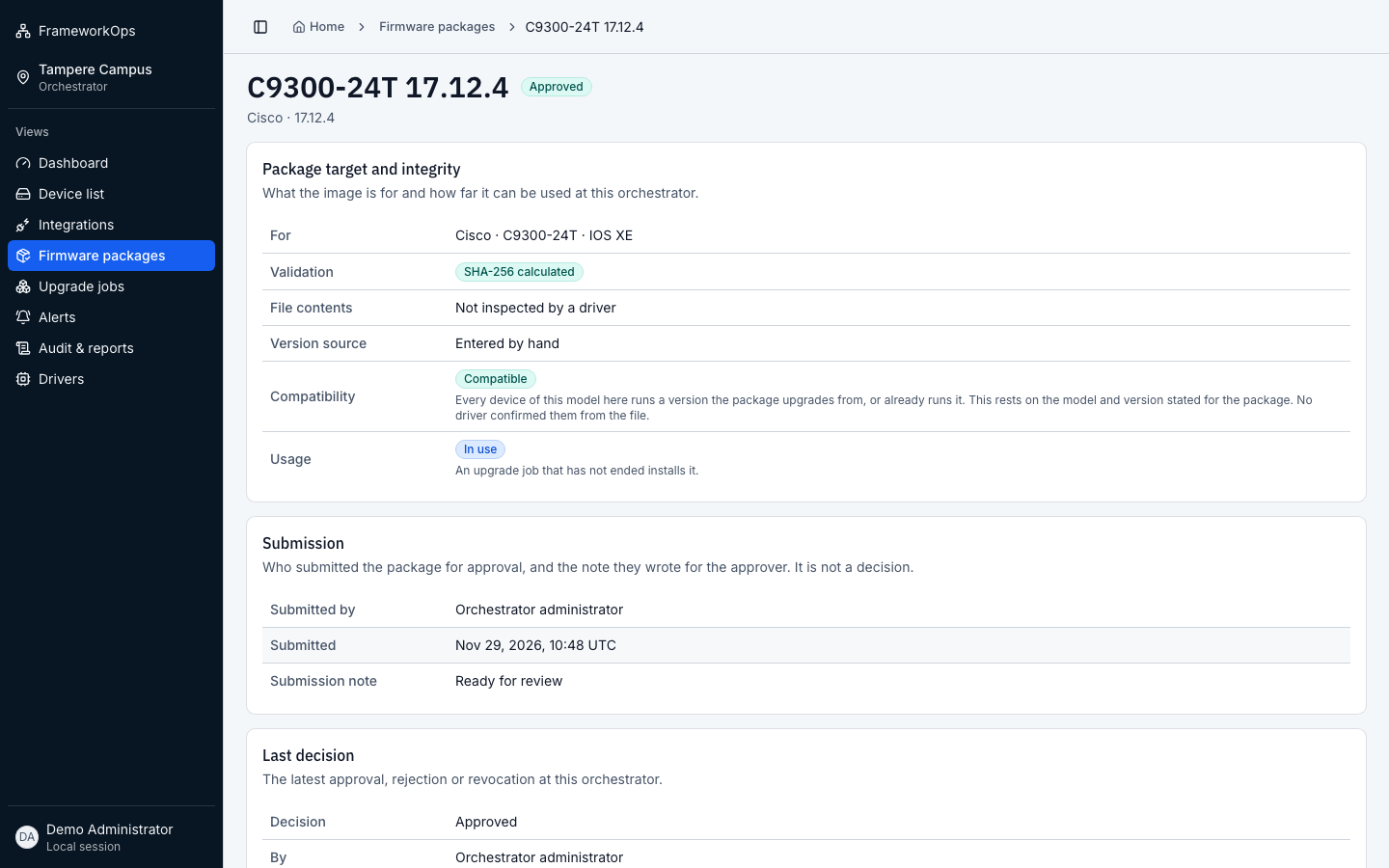
The page is one column of sections, in this order.
Notice: Pending approval because the compatibility changed
When a package waits for approval because someone widened its compatibility rule, the page starts with Pending approval because the compatibility changed, naming who changed it, when, and which versions were added or removed, ending with "Approve again to use it."
Package target and integrity
What the image is for and how far it can be used at this orchestrator.
| Row | What it shows |
|---|---|
| For | Vendor · model · platform |
| Validation | The integrity result, as in the list |
| File contents | Read by a named driver, or Not inspected by a driver |
| Version source | Where the version came from: Read from the file by a driver, From your organization's earlier entry, From the shared catalog, Entered by hand, or "Entered by hand. driver read version from the file." when the typed version differs from what the driver read |
| Compatibility | The compatibility state with its explanation, and what it rests on. For a rejected or revoked package: "Not applicable: a rejected or revoked package installs nowhere." |
| Usage | The usage state with its explanation |
If the record cannot be read, rows show Not available.
Submission
Who submitted the package for approval (Submitted by), when (Submitted) and their Submission note for the approver. It is not a decision.
Last decision
The latest approval, rejection or revocation at this orchestrator: Decision, By, When and Reason. Before any decision it reads "No one has approved, rejected or revoked this package here yet."
Compatibility rule
Which running firmware the package may replace. Coverage in the upgrade wizard follows this rule.
| Row | What it shows |
|---|---|
| Exact version | The exact version the driver installs |
| Release version | The short form, or Not set |
| Installs over | The current firmware versions the package may be installed over, or No version yet |
People who can upload see Edit compatibility here, except on rejected and revoked packages. See Change which devices a package fits.
Upgrade jobs
The jobs and plans that assign this package, each a link to the job, with its status, a Depends on it or Ended badge, and the number of its devices that use this package. Without jobs it reads "No upgrade job or plan uses this package."
Immutable artifact facts
These values identify the uploaded file on this orchestrator: Filename, Checksum (SHA-256), Size, Created and Known release (Linked or Not linked). Show technical details reveals the Package ID and, when linked, the Known release ID.
Actions
Shown to people who can upload or approve. It holds Approve, Reject, Revoke and Revalidate, depending on the package state. See Approving and revoking.
Delete package
Shown for rejected and revoked packages to people who can approve. See Delete a rejected or revoked package.
Which devices a package fits
A package fits a device when all of these hold:
- The device has the package's vendor, platform and model.
- The device's current firmware is one of the versions under Installs over.
A device whose firmware is not listed gets no package from it, in either direction. To let a package downgrade a device, add the newer version the device runs to Installs over.
The upgrade wizard works out coverage per device from this rule when you plan a job. Pre-checks then check each device live. See Planning an upgrade and Pre-checks.
How a package becomes a device's target
- Someone uploads the file and submits it. The package is Pending approval. See Uploading a package.
- An approver approves it. The package becomes Approved.
- For every device it fits, the newest approved package of its model becomes the device's suggested upgrade target. Cloud's Firmware posture shows such a device with Approved package ready.
- In the upgrade wizard, per model, the newest approved package that fits the scope's devices starts selected in the Firmware Package step.
Nothing is installed until an upgrade job is launched. A job that already names another package keeps that package.
Change which devices a package fits
You need a role that can upload (Orchestrator administrator or Network operator). The package must not be rejected or revoked.
- Open the package page.
- In Compatibility rule, select Edit compatibility. The dialog Compatibility of package opens with the versions under Installs over as checkboxes.
- To remove a version, clear its checkbox.
- To add a version, type it in Add a current firmware version as the inventory reports it, and select Add or press Enter.
- Enter a Reason (required), at least 3 characters. It is recorded in the audit log with the change.
- Read the notice the dialog shows (see the table below).
- Select Save compatibility, or Save and return to approval when the change sends the package back to approval.
Expected result: "Compatibility of package saved." or "Compatibility of package saved. It waits for approval again."
What the change does to the package:
| Change | Notice | Effect |
|---|---|---|
| Add a version to an approved package | The package returns to Pending approval | No plan can use it until an approver approves it again, from the upgrade wizard or in Firmware packages. Jobs that use it stop starting devices (they are listed in the dialog) |
| Remove a version from an approved package | The approval stays | The package stays approved. Saved plans with devices on a removed version are listed: each turns out of date, its pre-checks must be run again and an execution approval it has no longer counts |
| Remove a version that a launched job still has devices on | The package returns to Pending approval | The job starts no further device until the package is approved again. If it is resumed then, it still upgrades those devices; cancel it to leave them out |
| Add or remove on a pending package | The package stays in Pending approval | The approver reviews the rule as it is after the change |
| Remove every version | A package installs over at least one version | Not allowed: "Keep at least one version." |
The dialog refuses some versions while you type:
| Message | Meaning |
|---|---|
| "Not a firmware version. Write it as the inventory reports it, with a number, for example 17.12.4." | The text has no number |
| "version is already listed." | The version is already in the list |
| "This is the package's own version, so it has nothing to install over." | You typed the package's own version |
| "This does not look like the versions this platform reports, such as example." | Shown on Add when the version's form differs from what the inventory reports for this platform |
Firmware packages in Cloud
Cloud shows each orchestrator's package metadata, one orchestrator at a time.
- In Cloud, select Firmware packages in the left navigation.
- If all orchestrators are selected, the page shows Choose an orchestrator. Choose one in the Orchestrators menu at the top.
- The list shows that orchestrator's packages, with the same columns. The time column is Replicated.
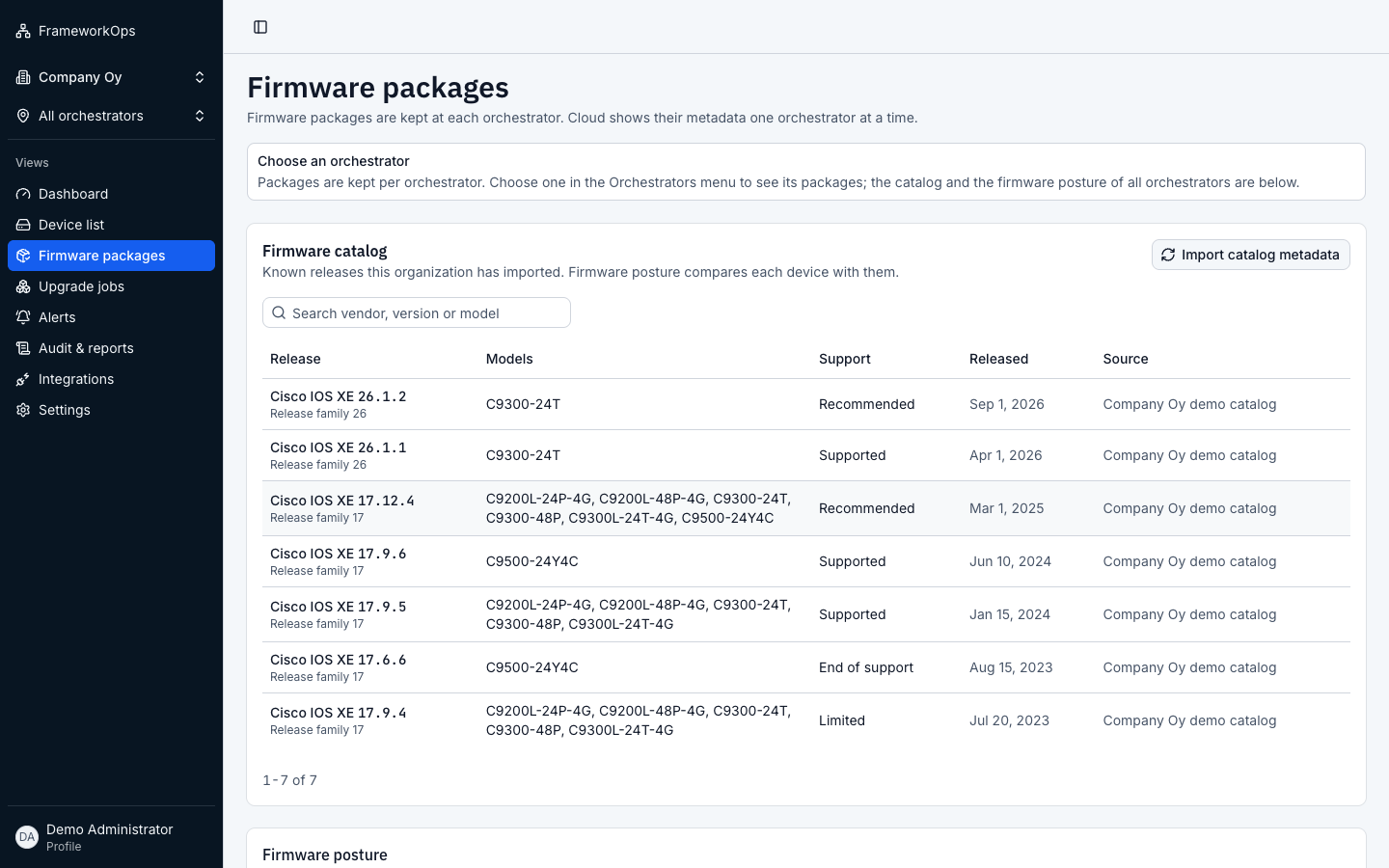
Cloud's list has no search, filter, sort, export or upload. Its notices say where packages are managed:
| Notice | When |
|---|---|
| Read-only firmware access: "Package bytes and governance remain on the connected orchestrator; this ledger is metadata only." | Your browser is connected to this orchestrator |
| Orchestrator connection needed: "Connect to this orchestrator to manage package files and approvals there. Cloud package metadata remains readable here." | You can connect but are not connected. The notice adds "Most recent package metadata in this result:" with a time |
| Read-only firmware access: "This is the Cloud copy of the orchestrator's package metadata. Package files and approvals are managed on the orchestrator by people with orchestrator access." | Your Cloud role gives no orchestrator role (for example Change Approver) |
The header button is Open connected orchestrator when your browser is connected, or Connect to orchestrator when it is not. See Orchestrator connection.
The Cloud package page shows the package header, Package target and integrity, Compatibility rule and Immutable artifact facts. It does not show the submission, the last decision, the jobs or the actions. Under the title it says where device coverage is worked out, for example "Device coverage is worked out at the orchestrator. Open it to see which devices this package covers."
The Cloud copy arrives through sync from a connected browser. If it looks out of date, see Connection and Cloud sync.
Firmware catalog and Firmware posture
Below the package list, Cloud shows two more sections to Organization Admin, Network Admin and Auditor. Change Approver sees the package list only.
Firmware catalog lists the known releases your organization has imported. Firmware posture compares each device with them. Search with Search vendor, version or model. Columns: Release, Models, Support, Released, Source.
An Organization Admin can select Import catalog metadata to add releases:
- Select Import catalog metadata.
- In Catalog metadata file (required), choose a reviewed, metadata-only JSON file: UTF-8, up to 256 KiB and 100 release rows. Download an example file gives the format.
- Wait for the preview. It lists each release as New or Update, with its version guard, vendor and platform, version, models and support.
- Select Apply reviewed metadata.
Expected result: Catalog metadata applied, and firmware posture is recalculated. The file must not contain firmware bytes, download locations, vendor credentials or entitlement data; such a file is refused.
Firmware posture shows the recommended target for each device, based on the latest catalog and approved compatible packages. Columns: Device, Orchestrator (when there is more than one), Installed, Target, Posture, Package. Posture states:
| State | Meaning |
|---|---|
| Current | The device runs its recommended version |
| Update available | A newer recommended version exists |
| No approved target | No approved package covers the device |
| Superseded | The device's version is superseded in the catalog |
| Unsupported | The device's version is not supported |
| Unknown | Posture cannot be judged |
Package shows Approved package ready when an approved package can install the target.
If something goes wrong
See Firmware packages troubleshooting for messages on this page, packages that cannot be used in a job, and Cloud copies that do not match.