Appearance
Finding your way
Every page of FrameworkOps sits in the same frame: a sidebar on the left, a top bar with the page trail, and the page itself. This page explains the frame in Cloud and at an orchestrator, and how tables, times and unsaved changes behave everywhere.
The sidebar
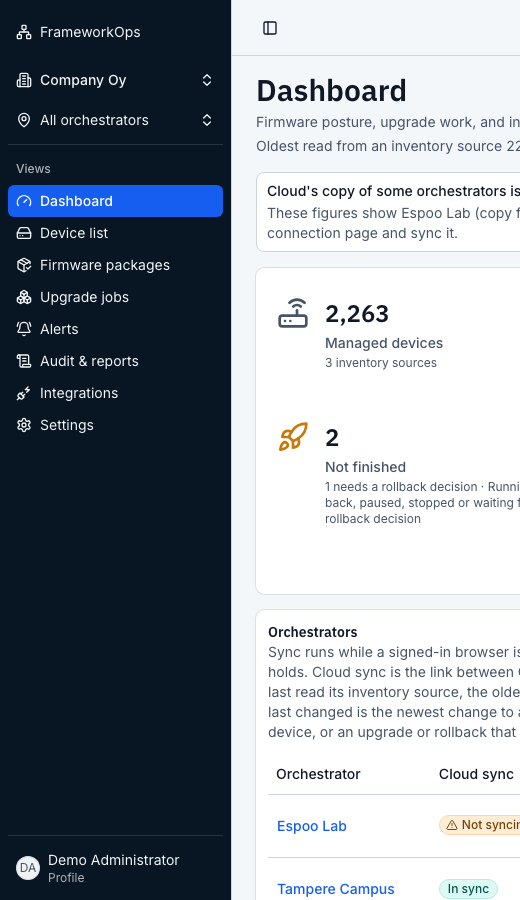
From top to bottom the sidebar holds:
| Part | Cloud | Orchestrator |
|---|---|---|
| Product name FrameworkOps | Opens your first view (usually Dashboard) | Same |
| Workspace | Organization menu, and the orchestrator menu when there are two or more orchestrators | The orchestrator's name, with the organization name and Orchestrator under it |
| Views | The views your roles allow (below) | The views your role allows (below) |
| Your name | Menu with Profile, Theme, Sign out | Menu with Your account, Theme, Sign out |
Select Toggle Sidebar (the button at the left of the top bar) to fold the sidebar to icons. Your choice is remembered in this browser. When the sidebar is folded, the top bar shows a badge with the organization and the orchestrator scope. On a phone, the sidebar opens as a panel and closes when you choose a view.
Views in Cloud
| View | Shown when your roles include |
|---|---|
| Dashboard | Viewing devices |
| Device list | Viewing devices |
| Firmware packages | Viewing firmware packages |
| Upgrade jobs | Viewing upgrade jobs |
| Alerts | Viewing the audit log |
| Audit & reports | Viewing the audit log |
| Integrations | Access at orchestrators (not shown to a Change Approver alone) |
| Settings | Every member |
| Profile | Every member, from your name at the bottom |
Orchestrator connection is not in the sidebar. Open it from an orchestrator's name on the Dashboard, from Settings > Deployment > Open Orchestrator connection, or with Register an orchestrator when the organization has no orchestrator yet. See Orchestrator connection.
If your roles cannot read the Dashboard, Cloud opens the first view they can read. See Roles.
Views at an orchestrator
| View | Shown when your role allows |
|---|---|
| Dashboard | Viewing devices |
| Device list | Viewing devices |
| Integrations | Changing integrations |
| Firmware packages | Viewing firmware packages |
| Upgrade jobs | Viewing upgrade jobs |
| Alerts | Viewing the audit log |
| Audit & reports | Viewing the audit log |
| Drivers | Viewing drivers |
| Your account | Everyone, from your name at the bottom |
If your role allows none of these views, the orchestrator shows No local views available with a Sign out button.
Theme
Select your name, then Theme: current, and choose Light, Dark or System. System follows your operating system. The choice is kept in this browser. In Cloud you can also set it under Profile > Preferences.
Choosing an organization (Cloud)
The organization menu at the top of the sidebar shows the organization you work in. Select it and choose another one under Organizations. See Switching organization.
Choosing an orchestrator scope (Cloud)
When your organization has two or more orchestrators, the sidebar shows an orchestrator menu under the organization name. It narrows the Cloud views to one orchestrator.
- Select the orchestrator menu. It shows the current scope, such as All orchestrators.
- Under Orchestrators, choose All orchestrators or one orchestrator.
| Fact | Detail |
|---|---|
| Where All orchestrators is offered | Dashboard, Device list, Firmware packages, Upgrade jobs, Alerts, Audit & reports, Integrations |
| Choosing from Profile, Settings or Orchestrator connection | Opens the Dashboard with the new scope |
| Choosing from a device page | Opens the Device list with the new scope |
| Opening one device or job | Keeps your scope; the next view opens with it |
| One orchestrator only | No menu: that orchestrator is the whole organization |
| The orchestrator list did not load | The menu is replaced by Retry loading orchestrators |
Some views need one orchestrator and say Choose an orchestrator until you pick one.
WARNING
Choosing a different orchestrator in this menu ends your browser's connection to the orchestrator it is connected to, and its sync stops until you connect again.
If a link names an orchestrator that is not in your organization, Cloud removes it and says Showing all orchestrators: "The link named an orchestrator that is not available in this organization." Select Dismiss to hide the notice.
Opening an orchestrator from Cloud
Changes happen at the orchestrator. Cloud offers the way there wherever it applies:
| Where in Cloud | Control |
|---|---|
| Dashboard, Orchestrators card | The open-in-new-tab icon at the end of the row ("Open name in a new tab") |
| Integrations | Open orchestrator on each source row |
| Upgrade jobs | "Open job at orchestrator in a new tab", and Open orchestrator upgrade jobs |
| Device list, device page | Open on the orchestrator |
| Firmware packages | Open connected orchestrator |
Where the action needs this browser's connection to the orchestrator and there is none yet, the button reads Connect to orchestrator and opens Orchestrator connection instead.
The orchestrator opens in a new tab. If you are not signed in there, it asks for your passkey. If you have no passkey for it yet, see Adding a passkey. If your roles give no access at orchestrators, Cloud offers no way there and says so.
The top bar and the page trail
The top bar holds Toggle Sidebar and, on pages below a view, the page trail (breadcrumb), such as Upgrade jobs > job name > device. Select an earlier step to go back to it. The last step is the page you are on. Top-level views show no trail: their heading names them. On a phone the first step shows as an icon.
The browser tab title names the page, and the record when you open one.
Tables
Most views are tables with the same controls.
| Control | How it works |
|---|---|
| Search | Type words to narrow the rows. A search has at most a few words and characters; the field says when you pass the limit. |
| Filters | Menus and segmented controls above the table. Clear filters resets them. |
| Sort | Select a column heading that can sort. |
| Rows per page | Choose how many rows a page shows. |
| Page controls | First page, Previous, Next, Last page, and a page number field (type 1 to the last page). |
| Count | Such as "1-25 of 340", or "Page 2 · 25 rows" when the total is not known. |
Search, filters, sort and page are kept in the page address. You can bookmark the address or send it to a colleague. If a link holds a filter or sort value the list does not know, the list leaves it out and says so (for example "A filter or sort in this link is not one this list knows, so the list leaves it out."). Select Dismiss to hide the notice.
On a narrow screen, a table turns into a list of cards with the same facts.
Times and time zones
Every date and time in the browser uses one time zone.
| Surface | Default zone |
|---|---|
| Cloud | The organization's time zone |
| Orchestrator | UTC |
A table shows the zone once, in the column heading, not on every row. On a narrow screen a line "Times in zone" stands above the cards.
To change the zone:
- Select the zone button in a time column's heading. Each click moves every time in the application to the next zone: the default, your browser's zone, then UTC.
- Or choose any zone by name: in Cloud under Profile > Preferences > Time zone, at an orchestrator under Your account > Time zone.
The choice is kept in this browser only. CSV exports always use UTC.
Some times read as relative ("5 minutes ago"). Point at them to see the exact time.
Unsaved changes
When you leave a page or close a dialog with changes you have not saved, FrameworkOps asks Discard unsaved changes?.
- Keep editing returns you to your changes.
- Discard changes leaves without saving.
The same question appears when you switch tabs within a page, switch organization or sign out with unsaved changes. When you close or reload the browser tab, the browser asks its own question.
If something goes wrong
See Common messages for messages that can appear on any page.