Appearance
Audit and reports
The audit log records every change: who did what, to which target, and when. Use it to find out what happened to a device or job, to review approvals, and to export evidence for compliance. Each orchestrator keeps its own full audit log and reports. Cloud shows the events of Cloud and of every orchestrator in one list.
Where to find it
| Where | What it holds | Path |
|---|---|---|
| At an orchestrator | Every event of that orchestrator with its full details, and the Reports tab | Audit & reports in the sidebar |
| In Cloud | Cloud events (sign-ins, members, invitations, organization changes) and the events of every orchestrator, without their details | Audit & reports in the sidebar |
You need a role that can read the audit log: Organization Admin, Network Admin, Change Approver or Auditor. Integration Admin does not see Audit & reports. A Change Approver has no access at orchestrators, so reads the audit log in Cloud only. See Roles.
What is recorded
The page states it: "Every change at this orchestrator, recorded permanently, with exports for review." and "Audit events can't be changed or deleted. Exports contain the same fields."
Events are grouped in families:
| Family | Examples |
|---|---|
| Upgrade execution | Rollout registered, Approval requested, Approval decided, Batch released, Auto-stop evaluated, Rollout command, Rollout ended, Device phase changed, Rollback finished |
| Pre-checks | Pre-check started, Pre-check completed, Pre-check failed, warning acknowledged, inactive package removal |
| Drivers | Driver operations, driver releases, driver binding changes, device credential created, replaced or revoked |
| Firmware packages | Package submitted, approved, rejected, revoked, deleted, upload completed, upload quarantined |
| Inventory and integrations | Integration created, updated, deleted, connection tested, inventory sync started and completed |
| Alerts | Alert opened, acknowledged, assigned, snoozed, snooze ended, resolved, reopened; alert rule created, updated, status changed, deleted |
| Notifications | Notification events |
| Sessions and security | Sign-ins and sign-outs, sessions signed out |
| Organization and groups | Device groups; in Cloud also organization changes, Person invited, Invitation accepted, extended, revoked, refused at sign-in, Member roles changed, suspended, reactivated, removed |
| Cloud sync | Sync bundles accepted, rejected; full resync steps |
| Orchestrator | Pairing and activation steps, Firmware package list exported |
| Other | Anything else |
Reading the audit log and exporting it are not recorded as events. The one export that is recorded is Export metadata on the Firmware packages page ("Firmware package list exported").
Routine events
Some events are frequent bookkeeping: per-device phase changes, firmware baselines, sync bundles and session refreshes. They are hidden unless you turn on Show routine events. Choosing an event type or a target shows them too. At an orchestrator, firmware upload part events (two per 8 MiB part) are also hidden unless you turn on Show upload part events.
The audit log at an orchestrator
Open Audit & reports. The Audit log tab is open.
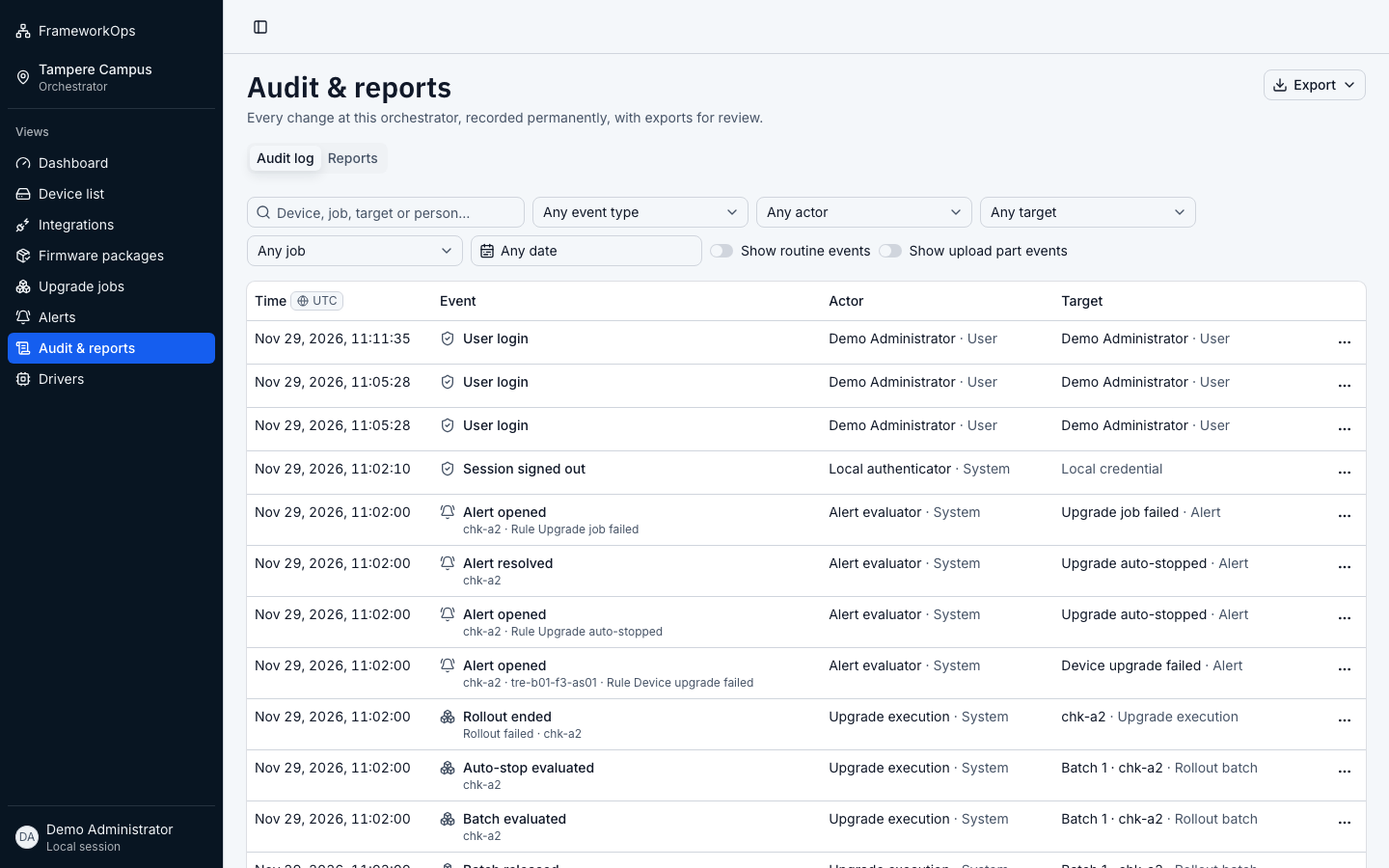
Columns
| Column | Content |
|---|---|
| Time | When the event occurred. The column header names the time zone |
| Event | What happened, in words, for example "Pre-check failed" or "Alert unassigned". Rule events add "Rule" and the rule name; device phase changes show the move, for example "Verifying → Succeeded" |
| Actor | Who did it, and whether it was a User, System or Integration. Sync events read Cloud sync |
| Target | What it was done to: device, job, package, integration and so on |
| Actions | View details, Show related events |
The list is newest first and paged. Under the list a note says "This count leaves out routine events. Reports count every recorded event, routine ones included."
Filters and search
| Control | Use |
|---|---|
| Search events | Device, job, target or person. At most 120 characters |
| Event type | Any event type or one type. Type to search event types |
| Actor | Any actor or one person or service |
| Target | Any target or one device, job, integration and so on |
| Job | Any job or one upgrade job |
| Date range (From, To) | Calendar days in the shown time zone, entered as YYYY-MM-DD. A range covers at most 366 days, counting both ends |
| Show routine events | Includes routine events |
| Show upload part events | Includes firmware upload part events |
Active filters appear as chips. Remove one with its close button, or press Clear all. Pickers show up to 100 matches; type to narrow them.
A date range that is not valid is not applied, and the page says what the list still shows, for example "The end date (...) is before the start date (...), so this range is not applied. The list still shows: ...". Reports can also open the log with a Device steps filter (Completed or Failed); it appears as a chip you can remove.
Filters are kept in the page address, so a filtered log can be bookmarked or shared.
Event details
Select View details on a row to open the event in a side panel.
| Section | Content |
|---|---|
| Summary | Actor, event and target in one line |
| Metadata | What happened (when the event records an outcome), Occurred, Actor, Target, Alert rule, Upgrade job, Device, Phase change where they apply, Event ID and Correlation ID with copy buttons. Show technical details adds event type, actor ID, target ID, origin sequence and orchestrator |
| Recorded details | The event's own fields in words, for example Reason, Note, Roles, Previous status. Show raw payload shows the JSON, with Copy payload JSON |
| Related events for this target | Other events of the same target |
At the bottom: Open upgrade job and Open alert where they apply, and Download event JSON. The panel notes "The original event is immutable."
Secrets, passwords and tokens are never part of an event.
Find everything about one device or job
- Find one event of the device or job.
- Select Show related events on its row.
The log is filtered to that target. You can also set Target or Job directly.
Export the audit log
Exports are files with the same fields as the audit log. Times in the files are in UTC.
- Open Audit & reports > Audit log and set the filters you need.
- Open the Export menu. With filters set, it reads Export filtered and the number of matching events.
- Choose CSV of current filters (times in UTC) or JSON of current filters (times in UTC).
"Preparing export…" shows while the file is made. Then "Audit export downloaded" says how many events went to which file.
An export holds at most 10,000 events. With more: "More than 10,000 events match. Narrow the date range or filters, then export again." On the Reports tab, the header Export menu exports without the log's filters.
Reports at an orchestrator
Open Audit & reports and select the Reports tab. Reports summarize the audit log over a range.
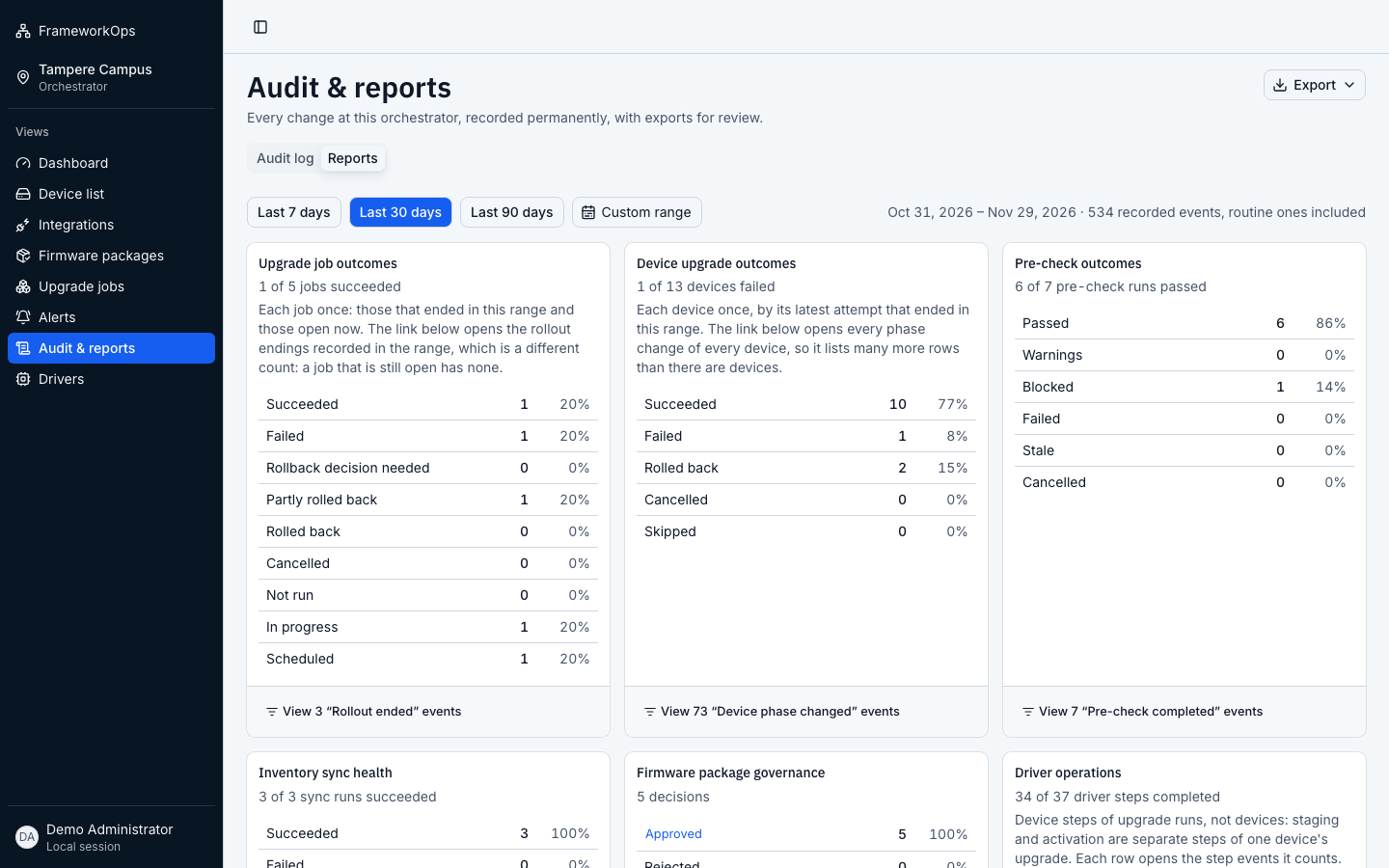
Choose the range
Under Report range, select Last 7 days, Last 30 days or Last 90 days, or select Custom range and enter From and To. A custom range starts today or earlier and covers at most 366 days. The line under the range shows the dates and how many events were recorded, routine ones included.
The report cards
| Card | Figure | Rows |
|---|---|---|
| Upgrade job outcomes | "... of ... jobs succeeded" | Succeeded, Failed, Rollback decision needed, Partly rolled back, Rolled back, Cancelled, Not run, In progress, Scheduled |
| Device upgrade outcomes | "... of ... devices failed" | Succeeded, Failed, Rolled back, Cancelled, Skipped |
| Pre-check outcomes | "... of ... pre-check runs passed" | Passed, Warnings, Blocked, Failed, Stale, Cancelled |
| Inventory sync health | "... of ... sync runs succeeded" | Succeeded, Failed, Cancelled |
| Firmware package governance | "... decisions" | Approved, Rejected, Revoked, Quarantined |
| Driver operations | "... of ... driver steps completed" | Completed, Failed |
| Alert activity | "... alerts opened · ... resolved" | Opened, Resolved, Not resolved now |
A card without events says "No activity in this range." Each card explains what it counts:
- Upgrade job outcomes counts each job once: those that ended in the range and those open now.
- Device upgrade outcomes counts each device once, by its latest attempt that ended in the range.
- Driver operations counts device steps of upgrade runs, not devices: staging and activation are separate steps.
- Alert activity counts alerts opened or reopened in the range, each once.
Each card and row has a link such as "View 12 “Pre-check completed” events" that opens the audit log filtered to those events. The number of rows in the log can differ from the figure on the card; the card text says why.
Export compliance evidence
The Compliance evidence export card exports "the complete audit trail for the report range. The file contains the same fields as the audit log, never secrets or raw device output."
- Choose the report range.
- Select Export CSV or Export JSON.
The audit log in Cloud
Open Audit & reports in the Cloud sidebar: "Cloud and orchestrator events, newest first. Reports are at each orchestrator."
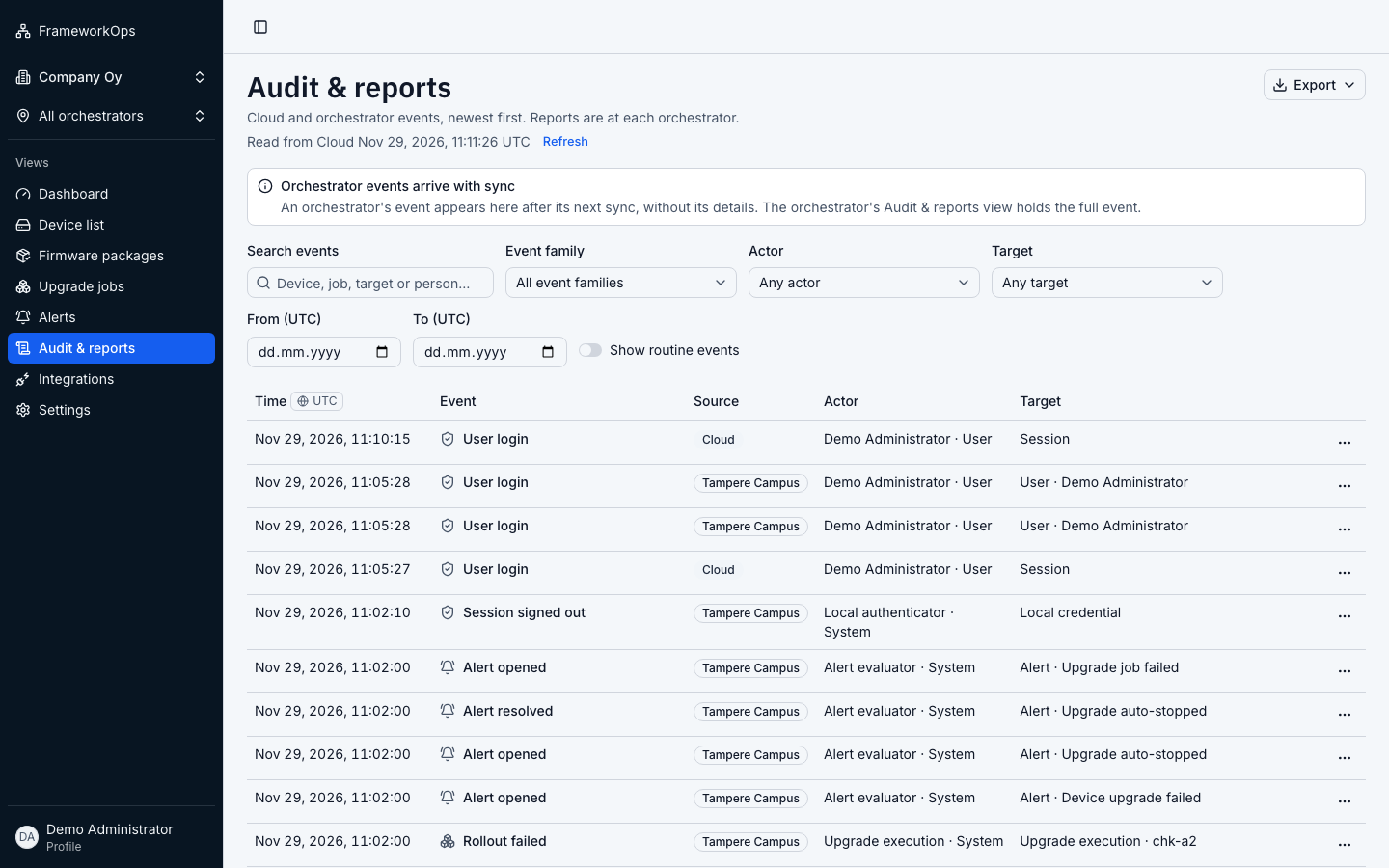
A notice explains Orchestrator events arrive with sync: "An orchestrator's event appears here after its next sync, without its details. The orchestrator's Audit & reports view holds the full event."
| Column | Content |
|---|---|
| Time | When the event occurred |
| Event | What happened |
| Source | Cloud or Orchestrator (with the orchestrator's name) |
| Actor | Who did it |
| Target | What it was done to |
| Actions | View details, Show this actor's events |
Filters: Search (device, job, target or person), Event family (All event families or one family), Actor, Target, From and To (in the shown time zone) and Show routine events. The line under the filters says what the list shows, for example "Showing: ...". Dates that are not complete and valid are not applied: "These dates are not applied until they are complete and valid."
Under the title, "Read from Cloud" and a time says when the list was read. Select Refresh to read it again.
View details shows Occurred, Source, Actor and Target. For an orchestrator event: "This event's details stay at its orchestrator. Cloud holds a checksum of them; open the orchestrator's audit log to read them." Select Open this event at its orchestrator to read the full event there. Show technical details lists the event type, event ID, correlation ID, actor ID, target ID and Payload checksum (SHA-256).
Export from Cloud
- Set the filters.
- Open the Export menu and choose CSV of current filters (times in UTC) or JSON of current filters (times in UTC).
The same 10,000-event limit applies. Cloud has no Reports tab; reports are at each orchestrator.
If something goes wrong
See Troubleshooting: Alerts and audit for exports that fail, events you cannot find and lists that do not load, and Troubleshooting: Access and permissions when the view is missing.