Appearance
Dashboard
The Dashboard tells you how much of your fleet is behind its firmware target, what you can upgrade now, which upgrade jobs need a decision, and whether the inventory behind these figures is current. Cloud's Dashboard covers every orchestrator; an orchestrator's Dashboard covers its own devices.
Opening the Dashboard
- Cloud: select Dashboard in the sidebar. It is the first view after sign-in when your roles include viewing devices. Use the orchestrator menu in the sidebar to narrow it to one orchestrator; the heading then names that orchestrator.
- Orchestrator: select Dashboard in the sidebar.
The Dashboard needs a role that can view devices. While a job is running or scheduled, the Dashboard reads its figures again every 15 seconds.
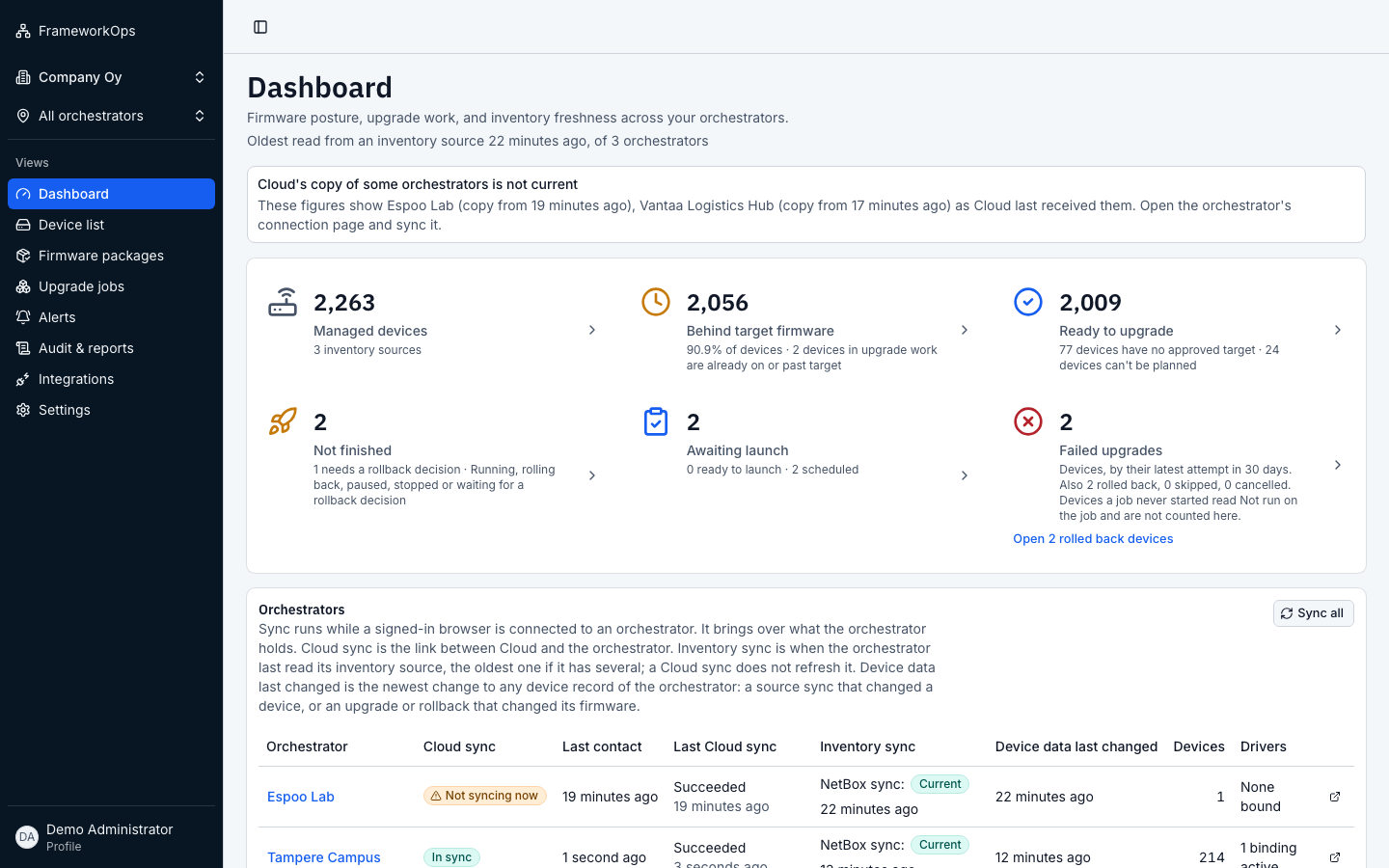
Layout
From top to bottom:
| Section | Cloud | Orchestrator |
|---|---|---|
| Heading and inventory time | Yes | Yes |
| Notices about the inventory | Yes | Yes |
| Priority risk to review | Yes | Yes |
| Metrics row | Yes | Yes |
| Orchestrators card | Yes | No |
| Cloud connection card | No | Yes |
| Upgrade work | Yes | Yes |
| Firmware currency by vendor | When your roles include firmware posture | Yes |
| Source freshness | No (shown on Integrations instead) | Yes |
| Top risk groups | Yes | Yes |
| Upgrade outcomes | When your roles include viewing devices | When your role includes viewing upgrade jobs |
Heading and inventory time
The description under Dashboard reads "Firmware posture, upgrade work, and inventory freshness across your orchestrators." (Cloud, several orchestrators), "...on this orchestrator." (orchestrator), or names the orchestrator you narrowed to.
Next to it you see when the inventory was last read:
- "Inventory read from its source time": the last read of the inventory source.
- In Cloud with several orchestrators: "Oldest read from an inventory source time, of n orchestrators". The oldest one counts, so the figure is never fresher than its stalest part.
Notices about the inventory
These notices appear above the figures when they apply.
| Notice | Meaning | What to do |
|---|---|---|
| No orchestrator inventory yet (Cloud) | No orchestrator has delivered a complete inventory to Cloud. | Open the orchestrator's connection page and sync it. |
| Some orchestrators are missing from these figures (Cloud) | The named orchestrator has not delivered a complete inventory, so its devices are not counted. | Same. |
| Cloud's copy of some orchestrators is not current (Cloud) | The figures show the named orchestrators as Cloud last received them ("copy from time", or "no copy yet"). | Same. |
| "n inventory sources are out of date" | A source has not synced successfully for 24 hours, or for two schedule intervals when that is longer. Figures from it may be out of date. | Sync the source from Integrations at the orchestrator. A Cloud sync does not read the source again. |
| "n sources have not delivered inventory" | A source never delivered devices. No figure depends on it yet. | Test the connection and run a sync from Integrations at the orchestrator. |
If your role cannot sync sources, the notice names who can: an Organization Admin or Integration Admin.
Priority risk to review
Shows the saved device group with the most devices behind target: "group: n of m devices are behind target and k can be planned now." Select Review group devices to open the Device list on that group.
Metrics row
Each figure opens the list it counts. The upgrade-job figures appear only when your role can view upgrade jobs.
| Figure | What it counts | Caption under it | Selecting it opens |
|---|---|---|---|
| Managed devices | All devices from the inventory | How many inventory sources, and how many are not connected | Device list |
| Behind target firmware | Devices whose firmware is older than their approved target | Share of all devices; devices already in upgrade work that are on or past target | Device list, behind target |
| Ready to upgrade | Devices you can plan an upgrade for now | What holds others back: "n devices need review first" (a failed upgrade to review), "n devices have no approved target", "n devices can't be planned"; or "No device is held back" | Device list, ready to upgrade |
| Not finished | Upgrade jobs that are running, rolling back, paused, stopped or waiting for a rollback decision | "n need a rollback decision" when any do | Upgrade jobs, Not finished |
| Awaiting launch | Jobs ready to launch or scheduled | "n ready to launch · n scheduled". A plan still in pre-checks is not counted. | Upgrade jobs, Awaiting launch |
| Failed upgrades | Devices whose latest attempt in the last 30 days failed | Also how many were rolled back, skipped or cancelled. Devices a job never started read Not run on the job and are not counted. | Device list, failed |
When devices were rolled back, a link under Failed upgrades reads "Open n rolled back devices" and opens those devices.
A figure's color says whether it needs attention: Behind target firmware is amber when above zero, Failed upgrades is red when a device failed, and Not finished is amber when a job needs a rollback decision.
Orchestrators card (Cloud)
Lists every orchestrator (or the one you narrowed to) with the health of its link to Cloud.
| Column | Meaning |
|---|---|
| Orchestrator | Name. Selecting it opens its connection details (when your roles can connect). This browser is syncing it marks the orchestrator this tab is connected to. |
| Cloud sync | In sync, Not syncing now, Needs attention, or Sync state not readable (see below) |
| Last contact | The latest successful delivery in either direction |
| Last Cloud sync | Succeeded, Failed, Changes waiting or Not yet, with the time of the last success |
| Inventory sync | When the orchestrator last read its inventory source ("NetBox sync:" and the source state), the oldest one if it has several. A Cloud sync does not refresh it. |
| Device data last changed | The newest change to any device record: a source sync that changed a device, or an upgrade or rollback that changed its firmware |
| Devices | Device count |
| Drivers | "n bindings active", "n stale", or None bound |
| Open icon | Opens the orchestrator in a new tab ("Open name in a new tab") |
| Cloud sync status | Meaning |
|---|---|
| In sync | Both directions delivered within the last five minutes. |
| Not syncing now | No connected browser has carried the sync for over five minutes. Nobody paused it, and the orchestrator keeps working. |
| Needs attention | The sync reported an error or needs recovery. Open the connection details. |
| Sync state not readable | Cloud could not read the state. |
Sync all / Sync now
The button at the top of the card is Sync now with one orchestrator and Sync all with several. It needs a role that can send sync changes and access at orchestrators.
- Select Sync all (or Sync now). The button reads Syncing while it runs.
- Read the result:
- For the orchestrator this browser is connected to: "Sync with orchestrator finished" (or "failed") and what was delivered.
- For the others: "Not synced, because each needs its own browser connection. Connect to:" followed by their names. Select a name to open its connection details.
When an orchestrator reads Not syncing now, the card adds a line saying what restarts the sync. See Orchestrator connection.
Cloud connection card (orchestrator)
One line shows this orchestrator, Cloud, and the link state, with "last contact time".
| State | Meaning |
|---|---|
| In sync | A signed-in Cloud tab carries the sync every 30 seconds. The orchestrator never connects to Cloud itself. |
| Not syncing now | No Cloud page has carried the sync for over five minutes. The orchestrator keeps working. Open Cloud in a browser that reaches this orchestrator, connect, and leave the tab open. |
| Needs attention | The sync reported an error or needs recovery. Open the orchestrator's connection page in Cloud. |
| Not paired | The orchestrator works on its own. Pairing is started from Cloud. |
| Not read yet | The state has not been read yet. |
Select Sync details to see both directions:
| Direction | Carries |
|---|---|
| Orchestrator → Cloud | Inventory, device groups, job progress, upgrade outcomes and audit evidence |
| Cloud → orchestrator | Firmware catalog, approvals, policy and people |
Each direction shows Current or Behind, "Last current time" or "Behind since time" (or "Nothing delivered yet"), and how many bundles wait. If the card reads "The connection state could not be read. It is tried again shortly.", wait; it retries by itself.
Upgrade work
Lists the jobs that need a decision first: stopped or waiting for a rollback decision, then running, awaiting launch or with pre-checks not finished, and jobs that failed or rolled back in the last 30 days. Succeeded and cancelled jobs are under All upgrade jobs.
| Column | Meaning |
|---|---|
| Job | Name (opens the job), device count, and the orchestrator in Cloud |
| Status | The job's status badge (see Statuses) |
| Wave | Lab, Canary or Production for a running job |
| Progress | "n of m upgraded", with failed, rolled back, skipped, cancelled and not run counts; or Not started |
| Updated | When the job last changed |
The table shows up to eight jobs. When more qualify, it says "Showing n of m jobs..." with a link "n more in All upgrade jobs". Select All upgrade jobs to open the full list.
Without a role that views upgrade jobs, the section reads Upgrade jobs are not visible to you. When nothing qualifies, it reads No active upgrade jobs.
Firmware currency by vendor
A bar per vendor splits its devices into Current, Behind target, Unsupported and No target or not reported. Devices without a vendor show as Vendor not reported. Select a vendor ("Open vendor devices") to open the Device list for that vendor. When no posture is known yet, the section reads No firmware currency data.
Source freshness (orchestrator)
One row per inventory source of this orchestrator.
| Column | Meaning |
|---|---|
| Source | Name and provider (NetBox, Infrahub) |
| Status | Current, Stale, Last sync failed or Never synchronized |
| Last synced | The last successful sync of the source |
| Last sync that changed devices | The last sync that changed a device record. An upgrade moves neither time. |
| Last attempt | Succeeded, Failed or Cancelled |
| Devices | Devices from this source |
| Open | Opens the integration (needs a role that changes integrations) |
Top risk groups
Saved device groups with the most devices behind target: Group, Devices, Behind target, Ready to upgrade. Select a group to open the Device list on it. Groups are saved in an orchestrator's Device list; see Device groups.
Upgrade outcomes
Which devices the drivers upgraded in the last 30 days, from which firmware to which, and which they did not. Each device counts once, by its latest upgrade.
| Column | Meaning |
|---|---|
| Driver, Model, Version change | The group of devices |
| Succeeded, Failed, Rolled back, Skipped | Device counts |
| Commonest stop | The step where failures stopped most often: Reading firmware, Pre-checks, Firmware transfer, Activation, Verification, Commit or Rollback |
A row No result record yet counts devices that failed and wait for a rollback decision, or whose record has not reached this view. With no ended upgrade, the section reads "No device upgrade ended in the last 30 days."
If something goes wrong
- Figures look old or an orchestrator is missing: see Connection and Cloud sync.
- A source is out of date: see Inventory and integrations.
- "Could not load Dashboard": see Common messages.