Appearance
Device details
The device page shows one device: what it runs and what it should run, what keeps it out of an upgrade job, its upgrade history, and where its facts come from. At an orchestrator it is also where you bind the device's driver and manage its device credentials.
Open a device
In the Device list, select the device's name, or Open details in its ⋯ menu. A device name in an upgrade job opens the same page. Back to devices returns to the list as you left it, with its group, filters and page.
The page exists at the orchestrator and in Cloud. Cloud shows the device as it last received it from its orchestrator; driver, credentials and setup readiness are shown only at the orchestrator.
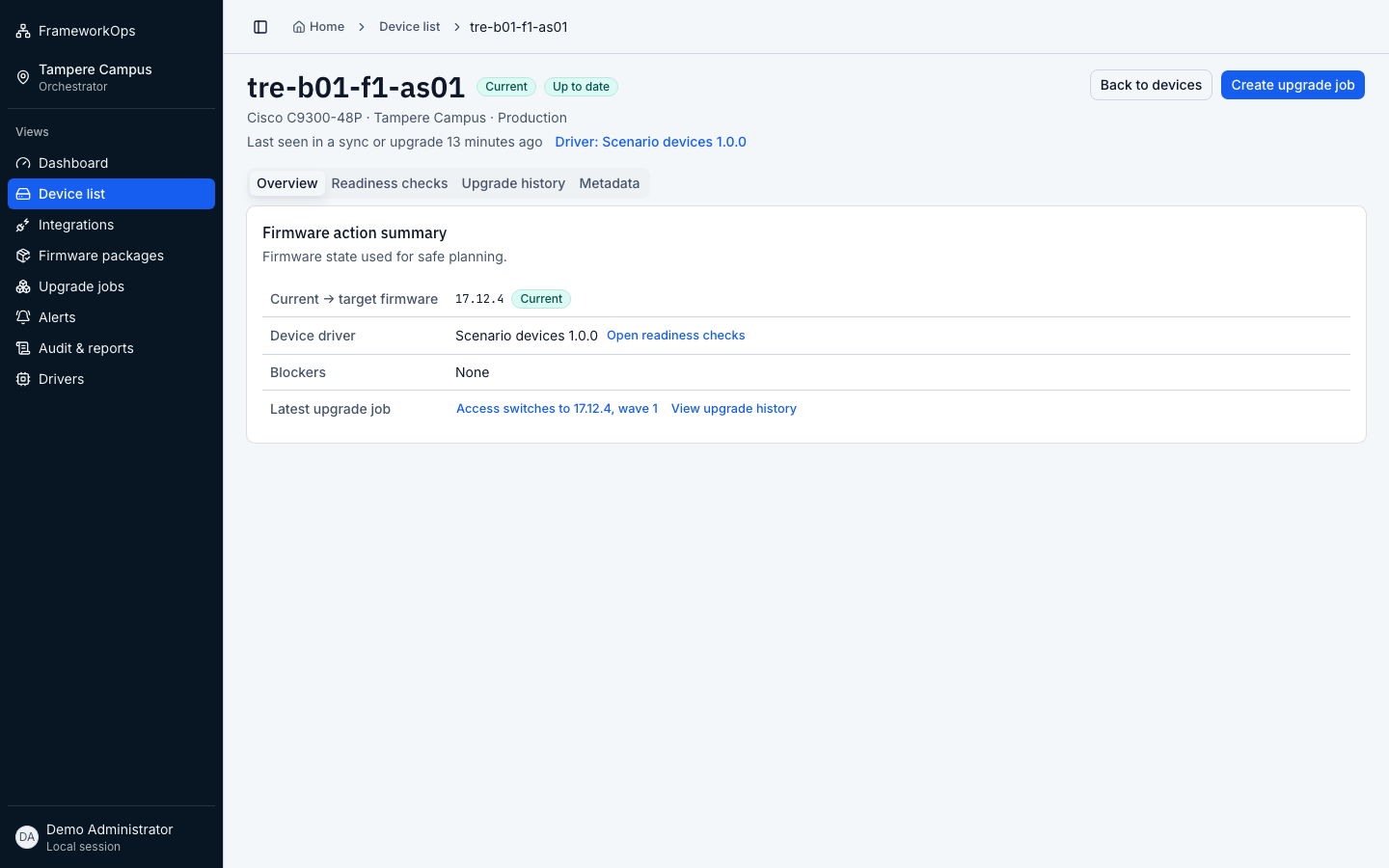
Header
| Part | What it shows |
|---|---|
| Title | The device name |
| Description | Vendor and model, the site (in Cloud, the orchestrator) and the environment ring |
| Firmware badge | The firmware status, as in the Device list. Not committed while an activation waits for its commit |
| Readiness badge | The upgrade readiness |
| Time | "Last seen in a sync or upgrade" time, or "Inventory synced" time |
| Driver | At an orchestrator: "Driver:" name version. It opens Drivers when your role can read drivers, otherwise the Readiness checks tab |
| Actions | Back to devices and the upgrade actions (see Actions) |
Notices above the tabs
| Notice | When | What to do |
|---|---|---|
| This device can't be planned | Readiness is Can't be planned and you are not on Overview: "Overview lists what keeps it out of a new upgrade job and what to do about each." | Select Open Overview. At an orchestrator, when source data is missing or stale, Review inventory sources opens the device's integration (Orchestrator administrator, Integration administrator) |
| A new upgrade job cannot take this device yet | An activation is not committed. See Commit window | Wait, or roll back in its job |
| Rollback available | An upgrade failed after the new firmware was activated, and the job waits for a decision | Open the job and decide there. In Cloud: decide at the orchestrator |
| Last upgrade failed in job job | The last upgrade failed. It says what the inventory says the device runs | Open the job before planning the device again |
| Last upgrade rolled back in job job | The last upgrade was rolled back | Plan again; pre-checks warn until an upgrade succeeds |
| Last upgrade failed in job job**; the device returned to its previous firmware by itself** | The commit window ended and the device went back by itself | Plan again; pre-checks warn until an upgrade succeeds |
| Cloud copy notices | Cloud's copy of the orchestrator is not current or not complete | See Device list |
A job named in a notice comes with its time, "(upgrade started time)" or "(last changed time)", so jobs that share a name can be told apart.
The failed-upgrade notice says one of:
- "The upgrade stopped before the new firmware was activated, so the device runs what it ran before. Open the job to see why it failed before planning the device again."
- "Nobody has verified what the device runs since the failure. Check the device before planning it again: pre-checks warn about this, and the warning must be acknowledged before launch."
After a rollback, and after the device returned by itself, pre-checks warn until an upgrade succeeds, and the warning must be acknowledged before launch. See Pre-checks.
Commit window
Some drivers wait for a commit after activation. Until it comes, the device runs new firmware that is not committed, and a new upgrade job cannot take it: the wizard leaves it out and pre-checks block it.
| Text | Meaning |
|---|---|
| "Runs version, not committed. Its commit window ends at time." | The window is open |
| "Runs version, not committed. Returns to previous by itself at time." | Without a commit, the device goes back by itself |
| "Wait until time, or roll it back in job." | What you can do |
| "job did not roll it back and offers no rollback for it. Wait until time; then a new upgrade job can take it." | No rollback is offered |
The page reads the device again when the window ends. Commit windows are reported at the orchestrator; Cloud does not receive them.
Tabs
The page has four tabs: Overview, Readiness checks, Upgrade history and Metadata. The tab is kept in the page address.
Overview
Firmware action summary ("Firmware state used for safe planning.") lists:
| Row | What it shows |
|---|---|
| Current → target firmware | The firmware change, for example 17.9.5 → 17.12.4, with the firmware status. The running version alone when it is the target or there is none. During a commit window: the inventory's version, marked in inventory |
| Approved package | "No approved target for this device", when no other row says so |
| Device driver | At an orchestrator: the bound driver, with Open readiness checks |
| Blockers | What keeps the device out of a new upgrade job, each with its next step, or None |
| Review before planning | What asks for a look first |
| Latest upgrade job | The latest job with the device, with View upgrade history |
| Planned in upgrade job | A job not launched yet: "Not launched. It holds the device only once it launches." |
Findings and next steps
The same findings appear under Blockers, Review before planning and the Findings table of Readiness checks.
| Finding | Level | Next step |
|---|---|---|
| Commit window text | Blocker | Wait, or roll back in the job |
| "Sources disagree on this device." | Blocker | "Make the sources agree on this device, then sync them." |
| "The device is decommissioned." | Blocker | "A decommissioned device is not upgraded. If it is back in service, mark it active in its source and sync." |
| "The running firmware is not reported." | Blocker | "Record its running firmware in its source, then sync." |
| "No management address." | Blocker | "Add its management address in its source, then sync." |
| "No approved compatible package." | Blocker | "Upload and approve a package for this model in Firmware packages." (Cloud adds "at its orchestrator") |
| "An approved package for this model exists, but its compatibility does not cover the firmware it runs." | Blocker | Use Edit compatibility on the approved package in Firmware packages to add the running firmware, then approve it again. A new job can then take it, as a downgrade when the package is older |
| "No driver is bound to this device." | Blocker (orchestrator) | "Choose its driver release under Device driver in Readiness checks." With nothing to choose: install the driver on the orchestrator host and approve it (Drivers) |
| "The source no longer lists this device." | Review | "Check that its source still lists it, then sync before planning." |
| "Source data is stale. Sync before planning." | Review | Sync the source |
| "The last upgrade failed in job." | Review | Open the job and check the device |
A blocker keeps the device out of a new upgrade job until it is corrected. A review asks for fresh evidence or a look at a failed upgrade first.
Readiness checks
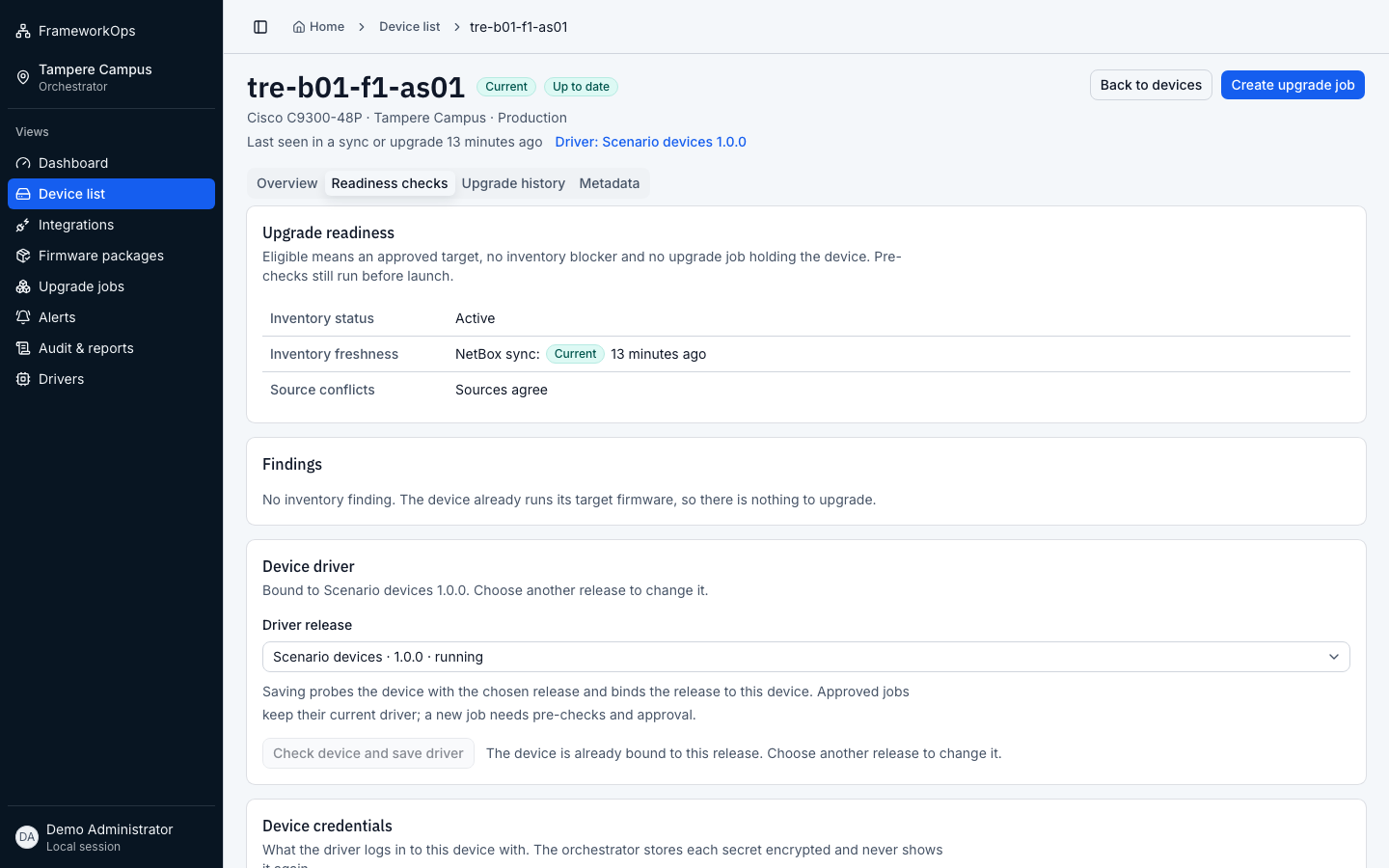
Upgrade readiness shows:
| Row | What it shows |
|---|---|
| Inventory status | Active, Stale, Missing or Decommissioned |
| Inventory freshness | One line per source, for example "NetBox sync:" Stale time. Or "No successful sync" |
| Source conflicts | Sources agree, or N conflicts |
Findings lists each finding with its Level: Blocker or Review. With none:
- "Nothing in the inventory blocks planning. Pre-checks still run for every upgrade job."
- "No inventory finding. The device is in an upgrade job that has not ended, so a new job can take it only after that one ends."
- "No inventory finding. The device already runs its target firmware, so there is nothing to upgrade."
At an orchestrator, three cards follow: Device driver, Device credentials and Setup readiness.
Upgrade history
Upgrade jobs lists the jobs that included the device, newest first.
| Column | What it shows |
|---|---|
| Job | The job name, which opens the job |
| Job status | The job's status |
| This device | The device's own outcome in the job. Open the job when a rollback waits for a decision |
| Firmware change | See below |
| Upgrade time | From the start of activation to the end of verification. Copying firmware is not included |
| Updated | When the job last changed |
The Firmware change cell is the device's own change in that job:
| Text | Meaning |
|---|---|
17.9.5 → 17.12.4 | From and to. For a job not run yet, from what the device runs now |
| Downgrade | The target is older |
| "Already on" version / "Already on target" | Nothing to change |
| "The inventory said version when the plan was made; the device reported version." | The device ran something else than planned |
| "Rolled back · back on version" | Rolled back |
| "Back on version: returned by itself when the commit window ended" | Returned by itself |
| "Rolled back; what it runs has not been read since" | Rolled back, not read since |
With no jobs: No upgrade jobs yet. Without permission to read jobs: Upgrade jobs are not visible to you.
Metadata
Inventory and source ("Source-owned facts, management identity, and imported inventory fields.") lists Serial number, Management address, Vendor, Model, Platform, Role, Orchestrator, Site (when it differs), Environment ring and Tags.
Source records lists each source record: Source (the integration name), External ID, Observed and State (Current, Stale, Last sync failed, Never synchronized or Missing).
At an orchestrator, when sources disagree, Unresolved source observations lists the conflicting fields: "Sources report different values for these fields. Correct the source record to resolve them." Each row shows the integration, the Observed value, the Source provider and Observed at, with Open integration name for the Orchestrator administrator and the Integration administrator.
Technical details hold the Device ID.
Device driver
At an orchestrator, Readiness checks > Device driver binds the device to the driver release that upgrades it. The Orchestrator administrator and the Integration administrator can change it.
Open Readiness checks.
Under Device driver, open Driver release and choose a release. Declared for this device lists releases that claim the device; Other approved drivers the rest. A release marked "not running" cannot be chosen.
The plan the release declares appears: Upgrade plan declared by name version.
Select Check device and save driver.
The driver probes the device, and Device driver saved appears. Review the refreshed Setup readiness before creating a new job.
Approved jobs keep the driver they were approved with. A new job needs fresh pre-checks and approval.
Approve a waiting release
When a newly installed release waits for approval, A driver release waits for approval shows on a device it can serve. The Orchestrator administrator and the Integration administrator can approve it.
Enter why the release is approved. It is recorded in the audit log.
Select Approve release beside the release.
name version is approved. Choose it under Driver release and save to bind it.
With no release to choose, No approved driver release says a driver is installed on the orchestrator host and then approved on a device it claims, with Open Drivers. See Drivers.
The declared plan
| Line | Meaning |
|---|---|
| "Steps and time budgets: …" | Pre-checks, staging, activation, verification and commit, each with its time budget |
| "Activation restarts the device." / "… does not restart the device." | Whether the device reboots |
| "Activation is final: the driver declares no commit step." | No commit window |
| "After activation the device waits up to time for a commit. Without one it returns to the previous firmware by itself." | Commit window with automatic return |
| "After activation the device waits up to time for a commit. Without one it stays on the new firmware, uncommitted." | Commit window without return |
| "Rollback within time: …" / "The driver cannot roll the device back." | How it rolls back: abort the activation before commit, or reinstall the previous firmware |
| "Accepted credential kinds: …" | Which device credentials it reads |
| Maintenance actions the driver offers | Extra actions, with what each does and its time budget |
Device credentials
At an orchestrator, Readiness checks > Device credentials holds what the driver logs in to the device with. Every role can see the list; the Orchestrator administrator and the Integration administrator can change it. Secrets are stored encrypted and never shown again.
The table shows Kind (Username and password, SSH key or API token), Label, State (Active, Expired, Revoked) and Last used (or Not used yet).
Add a credential
Select Add credential. It is offered while the device has no credential that is not revoked.
Choose Kind (required): the kinds the bound driver accepts.
Optionally enter a Label.
Fill in the fields. When the driver declares them, the form names them, for example "The driver reads these fields for this kind: username, password." Use Add field for more.
Enter why the credential is changed. It is recorded in the audit log.
Select Save credential.
Credential added: the driver logs in to this device with it from now on.
Field names use letters, digits or underscores, each once, and every field needs a value.
Replace or revoke
- Replace opens the same form for that credential. Credential replaced: the driver uses the new secret from now on.
- Revoke asks Revoke this credential? and a reason. The driver can no longer log in with it, and upgrades of the device need another active credential.
With no active credential, No active credential says to add or replace it before probing the device or saving an upgrade plan for it.
Setup readiness
At an orchestrator, once a driver is bound, Setup readiness lists what the device needs before it can be upgraded. "Launching an upgrade still requires job approval, pre-checks, and a maintenance window." Refresh checks again.
| Prerequisite | Good state | Otherwise, next step |
|---|---|---|
| Device inventory | The inventory has the management address the driver uses | "Run a sync and fix any source conflicts or the missing management address." |
| Driver binding | An approved release is bound | "The bound driver release is not approved or has been revoked. Ask an orchestrator administrator to approve a release or choose another driver." |
| Protected credentials | A credential of a kind the driver accepts | "Ask an orchestrator administrator to set up a device credential of a kind the driver accepts." (or add it under Device credentials when you can) |
| Device connection | "The driver's last probe reached the device and confirmed it handles it." | "No connection check is saved for this device. …" or "The last probe is too old. Check the device again; …" |
| Approved firmware | A compatible approved package is available | "Upload, validate, and approve a firmware package that is compatible with this device." |
| Driver runtime | The bound driver is running | "Ask an orchestrator administrator to start or restore the bound driver." |
| Your launch permission | "Your role can review and launch upgrades." | "Ask an organization administrator for permission to launch upgrades." |
States: Configured, Verified, Missing, Blocked, Stale, Unknown. Rows with an observation show "Observed time" and, when it expires, "Valid until time".
If the panel cannot load, Setup readiness couldn't be loaded says readiness is unknown until it loads, with Retry.
Actions
| Action | Where | Who | What it does |
|---|---|---|---|
| Create upgrade job | Orchestrator | Orchestrator administrator, Network operator | Opens the wizard with this device. See Planning an upgrade |
| Open on the orchestrator | Cloud | Roles with access at orchestrators | Opens this device's page at its orchestrator in a new tab |
| Upgrade on the orchestrator | Cloud | Organization Admin, Network Admin | Opens the orchestrator's wizard with this device |
| Open the job | Both | Readers of upgrade jobs | Opens the job, where rollback is decided |
The upgrade buttons are disabled when the device cannot be planned, with the reason beside them, for example "Already in an upgrade job that has not ended." or "No approved target for this device." A device already on its target can be planned, as a downgrade.
Rollback is not started from the device page. It is decided on the job's page. See Stops and rollback.
If the device is not found
Device not found: "This device is not in the inventory you can see. It may have been removed from its source, or it belongs to another orchestrator." A link with no device says "This link names no device. Open the device list to choose one."
If something goes wrong
See Inventory and integrations troubleshooting for missing credentials, unbound or stopped drivers, unreachable devices and source problems.