Appearance
Pre-checks
Pre-checks test every device of a saved plan before any device is upgraded. A plan can go on to Review & Launch only when its pre-checks pass, or when they finish with warnings that someone has acknowledged.
Pre-checks run at the orchestrator, on the job's Pre-checks step. Cloud shows a read-only copy of the results.
When pre-checks run
- Pre-checks run only on a saved plan, and only when someone starts them. Saving the plan opens the job page on the Pre-checks step.
- Every required check runs on every device. You cannot choose or skip checks.
- A run counts only for the plan it checked. When the plan or its inputs change, the run is out of date and pre-checks must run again.
- Once the job is launched, pre-checks no longer run for it. The Pre-checks tab keeps the runs it launched with.
You need the Network operator or Orchestrator administrator role to run, cancel or acknowledge pre-checks.
The Pre-checks step
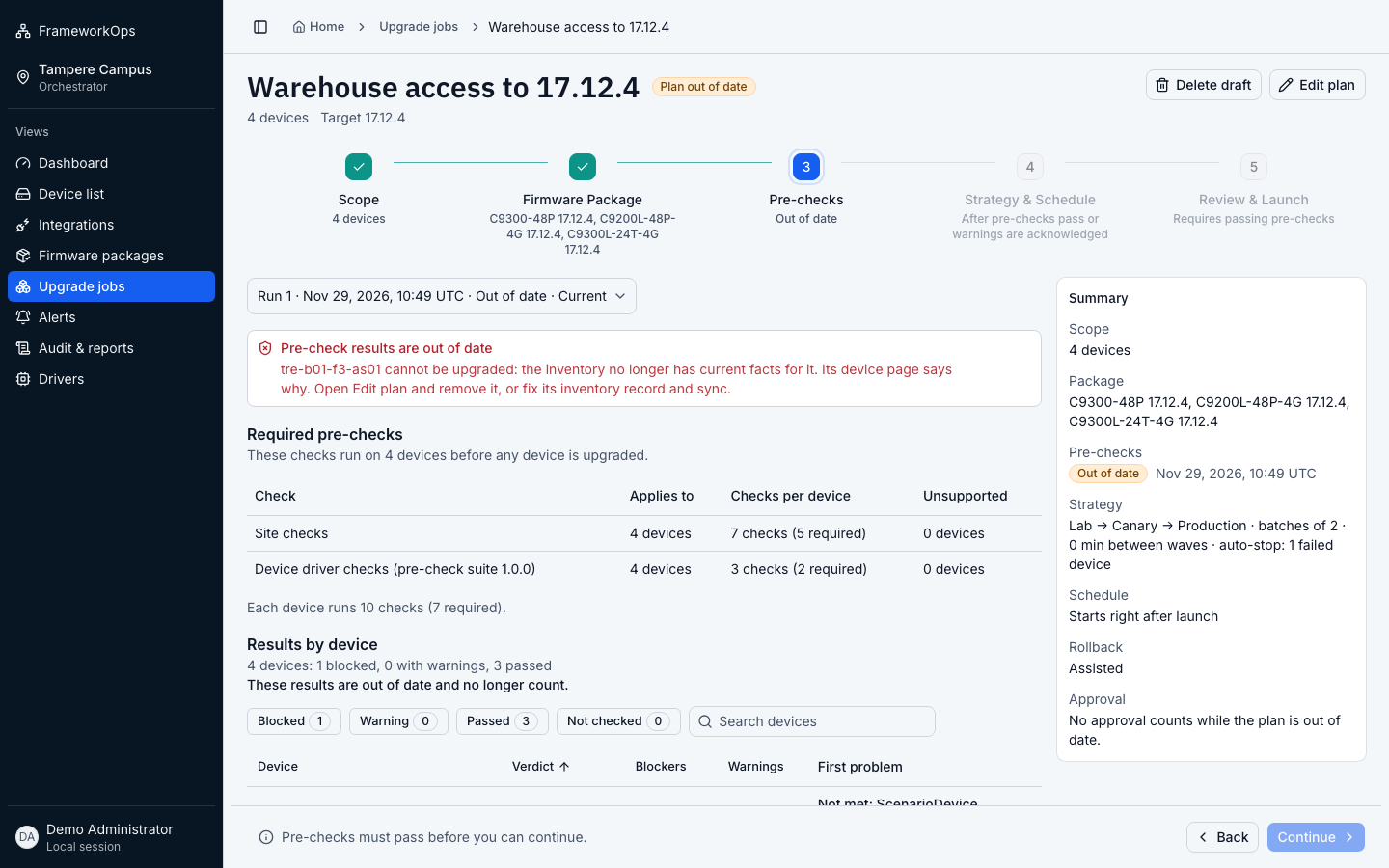
Open the job from Upgrade jobs. The page opens on Pre-checks. From top to bottom the step shows:
- Pre-check run: a selector with every run of the job. See Earlier runs.
- Notices about devices inside a commit window, if any.
- Maintenance window, when the plan runs in one. See Scheduling and launching.
- The blocker notice, when something stops the plan, with its fix actions.
- Devices held by other jobs, and inactive packages to remove, when they apply.
- Required pre-checks: what runs, and the Run required pre-checks button.
- Results by device: one verdict per device.
- Results: every check result, with filters.
- A notice when warnings were acknowledged, and Pre-checks passed when the plan may continue.
Running pre-checks
- On the Pre-checks step, select Run required pre-checks (or Re-run required pre-checks after an earlier run).
- In Run the required pre-checks?, read "Every required check runs on every device in the saved plan. You can't choose or skip checks."
- Type a reason under "Why are you running pre-checks now? Recorded in the audit log."
- Select Run pre-checks. To stop, select Don't run.
The button shows "Starting pre-checks…", then a progress bar: "N of M devices checked". The page updates by itself.
When the button is unavailable, the line under the heading says why:
| Message | Meaning |
|---|---|
| "A pre-check request is in progress." | Your request is being sent. |
| "You don't have permission to run pre-checks. Ask an orchestrator operator." | Your role cannot run pre-checks. |
| "Pre-checks are already running." | Wait for the current run. |
| "Pre-checks can run again once those devices are free." | Another job holds devices of this plan. |
| "Pre-checks can't run for this plan right now." or a sentence from the orchestrator | The plan cannot be checked as it is; the sentence says why. |
A plan that is out of date shows no run button at all: save it again first.
Cancelling a run
- Select Cancel pre-check run, beside the run button.
- In Cancel the running pre-checks?, read "Checks already in progress finish first. You'll need a new run before you can continue."
- Select Cancel pre-checks, or Keep pre-checks running.
The run then reads Cancelled, and the plan needs a new run.
What runs
Required pre-checks lists the check groups: "These checks run on N devices before any device is upgraded."
| Column | Meaning |
|---|---|
| Check | Site checks (the orchestrator's own checks), or Device driver checks (pre-check suite {version}) for each driver. |
| Applies to | How many devices get these checks. |
| Checks per device | For example "8 checks (6 required)". |
| Unsupported | Devices whose driver declares no pre-check step. |
The site checks are, in order:
| Check | Required | Blocks when |
|---|---|---|
| Inventory facts are current | Yes | The device left the inventory, its facts are stale or incomplete, or it runs other firmware than when the plan was saved. |
| The frozen driver serves the device | Yes | No driver, or another driver release, serves the device now. |
| The package is approved and here | Yes | The package changed, is no longer approved, is not at this orchestrator, or does not fit the device's firmware. |
| Rollback is possible as planned | Yes | The plan asks for assisted or automatic rollback and the driver cannot roll back. |
| Version direction | No (warning) | The package is a downgrade, the device already runs its version, or the direction is unknown. |
| The device's last upgrade succeeded | No (warning) | The device's last upgrade failed, or failed and was rolled back. |
| No uncommitted activation | Yes | The device runs new firmware that waits to be committed and its commit window is open. |
The driver checks depend on the device family: reachability, credentials, storage and whatever the driver declares. If the driver could not run its checks, the result The driver ran its pre-checks reports the error.
Result states
A run's state
The run selector and the Results heading show the run's state:
| State | Meaning |
|---|---|
| Queued | The run has been accepted and has not started a device yet. |
| Running | Devices are being checked. |
| Passed | No blocker and no warning. |
| Warnings | No blocker, but at least one warning. |
| Blocked | At least one check blocks a device. |
| Could not finish | The run failed before it finished. Run pre-checks again. |
| Cancelled | Someone cancelled the run. |
| Out of date | The plan, a package or a device changed after the run. Its results no longer count. |
| Superseded / Superseded by Run N | An earlier run of the same plan that a newer run replaced. |
Next to a plan held by another job, a clean run says so: "Passed, but devices in another job still block the plan" (in the selector, "Passed, still blocked").
A check's outcome
| Outcome | Blocks the plan | Meaning |
|---|---|---|
| Blocker | Yes | A required check failed. Blocking results can't be overridden. |
| Error | Yes | The check could not be evaluated, for example the driver did not answer. |
| Unsupported | Yes, when the check is required | The driver does not support the check for this device. |
| Warning | No, once acknowledged | A risk to review. It must be acknowledged with a reason before Review & Launch. |
| Passed | No | The check passed. The detail says what was checked. |
| Not applicable | No | The check does not apply, or the driver did not run an optional check for this device. |
Blockers and warnings
A blocker stops the plan. You cannot acknowledge or override it. You must fix the device, or remove it from the plan, and run pre-checks again.
A warning does not stop the plan, but someone must acknowledge it, with a reason, before the plan can continue. An acknowledgement covers only the warnings of the current run. A new run or a plan change needs a new acknowledgement.
Reading the results
Results by device
Results by device gives each device one verdict: "N devices: B blocked, W with warnings, P passed".
| Verdict | Meaning |
|---|---|
| Blocked | At least one blocking result. |
| Warning | Warnings, no blocker. |
| Passed | Every check passed; the row says "N checks passed". |
| Not checked | The device has not been checked yet in this run. |
The columns are Device, Verdict, Blockers, Warnings and First problem. Use Filter devices by verdict and Search devices to narrow the table.
Results
Results lists every check of every device. The heading says the run's state and when it ended, started or was queued.
- The outcome buttons above the table (Blockers, Errors, Unsupported, Warnings, Passed, Not applicable) each show a count and filter the table to that outcome.
- Filter by device, Filter by driver, Filter by check suite and Filter by outcome narrow the table further.
- Each row shows Outcome, Check, Device, Observed and Detail. A failed check reads "Not met: {check}". Select a row's details to see Next step (the remedy the driver offers), the check code, the device ID, whether it is Required, and Evidence.
- When a driver gave no details, the row says, for example, "{check} blocked this device. The driver gave no details."
When warnings affect devices, a notice above the table lists them: "N warnings affect devices in this plan", each with its device count.
Filters are kept in the address. They belong to the Pre-checks step and are cleared when you leave it.
Fixing blockers
When a run finds blockers, the blocker notice names them, for example "2 blocking checks failed on 3 devices", and lists each blocking check with its device or device count. Click a check to jump to its result row.
The notice offers:
- Show blockers only: filters the results to the blocking ones.
- Remove N blocked devices and re-run: takes the blocked devices out of the plan. See Removing devices.
To fix a blocker:
- Read the result's Detail and Next step.
- Fix the device or its setup. For example, synchronize the inventory source, start or bind the driver, approve the package, or wait for a commit window to end. Troubleshooting pre-checks lists every blocker and what to do.
- Select Re-run required pre-checks.
When every device is blocked, the notice says "Every device is blocked. Fix them, or delete this draft."
Removing devices from the plan
- Select Remove N blocked devices and re-run in the blocker notice, or Remove N devices and re-run in the panel about devices held by another job.
- Read Remove N devices from this plan? and the devices it names: "The plan is saved without them and pre-checks run again. The earlier results and any approval stop counting. To bring a device back, edit the plan."
- Type a reason under "Why do these devices leave the plan?"
- Select Remove and re-run (or Remove devices, when you cannot run pre-checks yourself). To stop, select Keep devices.
If a maintenance window was recorded, the dialog says whether it stays for the new plan or must be recorded again.
Inactive packages
When old firmware packages on a device would make the upgrade time out, the step shows Inactive packages block N devices: "Old firmware packages on these devices make the upgrade time out before the transfer starts. Remove them, then run pre-checks again."
- Select Remove inactive packages (N devices).
- Choose the devices, type a reason, and keep Run the pre-checks again when the removal finishes ticked if you want a new run afterwards.
- Select Remove from N devices.
"Each selected device deletes the package files its running image does not use. The running firmware and configuration stay unchanged." Removing packages requires the upgrade launch permission. Devices whose driver cannot remove packages are listed under N devices need manual removal.
Acknowledging warnings
When a run finishes with warnings and no blocker, the action bar at the bottom shows "Acknowledge N warnings to continue." and the button Acknowledge N warnings.
- Select Acknowledge N warnings.
- In Acknowledge the current warnings?, read each warning, its detail, the next step and the affected devices. Show in results filters the table to one warning's devices.
- Type a reason under "Why are these warnings acceptable? Recorded in the audit log."
- Select Acknowledge warnings. To stop, select Don't acknowledge.
The step then shows "Warnings acknowledged {time}" with the warnings and your reason, and Pre-checks finished: warnings acknowledged. The job status becomes Ready to launch (or Maintenance window needed).
Moving on
When the plan may continue, the step shows Pre-checks passed: "Continue to Strategy & Schedule to review what was saved with the plan, then to Review & Launch." The Strategy & Schedule and Review & Launch steps become available. See Scheduling and launching.
Until then, Continue is unavailable and the bar says why:
| Message | Meaning |
|---|---|
| "Run pre-checks to continue." | No run yet. |
| "Pre-checks must pass before you can continue." | The run is blocked, out of date, failed or cancelled, or another job holds devices. |
| "Acknowledge N warnings to continue." | Only warnings remain. |
When results go out of date
A run's results stop counting when:
- you save the plan again (Edit plan, or removing devices),
- a package of the plan changes, for example its compatibility rule,
- a device changes: it leaves the inventory, its facts go stale, or it runs other firmware,
- another driver release serves a device.
The step then shows Pre-check results are out of date: "The plan or its inputs changed after the last run, so its results no longer count. Open Edit plan and save it, then run pre-checks again." Often the orchestrator's own sentence replaces this, naming what changed, for example "{package} changed after the last pre-check run. Run the pre-checks again."
An approval does not count while the plan is out of date: "No approval counts while the plan is out of date."
Earlier runs
The Pre-check run selector lists every run, newest first, for example "Run 3 · Nov 9, 2026, 19:42 UTC · Passed · Current". Select Load older runs to see more.
Choosing an earlier run shows its results with the notice You're viewing an earlier pre-check run: "Earlier runs are kept for reference. They can't be used to continue or launch; the job status reflects the current run." Choose the run marked Current to return.
When the plan changed and has no current run, the selector says "No current run (N earlier runs)".
Pre-checks in Cloud
A job's Cloud page shows the same runs read-only: "Read-only copy of this job from the orchestrator. Pre-checks, launch, pause, resume and rollback happen there."
- Pre-check run history: "Choose a pre-check run to review its results." Each run is marked Current run or Out-of-date run.
- The results table has the columns Outcome, Check, Device, Detail, and Evidence and remediation when there is any. Filter by Device, Driver, Outcome and Suite; Clear result filters removes them.
- The Job summary says "Pre-checks blocked N devices" with Show blockers.
If Cloud has not received a run yet, it says "Pre-check results are not copied from the orchestrator yet": "The orchestrator sends them with its next sync. Refresh evidence reads them again; the orchestrator's own job page has them now." Select Open on the orchestrator to act on the results.
If something goes wrong
See Troubleshooting pre-checks for every blocker and warning, runs that do not finish, plans held by another job, and results that went out of date.