Appearance
Alert rules
Alert rules decide which events at an orchestrator become alerts, how serious they are, who owns them and where notifications go. You manage rules at each orchestrator, under Alerts > Rules.
Rules belong to one orchestrator: "Scope is always this orchestrator. Upgrade thresholds and rollback are configured in upgrade jobs." Cloud has no rule editor. In Cloud, Settings > Notifications points you to the orchestrators (see Settings).
Who can manage rules
| Role | What you can do |
|---|---|
| Organization Admin, Network Admin | Create, edit, duplicate, activate, disable and delete rules |
| Auditor | View rules and open them read-only |
| Change Approver, Integration Admin | No access to the Alerts view at an orchestrator |
A read-only viewer sees "Your role can view rules but not change them." in the list, and in the rule editor "Your role can view this rule but not change it. Ask an orchestrator administrator for operator access."
The rules list
- At the orchestrator, open Alerts in the sidebar.
- Select the Rules tab.
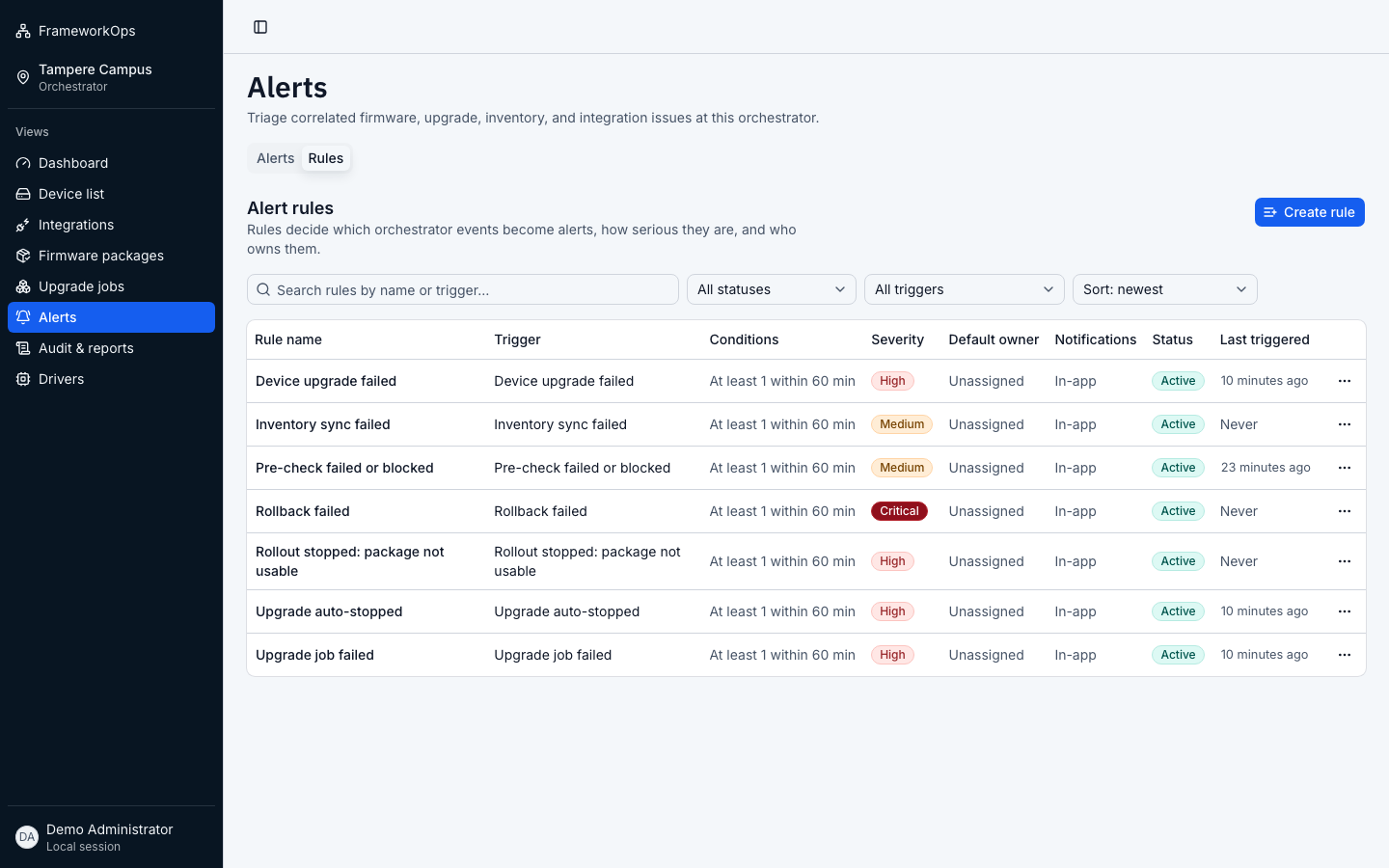
| Column | Content |
|---|---|
| Rule name | The name you gave the rule. Select it to open the rule |
| Trigger | The event the rule watches, for example Upgrade job failed |
| Conditions | When the rule opens an alert, for example "At least 1 within 60 min", and "1 condition" or "2 conditions" when it has any |
| Severity | Critical, High, Medium, Low or Info |
| Default owner | A team name or Unassigned |
| Notifications | In-app, plus Email or Signed webhook when chosen |
| Status | Active, Disabled or Draft |
| Last triggered | When the rule last opened or updated an alert, or Never. Select the time to see the rule's alerts in every status |
| Actions (...) | Edit, Duplicate, Activate or Disable, Delete |
Use Search rules (name or trigger), Status (All statuses, Active, Disabled, Draft), Trigger (All triggers or one trigger) and the sort menu (Sort: newest, Sort: name, Sort: last triggered, Sort: severity, Sort: status). Clear all removes the filters. When the list is long, select Load more rules.
Rule statuses
| Status | Meaning |
|---|---|
| Active | Evaluates every new matching event and opens or updates alerts |
| Disabled | Opens no alerts. Alerts it already opened stay until they are resolved |
| Draft | Saved but never evaluated |
The starter rules
Every orchestrator starts with seven active rules. They notify in the app only.
| Rule | Severity | Impact |
|---|---|---|
| Upgrade job failed | High | Blocking |
| Device upgrade failed | High | Blocking |
| Upgrade auto-stopped | High | Blocking |
| Rollout stopped: package not usable | High | Blocking |
| Rollback failed | Critical | Blocking |
| Pre-check failed or blocked | Medium | Degraded |
| Inventory sync failed | Medium | Degraded |
They are ordinary rules: edit, disable or delete them as you need. A deleted starter rule does not come back.
Create a rule
Select Create rule. The editor Create alert rule opens with five steps: Trigger, Scope & conditions, Triage behavior, Notifications and Review & test. Use Next and Back to move between steps. Cancel leaves without saving.
When a step is missing something, Next is unavailable and the bar says what to do, for example "Choose a trigger to continue." A step with a problem is marked in the step list. When you create a rule, you cannot jump past a step that is not complete. When you edit a rule, you can open any step.
You can also start a rule from an alert: open the alert, then More actions > Create rule from alert. The editor starts with the alert's trigger, severity and impact, and the name "<trigger> follow-up".
Step 1: Trigger
Under Choose a trigger, select one trigger. Each card shows the trigger's name, a description and its source. The triggers are listed in Alerts.
Then set Trigger behavior:
| Field | Values | Meaning |
|---|---|---|
| Minimum occurrences (required) | Whole number 1 to 100. Default 1 | "Matching events for the same issue before an alert opens." |
| Correlation window in minutes (required) | Whole number 1 to 1440. Default 60 | "Occurrences count toward the minimum only within this window." |
| Correlation key | Shown, not editable | What one alert is kept per, for example Upgrade job, Device or Integration |
| When a resolved issue returns | Reopen the resolved alert (default) or Open a new alert | What happens when the same issue comes back after its alert was resolved |
A line under the fields sums it up: "Creates or updates one alert per upgrade job when Upgrade job failed."
TIP
Repeated matching events for the same issue update one open alert. Upgrade auto-stop thresholds are set in the upgrade job wizard, not here. See Scheduling and launching.
Step 2: Scope & conditions
A rule always covers "All matching events at this orchestrator". You can narrow it with Additional conditions: "Match when all of the following conditions are true."
- Select Add condition.
- Choose a Field (required): Failed devices or Impacted devices, as the trigger provides.
- Choose an Operator (required): is at least, is at most or equals.
- Enter a Value (required): a whole number from 0 to 10000000.
A rule can have at most 5 conditions. Remove one with its remove button. Two identical conditions are refused: "This repeats a condition above. Change its field or operator, or remove it."
Triggers without counts say "This trigger has no numeric fields to condition on. It matches every event of its type." With no conditions, every matching event counts.
| Trigger | Condition fields |
|---|---|
| Upgrade job failed | Failed devices |
| Upgrade auto-stopped | Failed devices, Impacted devices |
| All other triggers | None |
Scope decides which events may create alerts. It never controls upgrade execution or rollout order.
Step 3: Triage behavior
Under Classify and assign:
| Field | Values |
|---|---|
| Severity (required) | Critical, High, Medium, Low, Info. "Severity describes operational risk." |
| Impact (required) | Blocking, Degraded, Advisory. "Impact describes the effect on upgrade execution or service." |
| Default status | Always Open. "New alerts always open as Open; status tracks the triage lifecycle." |
| Default ownership | Unassigned or Team. For a team, enter the Team name (required) |
An alert keeps the severity, impact and owner it opened with. A change here applies to the alerts this rule opens after you save it.
Step 4: Notifications
Under Choose when and where notifications go:
- Under Notify when, choose one or more of: The alert opens (selected by default), The alert reopens, The alert is resolved.
- Under External channels, select Email and/or Signed webhook if you want more than the in-app notification. "In-app notification is always sent."
Each channel shows its state at this orchestrator:
| State | Meaning |
|---|---|
| Ready | The channel is set up and can deliver |
| Not configured | The channel is not set up. You cannot select it |
| Blocked | The channel cannot deliver. You cannot select it |
| Status unavailable | The state could not be read |
A channel that is not ready cannot be newly selected. A channel already selected in a saved rule stays selected and shows "This channel is not ready. Deliveries will fail until the orchestrator configuration is fixed." You can clear it.
INFO
"Destinations, recipients and signing keys live in the orchestrator's protected server configuration. This rule only selects channels." Email recipients and webhook addresses are not set in the UI; ask the person who operates the orchestrator.
A line at the end sums up the choice, for example "When the alert opens, notify in-app and by signed webhook." or "Only in-app notifications are sent."
Assigning an alert does not change who is notified.
Step 5: Review & test
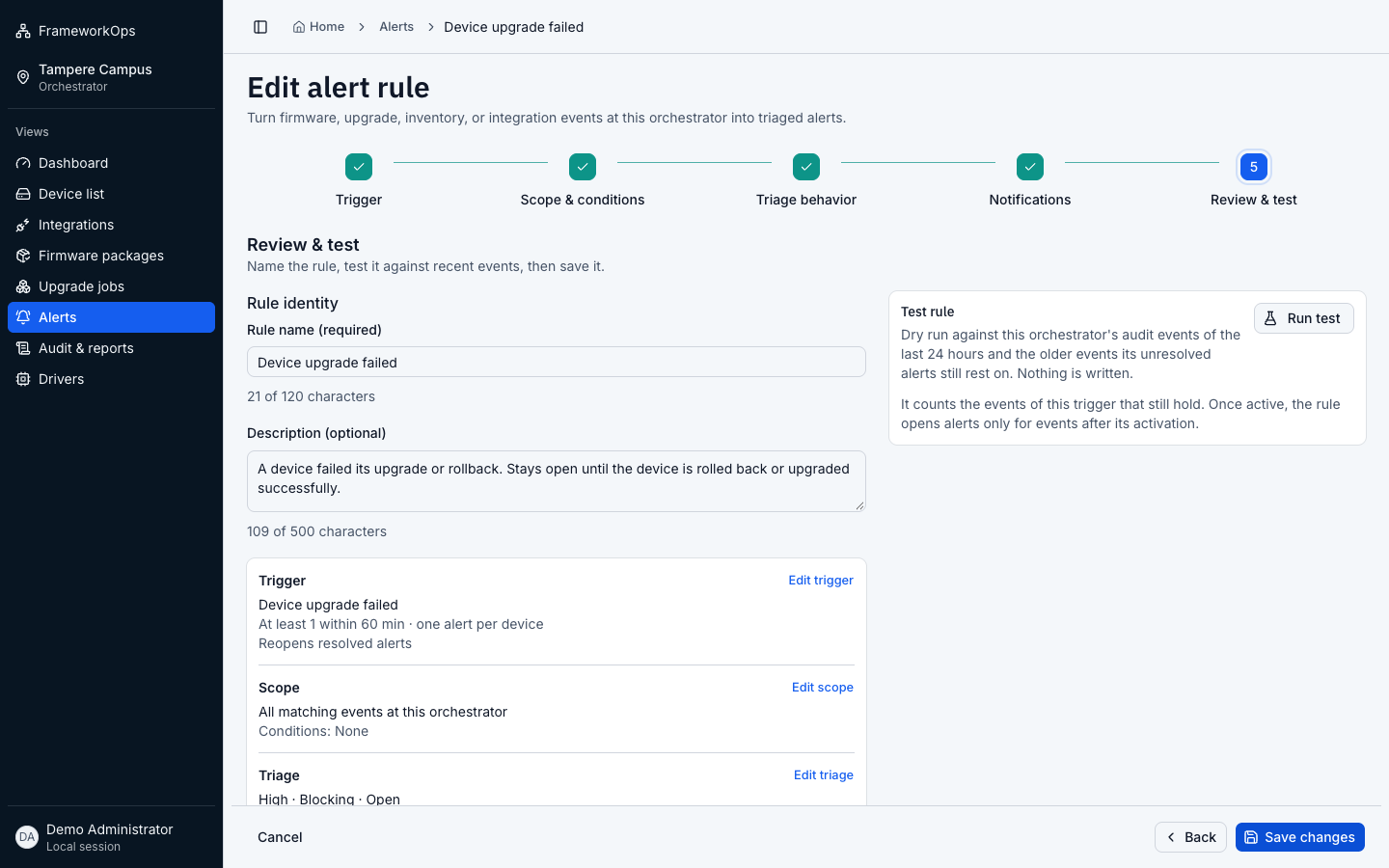
- Under Rule identity, enter the Rule name (required), at most 120 characters, and if you like a Description (optional), at most 500 characters. Rule names must be unique at the orchestrator.
- Check the summaries of Trigger, Scope, Triage and Notifications. Use Edit on a summary to go back to that step.
- Under Test rule, select Run test.
The test is a dry run "against this orchestrator's audit events of the last 24 hours and the older events its unresolved alerts still rest on. Nothing is written." It shows:
| Result | Meaning |
|---|---|
| Events of this type | Events of this trigger that still hold |
| Match the conditions | How many of them pass your conditions |
| Alerts that would open | How many alerts the rule would open now |
| Most recent event | Time, Subject, Upgrade job and View this event in the audit log |
| Each condition | Passed or Did not pass, with the actual value |
When there is nothing to test against: "No event of this type still holds, in the last 24 hours or behind an unresolved alert, so there was nothing to match. The rule will still evaluate new events." Once active, the rule opens alerts only for events after its activation.
- Save the rule:
- Save as draft saves it without evaluating anything. The message reads "Rule ... saved as a draft."
- Save & activate asks Activate this alert rule?, lists the scope and notifications, and saves on Activate rule. Select Keep editing to go back. The message reads "Rule ... saved and active."
"Active rules evaluate every new matching event at this orchestrator. Events recorded before activation are not evaluated."
Edit a rule
- In the rules list, open the rule's ... menu and select Edit.
- Change what you need in any step.
- On Review & test, save:
- An active or disabled rule has Save changes. Its status does not change.
- A draft has Save as draft and Save & activate.
The message reads "Rule ... updated." Alerts already open keep their severity, impact and owner.
Duplicate a rule
Open the rule's ... menu and select Duplicate. A draft copy named "<name> (copy)" is created: "Created draft rule ...". Edit and activate it when ready.
Activate or disable a rule
- Open the rule's ... menu and select Activate (for a draft or disabled rule) or Disable (for an active rule).
- Confirm:
- Activate this rule? "... starts opening alerts for new matching events. Events recorded before now are not evaluated." Select Activate rule.
- Disable this rule? "... stops opening alerts. Alerts it already opened stay until they are resolved." Select Disable rule.
Select Keep rule to cancel. The message reads "Rule ... is now Active." or "... is now Disabled."
Delete a rule
You can delete a rule only when it is not active and has no open alerts.
- If the rule is active, disable it first. The menu says "Disable the rule before deleting it."
- If the rule still has open alerts, resolve them. The menu says "Resolve this rule's open alerts, then delete it."
- Open the rule's ... menu and select Delete.
- In Delete this rule?, select Delete rule.
"... is removed from this list. Alerts it opened in the past keep its name, and the audit log records the deletion. This cannot be undone."
Errors when saving
| Message | What to do |
|---|---|
| "The rule could not be saved. Check the highlighted steps and retry." | Open the steps marked in the step list and fix the fields |
| "An alert rule with this name already exists." | Choose another name |
| "The orchestrator did not accept the rule name. Change the name and try again." | Change the name |
| "The orchestrator did not accept the description. Change the description and try again." | Change the description |
| "The orchestrator did not accept this rule. Review each step, change what is wrong and try again." | Check every step |
| "Someone else changed this rule. Reload it from the rules list and apply your changes again." | Go back to the list, open the rule again and redo your change |
| Alert rule deleted: "Someone else deleted this rule while you were editing it, so your changes could not be saved." | Select Back to rules |
| Alert rule not found | The link names a rule that does not exist. Select Back to rules |
| The rule could not be loaded | Check the orchestrator connection, then Retry |
All rule changes are recorded in the audit log (family Alerts), with what changed.
If something goes wrong
See Troubleshooting: Alerts and audit for rules that do not raise alerts, failed tests and notifications that do not arrive.