Appearance
Settings
Settings in Cloud holds the organization's profile, its users, its security policy, and pointers to where notifications and deployment are handled. Orchestrators have no Settings view: their alert rules and notification channels are under Alerts > Rules at each orchestrator.
Open Settings
- In Cloud, select Settings in the sidebar.
- Select a tab: Organization, Users, Security, Notifications or Deployment.
Every member can open Settings. What you can change depends on your role:
| Role | Can change |
|---|---|
| Organization Admin | Organization name and time zone, the organization policy, users |
| All other roles | Nothing. The page shows Read-only settings: "You can review the saved settings here. Ask an organization admin to make changes." |
If you leave a tab with unsaved changes, Discard unsaved changes? asks whether to Keep editing or Discard changes.
Organization
Organization summary: "The organization's name, time zone and plan as Cloud holds them."
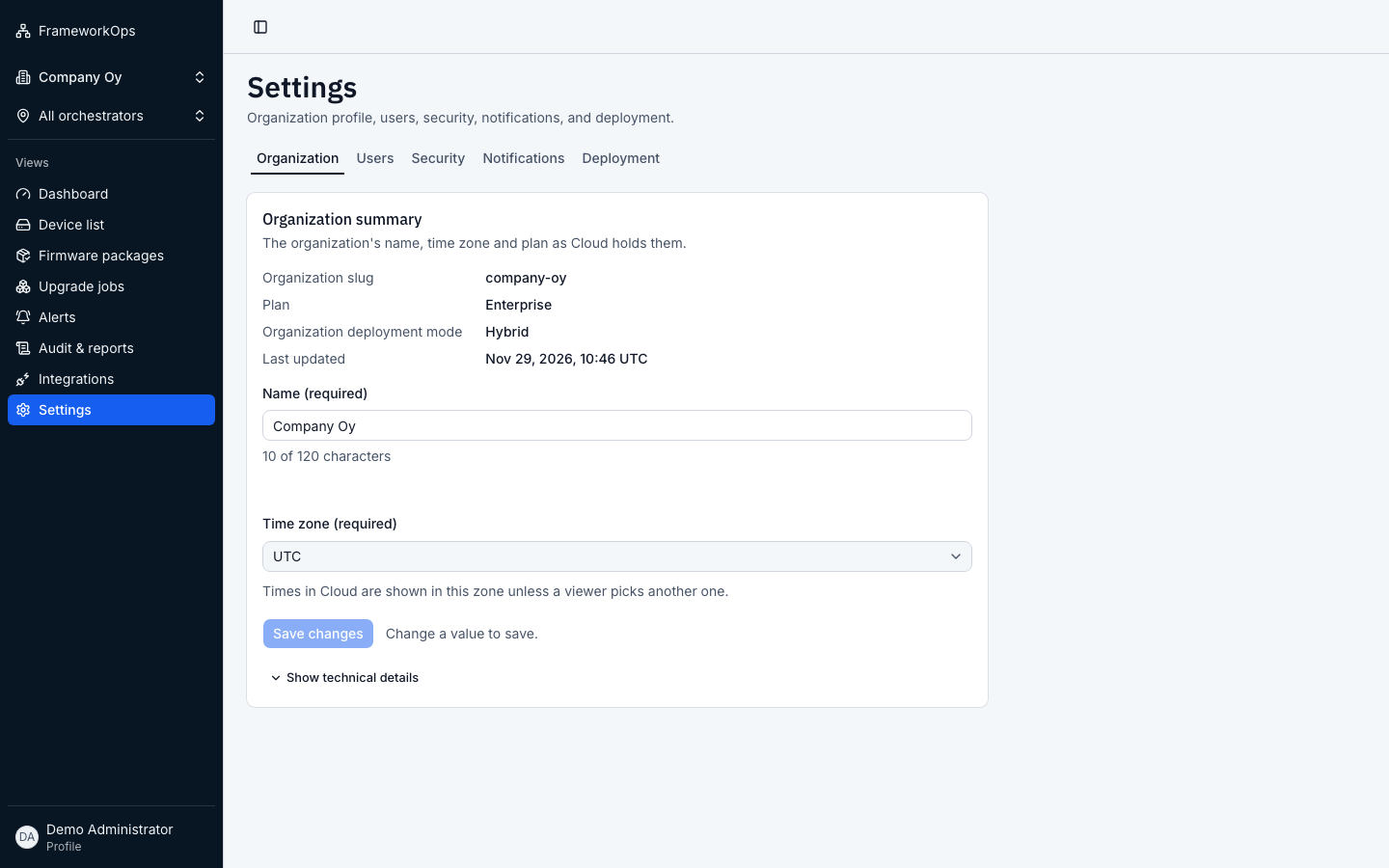
| Field | Content | Changeable |
|---|---|---|
| Name | The organization's name | Organization Admin, as Name (required), at most 120 characters |
| Time zone | The default zone for times in Cloud | Organization Admin, as Time zone (required) |
| Organization slug | Short name of the organization | No |
| Plan | The organization's plan | No |
| Organization deployment mode | Hybrid, On-premises, SaaS or Air-gapped preparation | No |
| Last updated | When these settings were last saved | No |
| Organization ID | Under Show technical details | No |
"Times in Cloud are shown in this zone unless a viewer picks another one."
Change the name or time zone
- Open Settings > Organization.
- Change Name (required), or choose a zone in Time zone (required). Type to search time zones.
- Select Save changes. It is unavailable until you change a value ("Change a value to save.").
Changes saved: "The new values apply to the organization now." Every time in Cloud follows the new zone at once.
Users
Members, invitations and roles. See Users and roles.
Security
Organization policy: "Cloud sign-in uses your organization's identity provider. These saved policy values apply to every orchestrator."
| Setting | Values | Changeable |
|---|---|---|
| Sign-in | Organization single sign-on (OIDC) | No |
| Production approval | Always required | No |
| Enforce MFA for all admins | Required or not required by saved policy | Organization Admin |
| Session timeout | Minutes, hours or days | Organization Admin, 5 to 43,200 minutes (30 days) |
| Pre-check warning acknowledgement | Allowed or Not allowed | Organization Admin |
| Offline policy maximum age | Hours | Organization Admin, 1 to 168 hours |
| Policy revision | Number of the saved policy version | No |
What the editable settings do:
| Setting | Effect |
|---|---|
| Enforce MFA for all admins | "Administrators must complete multi-factor authentication at your identity provider." |
| Session timeout in minutes (required) | How long a Cloud session lasts. "The session token inside renews every hour." |
| Pre-check warning acknowledgement | "Lets an operator continue past pre-check warnings by acknowledging them. Blockers can never be acknowledged." See Pre-checks |
| Offline policy maximum age in hours (required) | "How old an orchestrator's copy of this policy may be before the orchestrator stops accepting it." |
Change the policy
- Open Settings > Security.
- Change the fields you need.
- Select Save changes.
If your role cannot read the policy, the tab shows Policy not available: "Your roles do not include viewing the organization policy. Ask an Organization Admin."
WARNING
Turning off Pre-check warning acknowledgement means jobs with pre-check warnings cannot go on until the warnings are cleared. Shortening Offline policy maximum age makes an orchestrator stop accepting the policy sooner when it cannot reach Cloud.
Notifications
Notifications are managed on each orchestrator: "Alert rules, recipients, and delivery channels belong to the orchestrator that raises the alert."
- If your roles can change alert rules at orchestrators (Organization Admin, Network Admin), the tab offers Open Orchestrator connection to reach an orchestrator.
- Otherwise it says "An Organization Admin or a Network Admin can review them there."
See Alert rules.
Deployment
"This is the Cloud control plane. Each orchestrator is deployed on its own."
| Field | Content |
|---|---|
| Current application | Cloud |
| Organization deployment mode | Hybrid, On-premises, SaaS or Air-gapped preparation |
"Orchestrators and their connection state are listed under Orchestrator connection." Select Open Orchestrator connection to go there. If your roles give no access at orchestrators, the tab says "Your roles do not include connecting to orchestrators. Ask an Organization Admin." See Orchestrator connection.
API keys
There is no API key page. A link to it shows API keys: "Organization API keys cannot be viewed or managed here." Orchestrator credentials and signing keys are separate.
When a save fails
| Message | What to do |
|---|---|
| Changes not saved: "Cloud refused the change. Someone may have changed these settings meanwhile: reload the page and try again." | Reload the page and make the change again |
| "Someone else saved these settings meanwhile. ..." | Your edit is still in the form. Check the saved values the message names, then select Save changes again |
| "Your roles no longer allow this. The page now shows what you can do; ask an Organization Admin if you need more." | Your roles changed. Ask an Organization Admin |
| "Fix the name above to save." / "Choose a time zone above to save." | Correct the field |
| "Enter whole minutes from 5 to 43,200 (30 days)." | Correct the session timeout |
| "Enter whole hours from 1 to 168." | Correct the offline policy age |
Your own profile, sign-in sessions and passkeys are under My profile; see Profile and security.